The End-of-Day Closeout
The end-of-day closeout is the cleanup pass that turns a chaotic day into a clean record. Skip it and tomorrow morning's dispatcher inherits a mess of half-finished jobs, missing time entries, and undrafted invoices. Do it well and you start the next day knowing exactly where you stand — what closed, what's open, what's waiting on a customer, and what bills got sent.
It takes about thirty minutes if your techs do their part during the day. It can take ninety if they don't. Either way, doing it daily is roughly ten times faster than letting it pile up to weekly.
Why bother every day
A closeout that happens nightly catches problems while they're still fixable. Tech forgot to add the part they used? They remember now; they don't remember on Friday. Time entry got punched at the wrong job? The customer hasn't been invoiced yet, so you can fix it without reissuing. Customer complained that the work wasn't done? You can call them tonight and offer a re-visit before they post a one-star review. The cost of finding these things tomorrow morning is small. The cost of finding them next week is large.
There's also a money reason: invoices you draft and send today get paid sooner than invoices you draft and send three days from now. A consistent same-day-or-next-day invoicing cadence shaves real time off your A/R aging.
Step 1 — Sweep the "In Progress" jobs
Start on the dispatch board. Filter (or scan) for any jobs still in "In Progress" status that should be done by now.

Three reasons a job is still in progress at 5 PM:
- Tech genuinely is still working on it. Fine. Leave it.
- Tech finished but forgot to mark it complete. Common. Open the job, check that it's actually done — line items there, signature captured, photos uploaded — and close it on their behalf. Note who you closed it for (the audit log will record you, but a comment helps the morning dispatcher understand).
- Tech finished but the job isn't actually done. Maybe they ran out of a part and it needs a return visit. Don't close it. Mark it appropriately (some shops use a "Needs Followup" or "Awaiting Parts" status — see Job statuses and the state machine) and add a note about what's needed. Tomorrow's dispatcher will see it and can schedule the return visit.
The point of this sweep is that the job status field is supposed to be the truth about where work stands. Jobs lingering in "In Progress" because nobody clicked Complete pollute every report you'll run.
A note on what "closed" means at your shop
The system can accommodate any of these workflows — pick the one that matches how you actually work:
- Close on completion. Tech marks the job Complete when the work is physically done; an invoice gets drafted at that point. Most service businesses do this.
- Close on invoice creation. Some shops want a job to stay "open" until somebody has reviewed and drafted the invoice — that's the moment they consider the work logged-and-billable. They may use a "Pending Invoice" intermediate status.
- Close on payment. Other shops keep a job open all the way until the customer's invoice is paid in full — for them, "closed" effectively means "this is done, billed, and collected." The job's open count becomes a working A/R queue.
None of these is wrong. The system doesn't enforce any particular meaning of "closed" — your job statuses can be defined however your business runs. What matters is that you're consistent within your own shop, and your reports filter on the statuses that match your definition. If you're not sure which to pick, start with "close on completion" — it's the closest to what the auto-invoice flow expects, and you can layer on a "Pending Invoice" or "Awaiting Payment" status later if you find you need one.
Step 2 — Reconcile time entries
Open the time clock report for today. Look for two patterns:
- Punches with no matching out-punch. Tech clocked in this morning, never clocked out. Either they're still working (rare at 5 PM) or they forgot. Confirm by text, then enter or correct the punch. See Correcting time entries.
- Punches with no associated job. Tech clocked in but didn't tie their time to any job. Their hours land in the general bucket, which means payroll bills the time but no specific job got charged for it. Find the job by asking the tech, or by looking at where they were on the dispatch board.
Missing punches don't just hurt payroll — they hurt job profitability. If three hours of labor never got billed against a job, that job's margin report is going to look wonderful and your reality is going to look not-wonderful.
If your shop uses Payroll categories and time types (overtime, travel, training), make sure each entry is in the right category. Drive time logged as regular labor inflates job cost; regular labor logged as drive time deflates it.
Step 3 — Generate invoices from closed jobs
Now that the day's jobs are accurately closed, generate invoices from the ones that should have one. The mechanics vary depending on your settings — some shops auto-generate when a job closes, others draft manually. Either way, by the end of the closeout pass, every closed-and-billable job should have an associated invoice in some state.
Quick review of each draft invoice:
- Are the line items right? Cross-reference against the job. If the tech reported using two filters and the invoice has one, dig in.
- Is the tax category right? Items pulled from the price list inherit the right category automatically. Items the tech typed in by hand often don't. See How tax categories work and Handling tax-exempt customers.
- Are the terms right? The invoice inherits the Account's default terms. If you have a Net 30 commercial customer and the invoice came out as Due on Receipt, somebody changed the wrong default somewhere.
- Is the customer right? Sounds dumb. It happens. Especially on jobs that got reassigned mid-day.
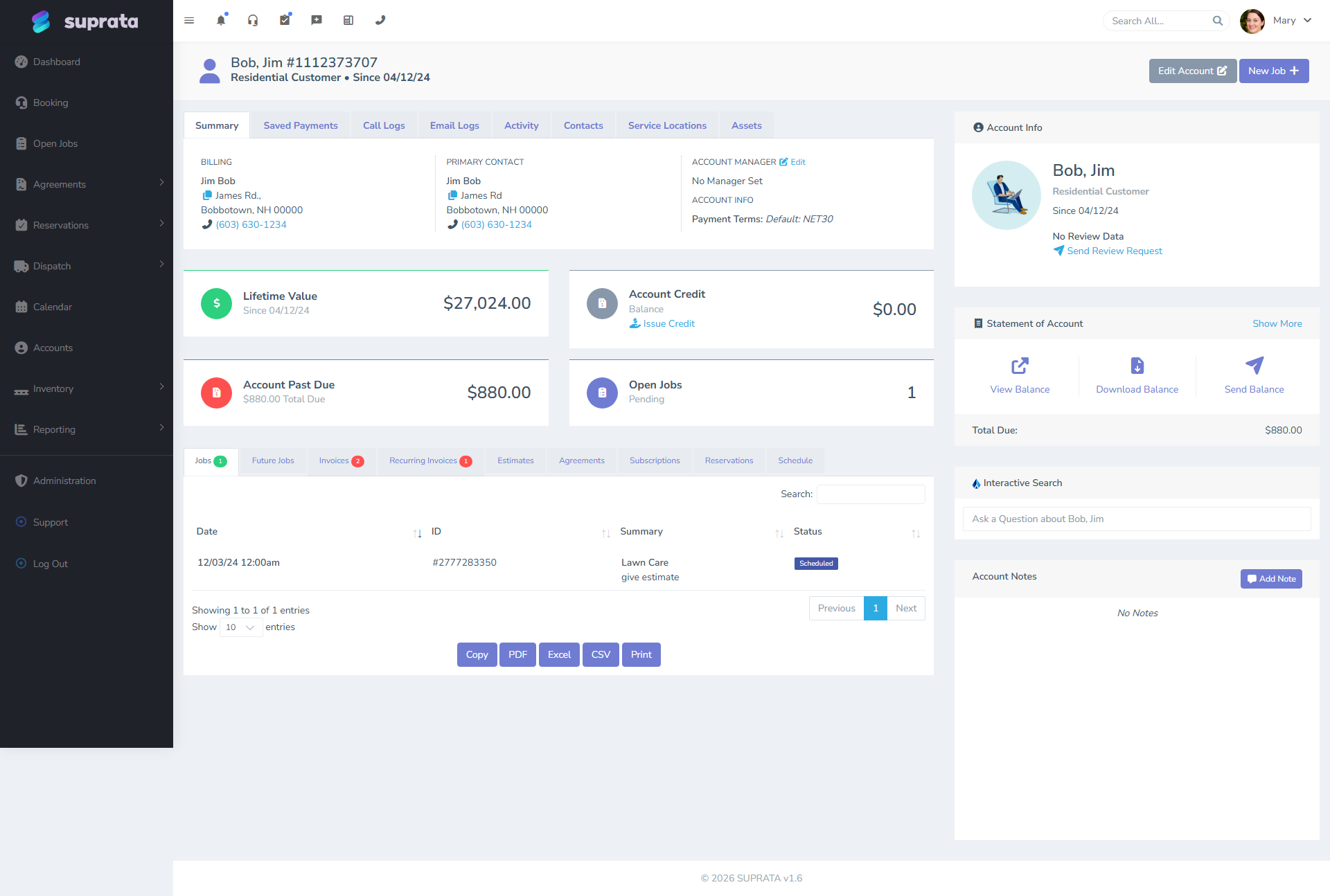
Step 4 — Send the invoices that are ready
For each draft invoice that passed review, send it. The customer gets an emailed invoice with a payment link; the invoice flips from Draft to Sent; the A/R clock starts.
Don't sit on drafted invoices "to send tomorrow." Tomorrow you'll have a new pile of drafts and yesterday's drafts will still be there. Send today's today.
If a customer specifically requested a paper invoice (mailed), generate the PDF, print it, and mark the invoice as sent in the system anyway — sent meaning "we have notified the customer," not specifically "we emailed it." Otherwise the system will keep nagging you that it's an unsent invoice.
See Sending an invoice to a customer for the mechanics.
Step 5 — Look at tomorrow
Take three minutes to glance at tomorrow's calendar. Two questions:
- Are there appointments still unconfirmed? Don't fix them tonight; that's the morning dispatcher's job. But if it's 8 PM and you see fifteen unconfirmed appointments tomorrow, something is wrong with your confirmation pipeline. Maybe SMS isn't sending. Maybe the messages aren't getting through. Worth investigating now rather than at 7:30 AM tomorrow.
- Are there obvious staffing gaps? Tech is on vacation tomorrow and three of their appointments still show their name. The morning dispatcher can fix it, but the customer with the 8 AM appointment may not love getting a "actually, we're sending a different person" call at 7:45.
This is also a good moment to log any morning-handoff notes for tomorrow's dispatcher — the customer who needs a call-back, the part that's expected to arrive, the tech who's covering for someone else.
Step 6 — Quick scan of the trouble flags
Last five minutes. Three lists:
- Failed payments. If a saved-method charge bounced today, or a recurring invoice failed to process, you want to know now. Don't try to fix the failure tonight (you can't reach the customer's bank at 5:30 PM), but flag it for tomorrow's office contact. See Payments not coming through.
- Open recalls. Recalls are jobs flagged for follow-up because something didn't get resolved on the first visit — a part needed to be ordered, a customer wasn't satisfied, an issue recurred. They tend to fall through the cracks because nobody owns them by default. Skim the recall list daily and assign anything that's been sitting there a week. See Closing and recalls.
- Jobs flagged "needs followup." Self-explanatory: the tech (or the office) put a flag on it. Read each one and decide whether it's now actionable or still waiting on something external.
These three lists are where customer relationships go to die. The customer whose payment failed, whose recall was forgotten, whose followup never followed — that's three calls coming in over the next two weeks asking what's going on, and they're not friendly calls. Catching them tonight prevents three angry conversations next week.
Step 7 — Close out yourself
Last thing: clock yourself out. Lock the office. Write down (in whatever spot your team uses for this — a shared note, a Suprata account note, a Slack channel) any single thing that future-you should know about tomorrow morning that the system doesn't already capture.
What can go wrong
- Skipping the time-entry reconcile because "payroll's not until Friday." Friday-you will have to reconstruct five days of missing punches from memory. Today-you only has to reconstruct one. Daily.
- Drafting invoices but not sending them. A drafted invoice is not money in your bank. It's worse than that — it's money you've committed to wait on without committing to ask for. Send daily or don't draft daily.
- Closing jobs that aren't actually finished. Tempting at 5 PM. Catastrophic when the customer calls the next morning saying "the work isn't done" and your records say it is. If a job isn't really done, mark it for followup, not closed.
- Sending invoices that haven't been reviewed. A bad invoice send is harder to walk back than a delayed one. If a draft looks wrong and you can't fix it tonight, leave it as a draft and flag for tomorrow.
- Letting the failed-payments list grow past one or two. A single failed payment is a phone call tomorrow. Five accumulated failed payments is a backlog you'll never get to. Process them within a day.
- Treating the closeout as administrative drudgery. It's the most leveraged half-hour of the day. Each thing you catch tonight is a problem you don't have to solve next week.
A note for solo operators and small shops
If you're a one- or two-person operation, the closeout might be twenty minutes total — there's just less to close. Don't skip it because there's "not much going on today." The discipline of doing it nightly is what keeps the records accurate at the size where you can still personally remember everything; the records become priceless once you grow past that size.