Payroll categories and time types
Time types are the labels you put on each punch — "this hour was Regular", "this one was Overtime", "this one was Travel". Payroll categories are the buckets those labels roll up into when you generate payroll — usually a smaller set than the type list, because several time types might map to the same pay treatment.
This split exists because what you track and what you pay aren't always the same shape. You might want to know how many hours each tech spent driving versus on-site (two different time types) but pay them at the same rate for both (one payroll category). The two-level model lets you report and pay independently.
When you'd care
- You're setting up the time clock for the first time and need to define what types of time exist.
- You're seeing payroll numbers that don't match what techs claim and the cause is mis-categorized punches.
- You're paying overtime and need the OT calculation to be auditable.
- You're cost-tracking on jobs and want to know how much was billable hands-on time vs. travel.
- You added a new pay type (on-call, after-hours) and need to model it.
If you're not running payroll out of Suprata and you're not cost-tracking, you can run the clock with one category ("Hours") and ignore the rest of this article.
The mental model
Think of two parallel lists:
Time types — granular labels you put on punches. Example list:
- Regular
- Overtime
- Doubletime
- Travel
- On-Call
- Training
- PTO / Holiday
Payroll categories — broader buckets used when payroll is generated:
- Regular Pay
- Overtime Pay
- Premium Pay
- Non-Worked Pay (PTO)
Each time type is mapped to one payroll category. So Regular and Travel might both be Regular Pay (paid at the standard rate), Overtime maps to Overtime Pay, On-Call might map to Premium Pay, and PTO/Holiday goes to Non-Worked Pay.
The clock collects punches by type (granular). When you run payroll, the system rolls them up by category (the bucket your accountant cares about).
Where to set them up
The time-types screen is where you define the granular labels:
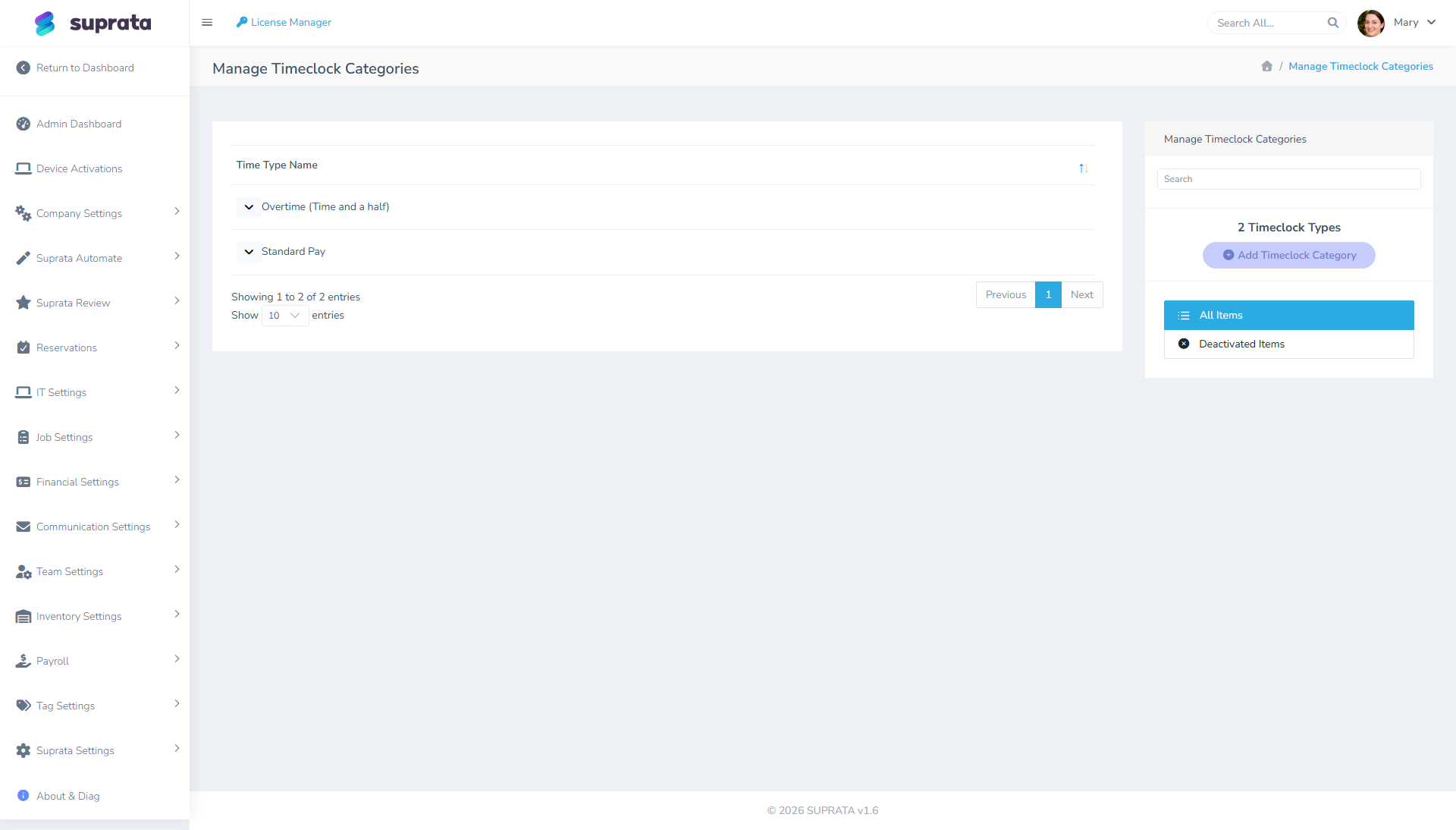
The payroll categories screen is where you define the buckets they roll up into:

Set up payroll categories first (the buckets), then time types (which reference them).
A reasonable starter setup
For a typical small service business that runs payroll inside Suprata:
Payroll categories:
- Regular Pay — straight time at standard rate.
- Overtime Pay — time-and-a-half.
- PTO — paid time off (vacation, sick, holiday).
Time types (mapped to those categories):
| Time type | Pay category | When it's used |
|---|---|---|
| Regular | Regular Pay | Default for normal hands-on work. |
| Travel | Regular Pay | Driving between jobs (or to/from the shop). |
| Overtime | Overtime Pay | Hours past your OT threshold (40/wk in most US states). |
| Holiday | PTO | Recognized company holidays. |
| Vacation | PTO | Approved time off. |
| Sick | PTO | Sick leave. |
That's seven time types and three categories. Resist adding more until you have a real reason.
Decisions you have to make up front
Is travel paid the same as on-site work?
Most US states require travel between jobs (during the workday) to be paid. Travel from home to the first job and from the last job to home is murkier — it depends on whether the employee uses a company vehicle, whether they're "on duty" while driving, and your state.
Talk to a payroll professional. The answer drives whether Travel rolls up to Regular Pay (paid the same), to a separate "Travel Pay" category at a different rate, or whether it's Non-Worked (which would be unusual but possible).
How do you handle overtime — daily or weekly?
Federal default is over 40 hours/week. California, Alaska, Nevada, and a few others have daily OT (over 8 hours/day). If you operate in a daily-OT state, you need a clean way to flip a tech to OT mid-day on long days.
The clock supports manual switching mid-day (the tech changes the time type when they cross the threshold) or admin recategorization at the end of the week. Both work; pick one and train your team consistently.
Do you have premium pay scenarios?
Examples: weekend differential, after-hours emergency rate, hazardous-conditions pay. Each needs a separate time type that maps to a Premium Pay category. Don't model these unless you actually use them — extra time types make the punch UI noisy.
How does PTO accrual happen?
Time types like Vacation, Sick, Holiday capture paid time off — but the accrual (how much PTO each employee has banked) usually lives outside Suprata's time clock. Plan to track accrual separately (in a spreadsheet, a payroll service, or HR software) and just record the use of PTO in the clock as it happens.
How rollup actually works at payroll time
When you run the time clock report for a pay period:
- The system pulls every punch in the date range.
- It groups them by user.
- Within each user, it sums hours by time type.
- Each time-type total is mapped to its payroll category.
- The report shows category totals (Regular: 36 hrs, OT: 4 hrs, PTO: 8 hrs) — what you'd hand to your payroll service.
If a punch's time type doesn't have a category mapping, the hours show but don't roll up. You'll see them. Fix the mapping; re-run.
Common mistakes
- Adding too many time types up front. "Just in case we need them later" — eight time types you never use clutters every punch screen. Start with five, add when there's a real reason.
- Mapping every time type to "Regular Pay" out of laziness. Now your overtime hours are paid at straight time. Your bookkeeper has to manually re-classify every payroll. Worse: your OT calculation is wrong silently. Set the mappings correctly once and the system gets it right every pay period.
- Letting Travel roll up to Regular when techs do significant driving. A tech who drives two hours per day at standard rate is fine; one who drives six hours per day might need a different treatment. Look at actual travel hours after a few weeks and decide whether the lump-into-Regular treatment is right for your business.
- Renaming time types after punches exist. Historical punches keep their old type label. If you renamed "Drive" to "Travel" after a year, reports that span the rename are messy. Use a new label for new behavior; leave history alone.
- Forgetting to set the OT threshold. OT calculation depends on a configured threshold (40 hrs/week in most states, 8 hrs/day in some). If the threshold isn't set, OT never gets calculated automatically and you have to do it by hand. Check this before the first pay period.
- Treating PTO time types as if they're hours-worked. PTO doesn't count toward overtime calculation in most states. The system's category mapping handles this — but only if you've correctly mapped PTO time types to a non-Regular-Pay category.
Worked example
You run a four-tech HVAC shop in Florida (federal OT, no state OT premium). Pay structure:
- Techs: $25/hr regular, $37.50/hr OT.
- Holiday pay at regular rate.
- No vacation accrual yet (cash bonus instead).
- Travel paid at regular rate.
Setup:
- Payroll categories: Regular Pay, Overtime Pay, Holiday Pay.
- Time types: Regular → Regular Pay, Travel → Regular Pay, Overtime → Overtime Pay, Holiday → Holiday Pay.
- OT threshold: 40 hours/week.
A tech logs 38 hours Regular, 4 hours Travel, 2 hours Overtime over a week. Report shows Regular Pay: 42 hrs (Regular + Travel both rolled up), Overtime Pay: 2 hrs, Holiday Pay: 0. That's the line you hand to payroll: 42 × $25 + 2 × $37.50 = $1,125.
Related articles
- The time clock
- Correcting time entries
- Setting up overtime rules (forthcoming)
- Setting up your company profile (timezone matters)