The time clock
The time clock is the system of record for who worked when. Hours captured here flow into payroll reports, into job-level labor totals (so you know what a job actually cost in time), and into audit trails for any "who was on this job?" question that comes up later.
It's deceptively important. A clock that's slightly wrong feeds a payroll that's slightly wrong, and once you've issued a few hundred paychecks against bad time data the cleanup is painful. Get the setup right early and the rest of payroll mostly takes care of itself.
When you'd use this
- Hourly field techs punching in at the start of a shift and out at the end.
- Salaried office staff logging time against specific jobs for cost tracking even though they're not paid hourly.
- Subcontractors clocking on-site time for billable hours.
- Kiosk setups in a shop where multiple people punch from one tablet.
- Mobile use where each tech punches from their own phone.
If you don't pay anyone hourly and you don't track per-job labor cost, you can leave the clock alone — but most service businesses benefit from some form of it even if payroll happens elsewhere.
What it actually records
Every punch creates a row that captures:
- Who — the user.
- When — the in time, and (later) the out time.
- What kind of time — Regular, Overtime, Travel, or any custom category you've defined. See Payroll categories and time types.
- Against what — optionally, a specific job. Time tied to a job rolls up into that job's labor total; time without a job is general payroll only.
- Where — if your company uses business units (several shops or locations), the unit the person clocked in at. See Clocking in at a location below.
The clock keeps every punch as its own record (it doesn't try to "summarize" a day into a single shift). That granularity is what makes the data useful later: you can answer "where did Mike's Tuesday go?" by listing the punches in order.
The two main ways people use it
Per-user mobile
Each staff member signs in to Suprata on their own phone or tablet. They punch in and out from their own session. This is the default setup for most service businesses.
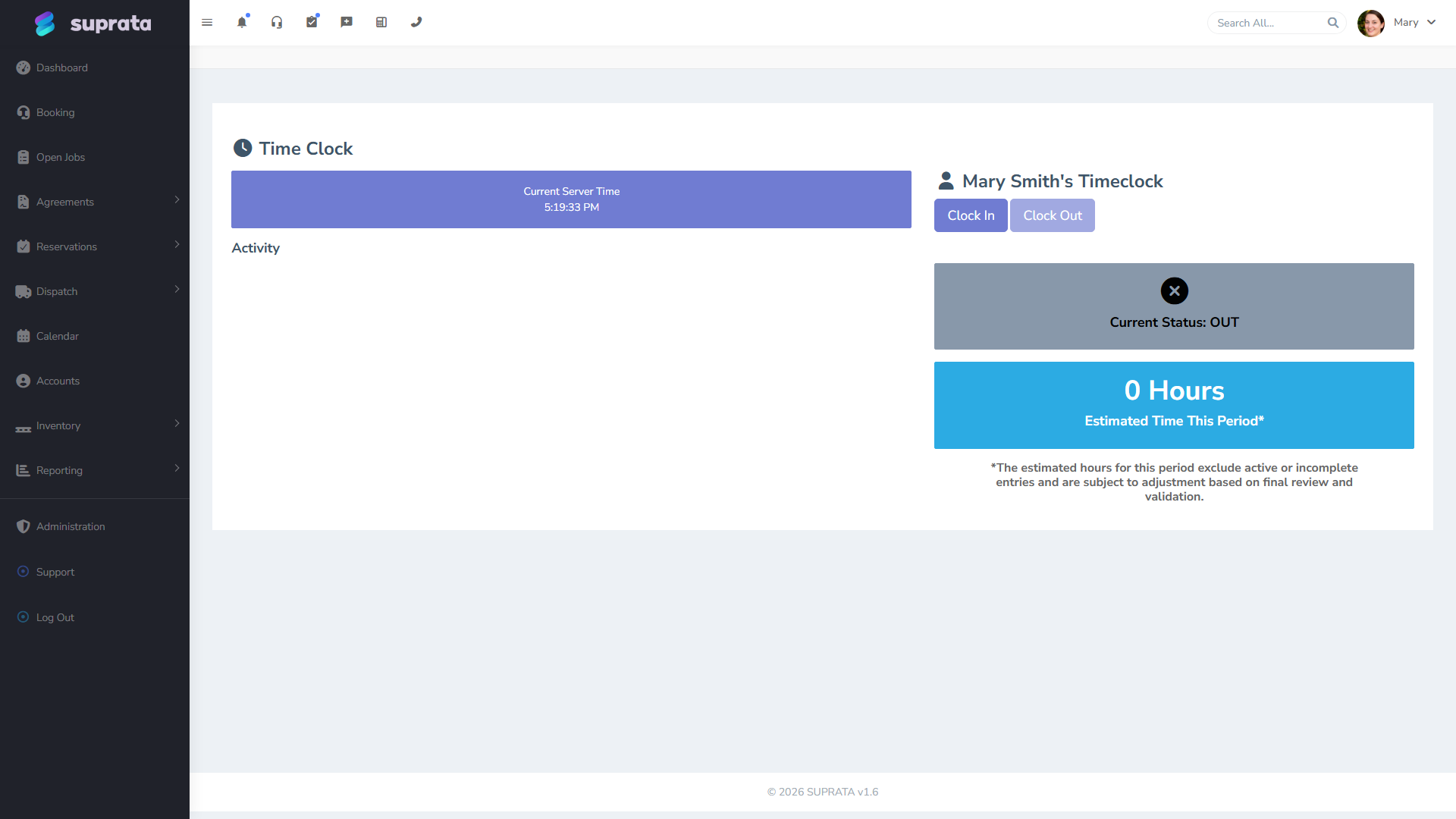
Pros: clean audit trail (every punch is unambiguously theirs), no shared device to manage, works from anywhere with signal.
Cons: requires every user to have their own login (which they should anyway — see Inviting your team).
Shared kiosk
A single tablet or computer at the shop entrance where everyone punches in as they arrive and out as they leave. The kiosk page is a separate URL and doesn't require each user to be logged in to Suprata at the device level — they identify themselves to punch.
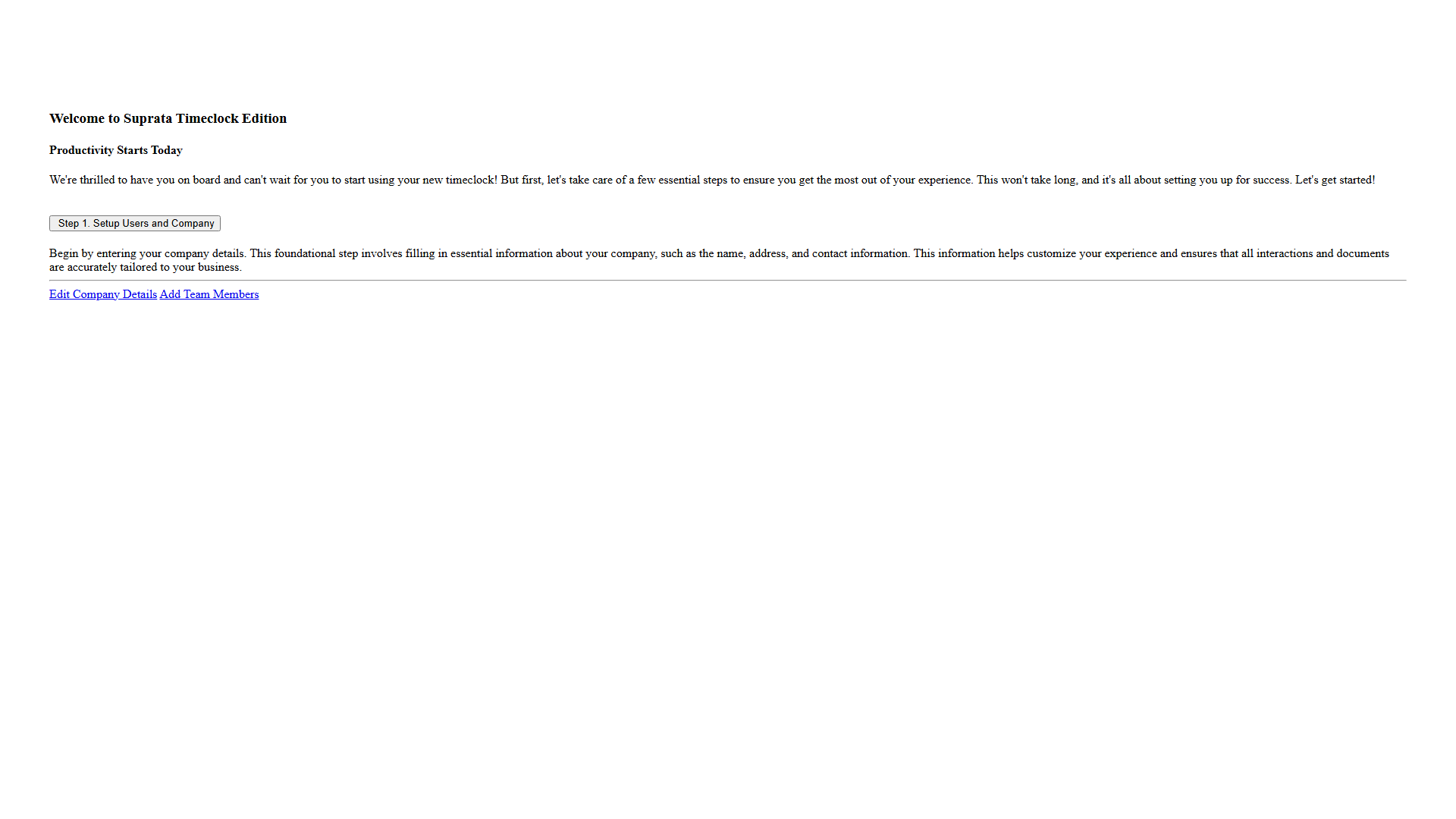
Pros: low device count, fast for shop-floor crews who don't carry their own tablets.
Cons: less honest audit trail (anyone who knows someone's PIN can punch them in or out), depends on physical proximity (no good for techs in the field).
You can run both at once — a kiosk in the shop for the shop crew, mobile for the field techs.
A typical day
For a hourly field tech on a per-user mobile setup, the day looks like:
- Open the app, tap "Punch In" when they leave their house in the morning. The clock starts on Travel time (if you have a Travel category) or Regular if not.
- Arrive at the first job, switch the time type to "Regular" if needed, and (if you tie time to jobs) attach the punch to that job.
- Lunch. Either punch out for the meal break (if your state requires it) or stay punched in if lunch is paid.
- Move between jobs. Each segment can be tagged to a different job; cumulative time still rolls up to the day.
- End of day, tap "Punch Out". The clock records the out time, the total elapsed shift hours, and any overtime if the day breached the OT threshold.
The same pattern works on a kiosk; the user just identifies themselves at the kiosk instead of their punches being implicit.
Clocking in at a location
If your company has two or more business units, each punch-in records the unit the employee is working in that day. This is the unit shown at the top of their screen. Staff who stay in one shop won't notice anything. Two prompts cover the cases that need a decision:
- "Where are you working today?" appears when someone is on "All business units" as they clock in. They pick a unit, and their home unit is highlighted.
- "Not your home store" appears when someone clocks in somewhere other than their home unit. For example: "You are clocking in at Salem. Your home store is Nashua." They confirm, or cancel and switch. It's a check, not a block, so floaters covering another shop just confirm.
Time a manager adds on someone's behalf counts at that employee's home unit.
On the reporting side, the time clock report and the time audit get a Business Unit filter and a Location column. Punches from before business units were set up show as Unassigned. Filtering to one unit shows the hours clocked in there, plus punches with no location.
Run payroll on all units, not one. When the report is filtered to one unit, overtime is worked out on the hours shown only, and the page notes this. Someone who worked 30 hours in Nashua and 15 in Salem worked 45 hours, but a Nashua-only report shows 30 and no overtime. Use the unit filter to see labor by location. Use the unfiltered report to pay people.
What flows out of the clock
Three places consume time-clock data:
- The time clock report — totals by user across a date range, broken down by time type. This is what you run before payroll.
- Job labor totals — when a punch is attached to a job, the job's total labor hours and (if you've set hourly costs) labor dollars roll up automatically.
- The audit log — every edit to a punch records who changed it, when, and the before/after. See Correcting time entries.
Common mistakes
- Letting techs punch in at home and forgetting to switch from Travel to Regular. A whole day shows as Travel, OT calc gets weird, billable labor on jobs is short. Train techs to switch types when they arrive on site, or remove the Travel category if it's not how you actually pay people.
- Sharing a "shop login" instead of giving each tech their own. Every punch becomes ambiguous; payroll becomes a guessing game. Always individual logins. (For the kiosk pattern, the device is shared but each user identifies themselves to it.)
- Not punching out at end of day. A user who forgets to punch out can accumulate fictitious hours overnight. Set up a closing routine — a standing 5pm reminder, a daily report that flags un-punched-out users — so the office catches it the next morning rather than at month-end.
- Editing punches quietly to "clean things up." Every edit is logged and visible to admins. Use the proper edit screen with a real reason — see Correcting time entries. The audit trail protects everyone, including you.
- Running payroll from a report filtered to one business unit. Overtime is calculated on the filtered hours only, so anyone who split their week between shops loses their overtime on paper. Filter by unit to look at labor; pay from the unfiltered report.
- Tying every punch to a job, even non-job time. Time spent in the shop, in training, or on internal admin doesn't belong on a customer job. Leave those punches un-attached so they don't inflate job labor totals.
- Treating the time clock as the sole authority for billing. It records hours, not billable amount. The price you bill the customer is a separate invoicing decision; the clock just tells you the labor cost. See How to invoice for labor hours once that article exists.
Setting it up the first time
If you're rolling out the clock to a new tenant:
- Decide your time categories first (Regular, OT, Travel, plus any custom). See Payroll categories and time types.
- Set the company timezone correctly in Company Settings — punches are timestamped against this. Changing it later is painful.
- Pick mobile, kiosk, or both.
- Train staff: where to punch, how to switch time type, how to attach to a job, what to do if they forget.
- Run one full week, then run the time clock report and look at it before payroll. Catch issues now, before money moves.