Correcting time entries
Time clock data is rarely perfect on the first pass. Techs forget to punch out, punch in on the wrong time type, attach a punch to the wrong job, or leave a punch open overnight. Every one of those needs to be fixable — but every fix needs to be auditable, because time data feeds payroll and "we adjusted the hours" without a paper trail is a labor-dispute waiting to happen.
This article covers the proper edit flow, what gets recorded when you make a change, the approval pattern most businesses use, and the few mistakes that make audit trails useless.
When you'd correct a time entry
- A tech forgot to punch out. They left at 5pm but the clock kept running until you found it the next morning.
- A tech forgot to punch in. They worked the morning but didn't start the clock.
- A punch was tagged with the wrong time type. Someone driving punched in as Regular instead of Travel.
- A punch should have been attached to a job. Job-level cost tracking is wrong because the punch was loose.
- A punch was for the wrong job. Tech worked job A but tagged it to job B.
- The tech worked off-clock and you're back-filling. A storm came in, everyone scrambled, time clocks were the last thing on anyone's mind.
All of these are legitimate edits. The point of the edit flow is not to prevent corrections — it's to make sure every correction is visible.
How the audit trail works
Every edit to a punch creates a log entry:
- What changed — the field (time, type, job) and the old vs. new value.
- Who changed it — the user who made the edit, not the user the punch belongs to.
- When — timestamp of the edit (separate from the punch's actual time).
- Why (optional) — a reason field; many businesses make this required by policy.
The audit log is queryable per user, per date range, and as a global feed:
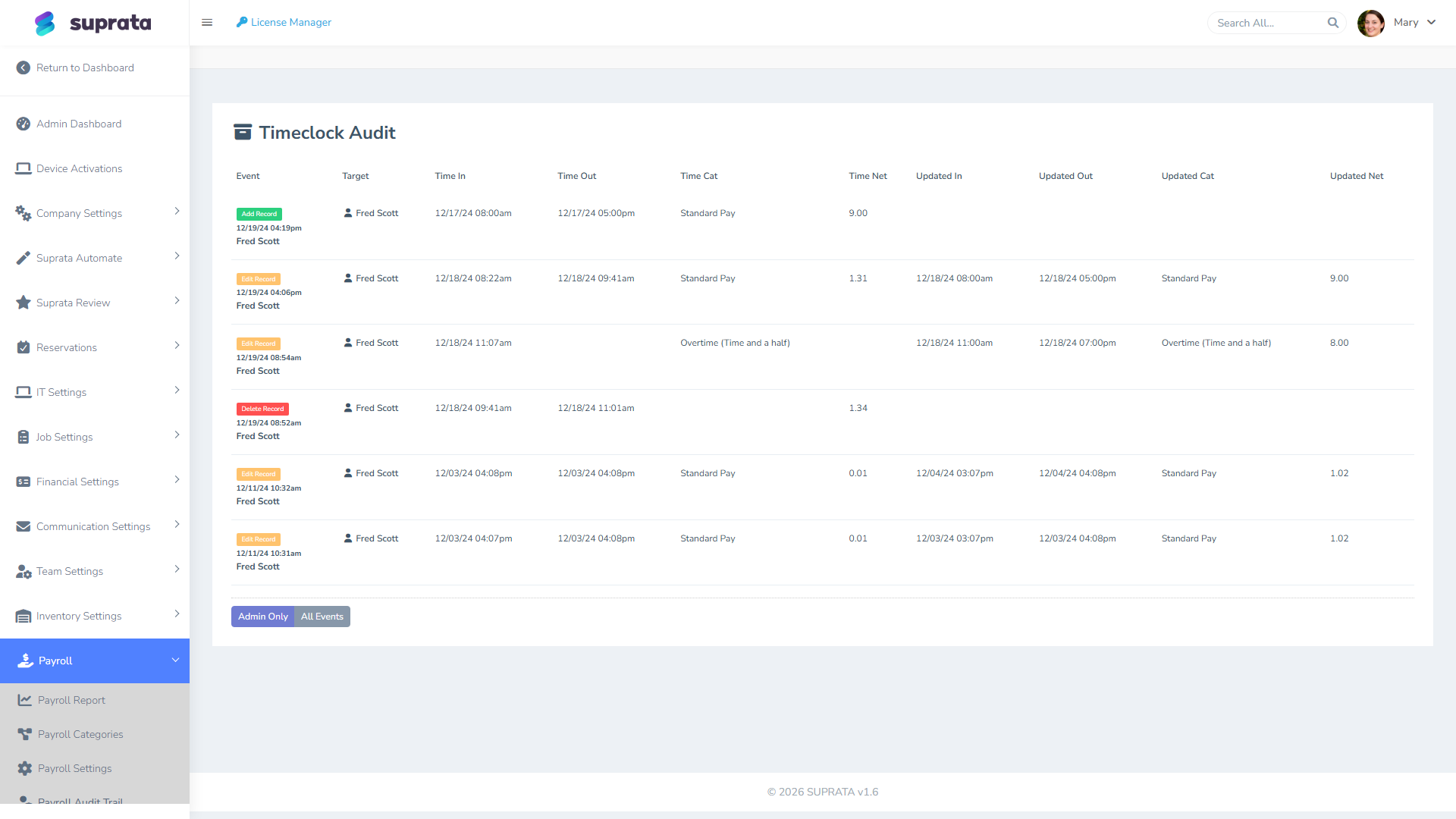
You can't delete an audit entry. You can't edit it. The whole point is that someone else can come back six months later and see what was changed.
The right way to make a correction
Single punch fix
For a one-off ("Mike forgot to punch out yesterday"):
- Open the user's recent punches (or the time clock report filtered to this user).
- Find the bad punch.
- Click into it; edit the field that's wrong.
- Add a reason in the comment/notes field — "Forgot to punch out, confirmed left site at 5pm with customer signature timestamp" is a good reason; "fix" is not.
- Save. The audit log captures the change.
Tell the affected user what was changed. Surprises on a paycheck create distrust; "Hey Mike, I corrected your Tuesday punch — you forgot to clock out" before payroll runs is a 10-second conversation.
Bulk fix (whole crew, whole day)
If a system or process problem affected multiple users (the kiosk was down, the crew worked an emergency without phones, etc.):
- Document the situation in writing first — an email, a Slack message, anything dated and shareable. This is your reason for the bulk edit.
- Make each edit individually so the audit log shows the per-user change. Don't try to batch.
- Use the same reason text on every punch so the audit log reads as one cohesive event.
- Send the affected users a summary of what was filled in for them.
A missing punch (back-fill)
The tech worked but never punched. You need to create a punch retroactively:
- Use the same edit screen — most time-clock UIs let you create a back-dated entry.
- Set the in/out times based on the most reliable source you have (the customer's job sign-off time, the dispatch log, the GPS trail).
- Reason: "Back-filled — tech did not punch in; verified hours from [source]".
- The punch shows up in the user's record with a "created retroactively" indicator.
Don't back-fill from memory alone. If you don't have a verifiable source, ask the tech to attest to the hours in writing first.
The approval pattern
Many businesses gate time-clock edits behind an approval step before payroll runs. The flow:
- Tech submits a correction request — "I forgot to punch out Tuesday, my actual out time was 5:15pm."
- A supervisor reviews the request. They can approve, reject, or modify.
- On approval, the edit is applied and the audit log captures both the edit and the approval (who approved, when).
- The tech is notified that the correction was applied.
This pattern matters most for hourly employees in jurisdictions with strong wage-claim protections, and for businesses that have had labor disputes before. It's overkill for a five-person family business; it's essential for a 50-person operation.
If your account doesn't have a built-in approval workflow, simulate it manually: techs email their supervisor with corrections, the supervisor makes the edit and copies the tech on the change.
Who should be allowed to edit
Three permission tiers worth thinking about:
- Tech themselves: typically cannot edit their own past punches. They can submit a correction request but not apply it. This is a big deal — if a tech can edit their own hours, the audit trail means nothing.
- Supervisors / dispatchers: can edit punches for users on their team, with audit log capturing them as the editor.
- Admins / payroll staff: can edit any punch.
The default Tech role in Suprata typically restricts users from editing their own punches. If you've customized the role, double-check this — see Built-in roles explained.
Running the time clock report before payroll
Before you generate payroll for the period, run the time clock report and look at it:
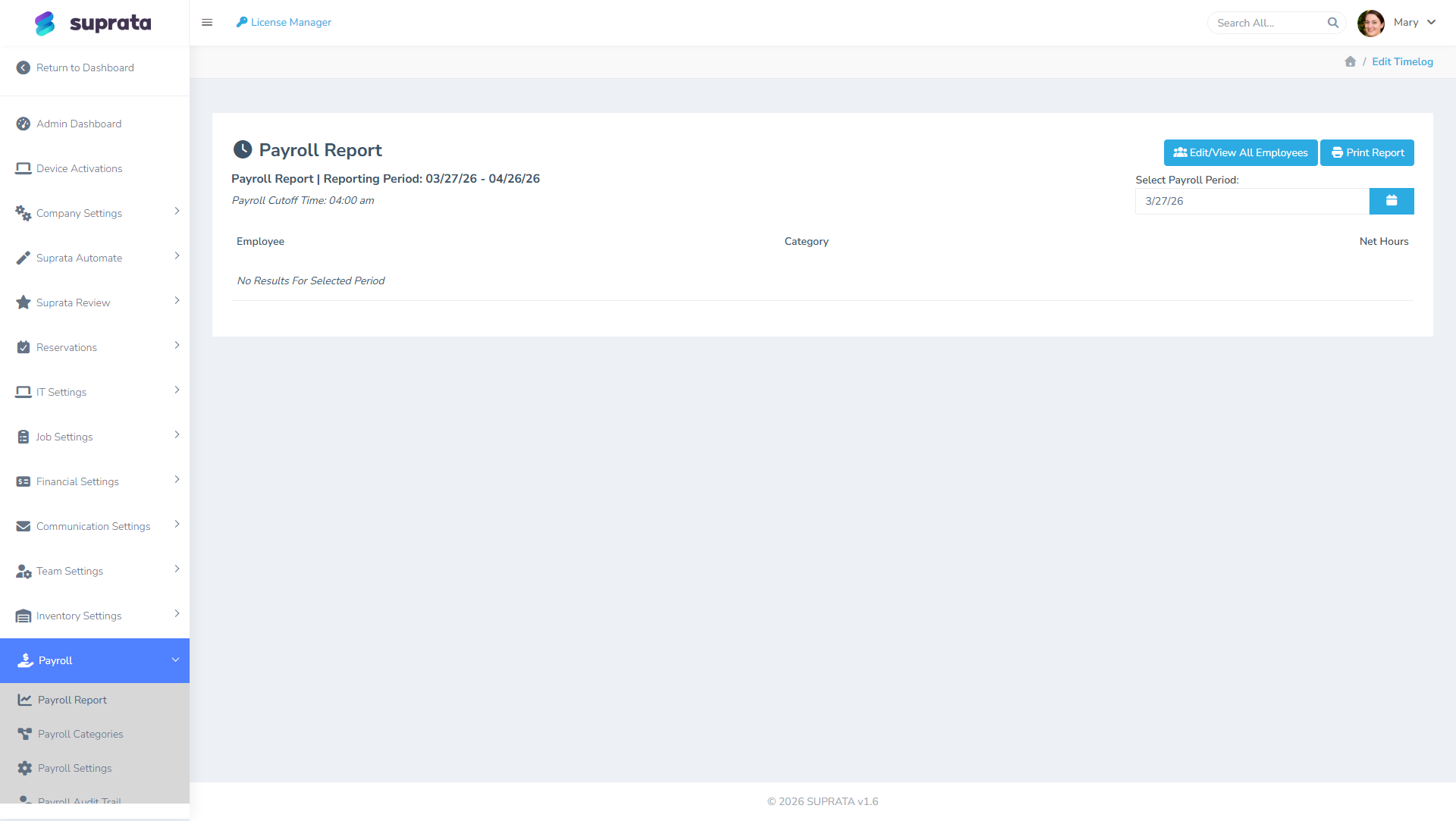
What to scan for:
- Anomalously high hours. A tech showing 70 hours in a week probably has an open punch from earlier. Find it, close it.
- Anomalously low hours. A tech showing 12 hours probably forgot to punch on several days. Talk to them; back-fill if appropriate.
- Unusual time-type mixes. A tech with 30 hours of Travel and 4 hours of Regular probably forgot to switch types after their first stop. Recategorize.
- Open punches. Anything still "in" without an out time. Close them with the right out time, not now().
- Time on jobs that don't make sense. Eight hours of labor on a 30-minute service call is a tagging mistake.
Better to spend 20 minutes here than to issue a paycheck and then have to do an off-cycle correction.
Common mistakes
- Editing punches without a reason. "Fix" or "correction" tells nobody anything six months from now. Write what actually happened: "Forgot to punch out, verified by customer signature at 5:12pm."
- Letting the tech edit their own punches. Audit trail is ruined; payroll is unverifiable; labor disputes get expensive. Permissions should prevent this; verify they do.
- Asking support to "just fix it directly" outside the normal edit screen. That bypasses the audit trail, leaves no record, and notifies nobody. Use the proper edit screen even when it feels slower — the audit trail is what protects you in a labor dispute.
- Adjusting punches after payroll has been issued. Now your time data and your payroll data disagree. If you find an error post-payroll, document the discrepancy, issue a correction on the next cycle, and don't change the historical record.
- Treating the audit log as something only auditors look at. It's also your daily ops tool. Run a "recent edits" view weekly and scan for anything unusual.
- Bulk back-filling without per-user attestation. A whole crew's worth of retroactive punches with no source documentation is a wage-claim hazard. Get something in writing before back-filling more than a single punch.
When you find systemic problems
If you're constantly making the same correction — "techs always forget to switch from Travel to Regular when they arrive on site" — the answer isn't more corrections, it's a process or training fix. Either:
- Re-train staff with a specific scenario walkthrough.
- Remove the time type that's causing confusion (do you really need Travel as a separate type?).
- Add a reminder mechanic at the device level (a popup when arrival is detected, an alert when a punch hits 2+ hours of Travel).
Audit trails are for individual fixes. Recurring problems need a different solution.
Related articles
- The time clock
- Payroll categories and time types
- Built-in roles explained
- Reading the time clock report (forthcoming)