Giving a tech limited access
Field techs need a meaningfully different permission set than office staff. They need to see and update their jobs, log time, capture signatures and photos, and move work along — but they typically should not see pricing markups, other techs' jobs, customer payment details, or settings.
Getting this right matters for two reasons: it protects sensitive business data (margins, internal pricing, payroll) and it gives the tech a focused, uncluttered interface that makes them faster.
This article covers the typical "Field Tech" permission profile, device and login considerations specific to mobile use, and the safety practices that prevent the common security and privacy slip-ups.
When this applies
- Onboarding a new field tech. Set them up with the right role from day one.
- You realized your existing techs have too much access. Common scenario — they were created as Admins early on and never trimmed back. Fix it now.
- A tech is leaving — covered in the deactivation section below.
- A tech is taking on extra responsibilities (lead tech, after-hours dispatch). May warrant a different role; see When to create a custom role.
What a field tech needs to do
Walk through a field tech's typical day; the access list falls out of it:
- Start the day: Open the app, see today's assigned jobs.
- Drive to the first job: Tap the job, see the address (with a map link), see the customer's name and phone.
- Arrive on site: Mark "On Site" or "In Progress" — status update.
- Do the work: Read the job notes for context, take photos, scan equipment serial numbers, fill in industry-specific forms (HVAC eval, marine boat info, etc.).
- Add line items: Add parts used and labor hours.
- Get the customer's signature.
- Mark the job complete.
- Move to the next job.
Permissions implied:
- See own assigned jobs — yes.
- See other techs' jobs — usually no (unless lead tech).
- Edit job status — yes.
- Add notes/photos/signatures to jobs — yes.
- Add line items to jobs — yes.
- See price on line items — typically yes, but mark up vs. cost is a separate question.
- See cost on items (margin) — usually no.
- Time clock punch in/out — yes.
- See own time entries — yes.
- See other techs' time entries — usually no.
- Settings, user management, integrations — no.
- Reports — at most their own personal performance metrics.
- Customer payment data — no (the tech doesn't need to see saved cards).
That's the rough profile. Tweak per your business — some businesses give techs full price visibility (helpful for upsell conversations); others hide it (to prevent perceived "negotiating" with customers).
The user setup
Sidebar: Team Settings → Users → + New User.
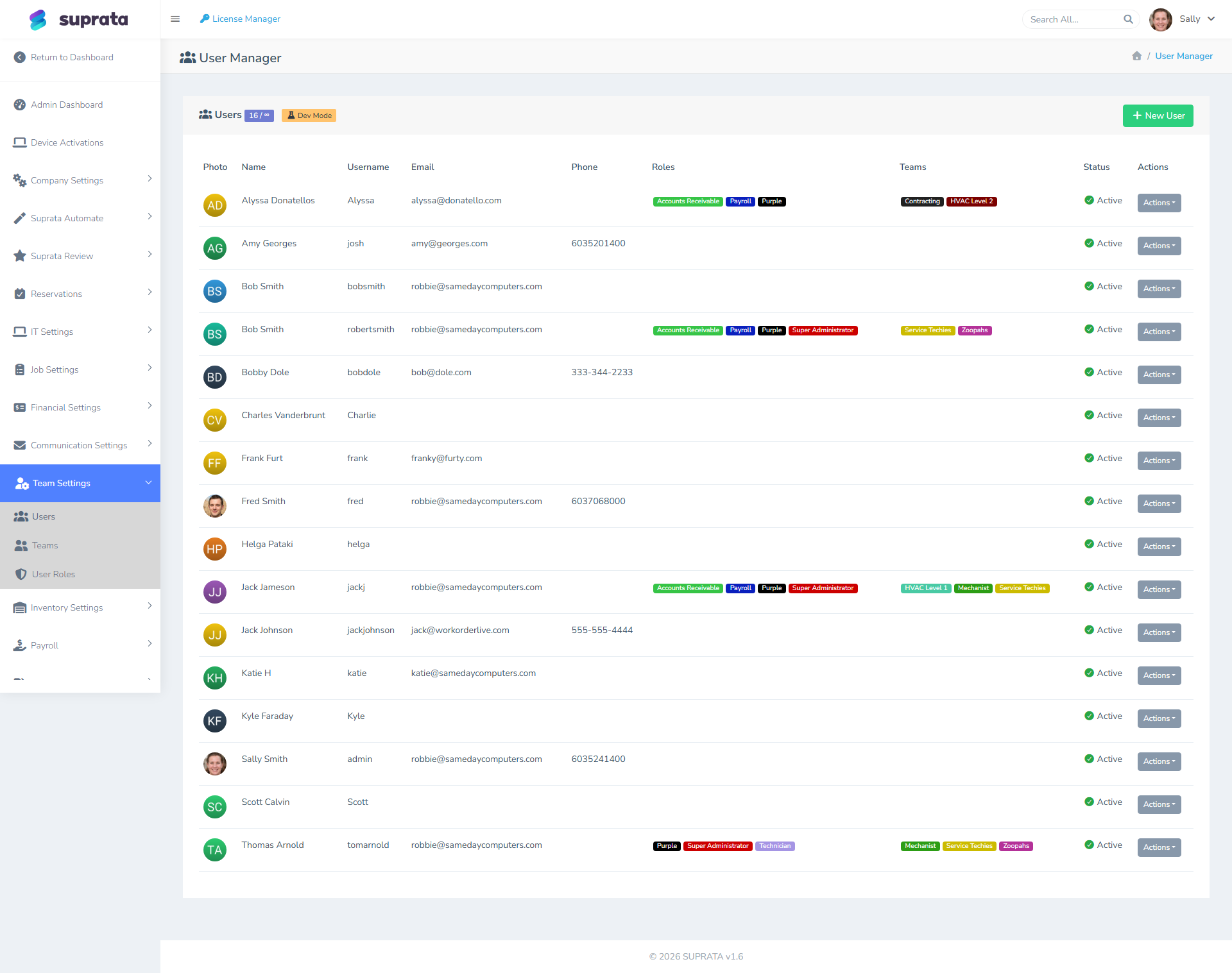
Fill in their name, username, email, phone, and role (the built-in Technician role is the right starting point unless you've built a custom Tech variant).
A few additional considerations:
- Set a profile photo. Dispatch boards and customer-facing pages show photos; recognition is faster with a face than initials.
- Use their personal cell phone for the contact phone, not the office number — system-generated SMS for things like password resets goes to that number.
- Set up a temporary password they can rotate on first login. Don't use a memorable shared password.
- Assign them to a Team if you use teams — usually a "Field Crew" or specific tech-team grouping.
Device and login considerations
Techs work on phones and tablets, often in spotty signal areas, sometimes on shared devices. Practices that help:
Each tech gets their own login
Don't share a "shop iPad" with one shared username. Audit trails depend on knowing who did what — who took the photo, who marked the job complete, who logged the time. Shared logins make every audit question unanswerable.
If hardware budget is a constraint, use one device with multiple logins — they sign in for their shift, sign out at the end.
Auto-logout after inactivity
Configure a session timeout that makes sense for field use. 30 minutes is reasonable for a tech device that gets put down between jobs; 8 hours is too long (left in a truck, the device is open to anyone).
Strong passwords (or biometric where available)
Techs hate complex passwords on phones. Pair a strong password with biometric (fingerprint / Face ID) for daily unlock. Reset the password periodically per your security policy.
Photos go through the system, not the phone's camera roll
Have techs use Suprata's "Add Photo" function on the job rather than taking the photo separately and texting it. Two reasons: the photo lives in the system (auditable, attached to the right job), and it doesn't accumulate in their personal photo library.
The "see other techs' jobs" question
Default Tech role typically restricts to their own jobs. When does that get in the way?
- Lead techs / mentors who oversee or fill in for others.
- On-call rotations where coverage shifts mid-day.
- Job hand-offs where one tech starts and another finishes.
- Teamwork where two techs are on the same job.
Solutions:
- For lead techs: a custom Lead Tech role with "see all techs' jobs" added.
- For on-call: temporarily expand the on-call tech's permissions, or assign them to a broader role for the shift.
- For hand-offs: re-assign the job (changes who "owns" it from a permission standpoint).
- For teamwork: assign the job to multiple techs (the system supports multi-assignment).
Don't generally expand all techs to see all jobs — privacy and clarity both suffer.
What techs typically should NOT see
Worth being explicit about, because the defaults can be surprising:
- Cost / margin on items. Knowing that a $45 part cost the company $18 is information techs don't need to do their job and can complicate customer conversations.
- Other techs' time entries. Payroll info is private.
- Customer payment methods on file. A tech doesn't need to see "this customer has Visa ending in 4321 saved".
- Customer history beyond the current job context. They need to know the relationship is good or bad (a single tag is fine), not the full call history.
- Reports beyond their own performance. Company-wide revenue is owner data.
- Settings of any kind. No reason a tech needs to see SMTP credentials.
If you find your techs do need access to one of these, ask why — there might be a process improvement that removes the need rather than expanding access.
When a tech leaves
The wrong move: delete their user. Deletion can orphan historical references (jobs assigned to no one, time entries with no user). Time-clock totals and payroll history get messy.
The right move: deactivate.
- Go to Team Settings → Users and find them.
- Click Actions → Deactivate User and confirm.
- They're signed out on every device straight away and can't sign in again. They also drop off the dispatch board and the lists you assign appointments and tickets from.
- Their historical jobs, notes, time entries, and audit trail remain intact.
- They keep showing in historical reports as the person who did things they did.
- Their seat is freed for the next hire. If they come back, Actions → Activate User turns everything back on, as long as you have a seat free.
For extra safety:
- Reset the user's password to something random they don't know — even though they're deactivated, this prevents a re-activation surprise.
- Revoke any device pairing if you've paired their phone or tablet to your account.
- Update anything that pointed at this user — notifications routed to them, escalation chains, on-call rotations.
If you're firing under bad circumstances, deactivate before having the conversation, not after. Deactivating signs them out everywhere at once, so the phone in their pocket is already locked out when you sit down.
Mobile-specific tips
A few things that make the field experience better:
- Use the mobile-optimized URL or app. Don't have techs working through the desktop UI on a phone — the layouts aren't optimized.
- Set their default landing page to "Today's Jobs" so they don't have to navigate.
- Enable push notifications for status changes and new assignments (if your account supports it).
- Have them test offline mode. Spotty signal means some workflows must function offline; verify the techs you're onboarding know how it behaves when the truck loses signal under a building.
Common mistakes
- Onboarding techs as Admin "for now". "I'll trim it back later" — and never do. Set them up with limited access from day one.
- Sharing one login across the field crew. Audit trails become useless. Always individual logins.
- Not deactivating departed techs. Their account stays active, the password's in their notes app, they have access. Deactivate immediately on departure.
- Giving techs settings access "just in case". Settings access creates settings drift; if a tech changes a setting they shouldn't, you find out two weeks later.
- Hiding too much. Going so restrictive that the tech can't see the job address or the customer's gate code is counterproductive. Calibrate by walking through their actual day.
- Forgetting that mobile rendering may surface things you'd hidden on desktop. Test the mobile view as the user before assuming the role works.
After setup — the calibration pass
After a tech has used the system for a week:
- Sit with them for 30 minutes, watch them work.
- Note every place they bumped into a permission wall (something they couldn't do that they needed to).
- Note every place they had access to something irrelevant or distracting.
- Adjust the role accordingly.
This is much faster than guessing in advance. The calibration pass is the most underused way to get role permissions right.
Related articles
- Built-in roles explained
- When to create a custom role
- Inviting your team
- Mobile usage tips for field techs (forthcoming)
- When to deactivate vs. when to delete a user (forthcoming)