Inviting your team
Adding people to your Suprata account is mechanically simple — about a minute per user once you've decided what role they get. The harder part is deciding what role they get, how many roles you really need, and whether to put people on Teams. This article covers both.
When to do this
- First-week setup, before you start creating real jobs. Audit trails work better when every action is attributed to a real person from day one.
- A new hire starts. Don't share an existing login with them — create one.
- Someone leaves. Don't delete; deactivate. Their historical attribution stays intact.
- Roles need rebalancing. As your operation grows, what one role used to cover gets too broad — that's the signal to split.
How users, roles, and teams fit together
Three concepts:
- User — one human being who logs in. Has a username, password, photo, contact info, and a role.
- Role (also called "User Role" in the sidebar) — a named bundle of permissions: what screens this person can see, what they can edit, what they can delete. Permissions are atomic; roles are the bundles you assign.
- Team — a grouping of users for assignment purposes. e.g., "North Crew", "Sales", "Service Side". Doesn't change permissions; affects who shows up in dispatch grids and who gets bulk-assignment emails.
Most accounts need a handful of users, 3-6 roles, and 0-3 teams. If you're spinning up many of any of these, slow down — you're probably modeling something that doesn't need to be modeled.
Where it lives
Sidebar: Team Settings → Users for the staff list, Team Settings → User Roles for the role catalog, Team Settings → Teams for teams.
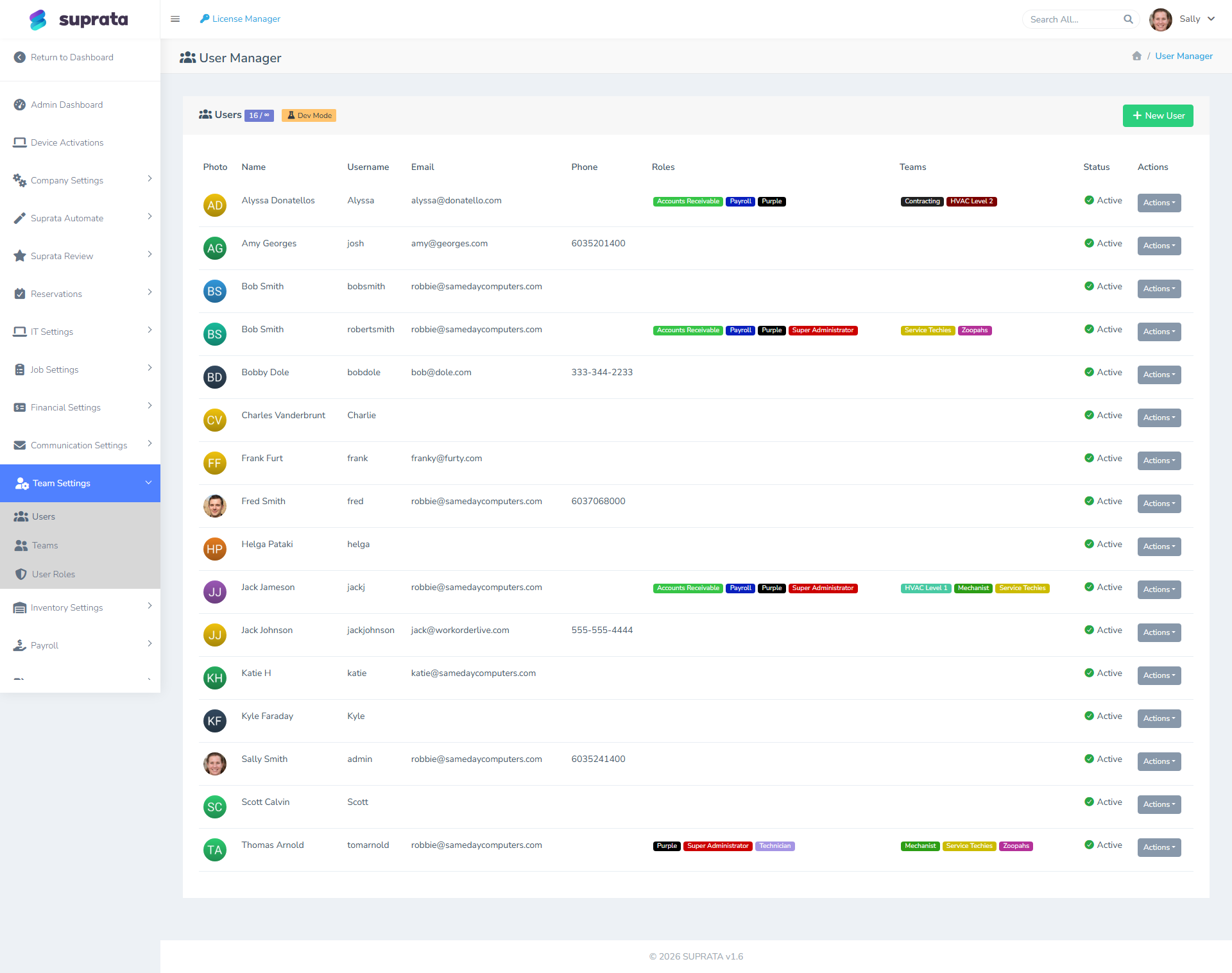
Each row is one staff user with their photo, name, username, email, phone, role chips, team chips, and whether they're active. The Actions button on each row edits them, or deactivates (and later reactivates) them. + New User at the top right adds one.
Adding a user — the typical flow
- Click + New User.
- Fill in name, username, email, and a temporary password (the user can rotate it on first login). Add their phones too: a cell or office number, plus a SIP address such as
sip:100@pbx.yourcompany.comif they have a desk phone on your phone system. These are the phones Suprata rings when they place a call, so a person with none set has to type a number every time. - Pick a role. This is the single most important field on the form.
- Optionally assign one or more teams.
- Optionally upload a profile photo — it shows up on dispatch boards and the timeline, which speeds up "who's where?" recognition.
- Save.
The user can sign in immediately. Send them their username and the temporary password through a separate channel (text, in-person, secure password manager — not email, since they don't have email set up to receive it yet on the system).
Picking a role
Roles in Suprata are flexible — your account may already have a few seeded roles, plus any your administrator has created. Don't get hung up on the specific names; think about responsibilities.
The four common shapes:
- Administrator-style. Sees everything, can change settings, can edit other users. This should be a small group — typically the owner and one other person. Avoid making the whole office "admin" because somebody once needed access to one specific page; make a more targeted role instead.
- Dispatch / scheduling-style. Can create and assign jobs, move appointments, see the full calendar. Usually can't edit pricing, can't change tax setup, can't manage other users. The "operations brain" of the business.
- Field tech / fulfillment-style. Sees only their own jobs by default, can update job status, take notes, capture signatures, log time. Cannot see other techs' work or company-wide reports.
- Office / billing-style. Sees invoices and payments, can issue credits and refunds, can run reports. Doesn't typically need to schedule or dispatch.
If your account doesn't have a role that matches what someone needs, two options:
- Use the closest existing role and accept some over- or under-permissioning. Often fine for the first few weeks while you learn the system.
- Create a new role. See the next section.
Creating a custom role (do this after you've used the defaults a while)
Go to Team Settings → User Roles.
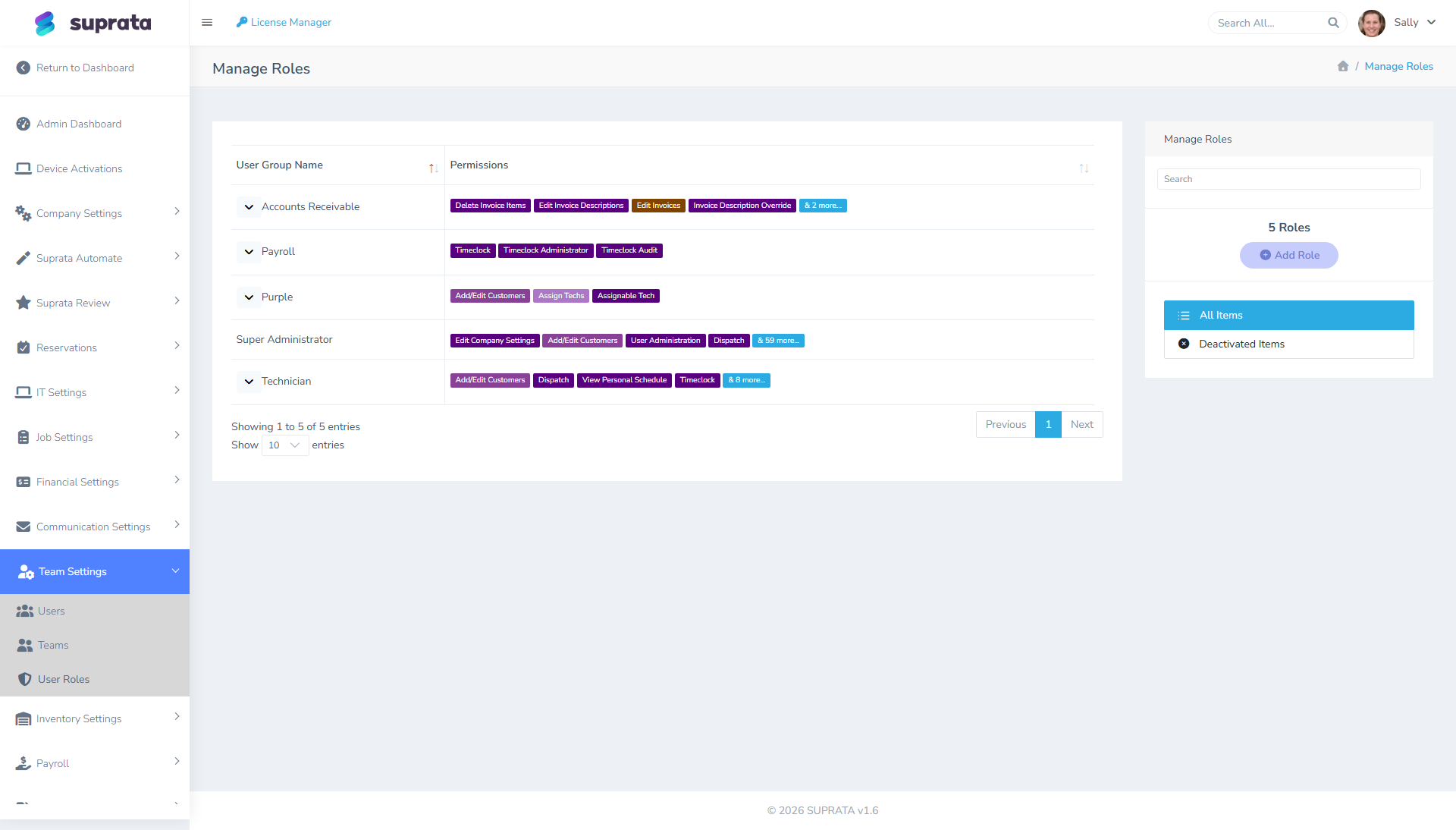
Each row is a role with chips showing each permission it grants. Click into a role to edit its permissions, or Add Role to create a new one.
A few rules of thumb:
- Start by cloning an existing role, not from scratch. Pick the one closest to what you need, copy it, then add or remove specific permissions. Building from scratch is tedious and you'll miss something.
- Name the role for the job function, not the person. "Field Tech — Senior" beats "Mike's permissions". People come and go; roles outlive them.
- Granular doesn't mean better. Three permission tweaks per new hire creates a long-tail of one-off roles nobody can audit. If you find yourself building per-person roles, you probably need to redesign your tier of standard roles.
Teams — when to bother
Teams are an organizational layer for assignment. You add users to teams; then in the dispatch and scheduling screens you can filter "show me Team A's jobs" or assign a job to a whole team rather than a single user.
Useful when:
- You have distinct field crews and a dispatcher wants to see them separately.
- You have shifts (Day Crew, Night Crew) and assignments tend to follow shifts.
- You have specialty groups (Plumbing Side, HVAC Side) under one administrative umbrella.
Skip teams if you have fewer than ~6 staff, or if everybody does everything.
Common mistakes
- Sharing one "office" login. Audit trails depend on knowing who did what — note edits, status changes, refunds. A shared account makes "who refunded this customer?" unanswerable.
- Making everybody an Administrator. It's tempting because it makes "permission denied" errors go away. It also gives every staff member the ability to delete settings, see payroll, and reset other people's passwords. Don't.
- Deleting users instead of deactivating. Deletion can orphan historical references (jobs assigned to no one, time entries with no user). Deactivation keeps history intact and just blocks login.
- Creating roles before learning what permissions exist. The first month of operation usually surfaces the actual permissions you care about. Build custom roles after that surfacing, not before.
- Putting everyone on every team. A team is useful only if it excludes people. If everyone is on Team Service and Team Dispatch and Team Sales, the teams are doing nothing.
- Not setting profile photos. Sounds like a small thing, but on the dispatch board you'll be much faster recognizing "where is Dave?" by face than by reading initials.
After this, you usually want to
- Walk each new user through the parts of the system they'll actually use. Don't try to give them a comprehensive tour — they need 20 minutes on the 80% of features they'll touch daily.
- Have each user sign in once and rotate their temporary password.
- Set per-user notification preferences if certain people should (or shouldn't) get certain alerts.
Related articles
- Your first week with Suprata
- Setting up your company profile
- Built-in roles explained (forthcoming)
- When to create a custom role (forthcoming)
- Giving a tech limited access (forthcoming)