Picking the right tax category strategy
Tax setup is the single most-skipped, most-painful-to-fix-later step in a new Suprata account. The mechanics — clicking through the tax categories and tax tables screens — take ten minutes. The strategy — deciding which categories you actually need — is what people get wrong, and the consequences land months later when an audit or a customer complaint forces a multi-week cleanup.
This article doesn't teach you how to click; it helps you decide what to set up. For the click-by-click, see How tax categories work in invoicing.
Why this needs strategic thought
Suprata splits tax into two concepts:
- Tax Categories — the kind of thing being taxed. "Taxable Goods", "Labor (Exempt)", "Reseller Items".
- Tax Tables — the rate applied. "FL State Sales 6%", "Miami-Dade Discretionary 1%", "MA Meals Tax 6.25%".
Categories attach to items (or to whole invoices via overrides). Tables attach to categories. The system reads "this line item is in the Taxable Goods category, which links to the State Sales 6% table" and computes tax accordingly.
The strategic question: what categories does your business actually need, and how do you slice them?
Slice too coarsely (one category for everything) and you can't handle exemptions, multi-rate states, or labor-vs-goods rules. Slice too finely (a category per product) and you've built an unmaintainable mess where adding one new SKU means adding one new tax row.
Where you'll do this
Sidebar: Administration → Billing & Payments → Taxes → Tax Categories and → Tax Tables.
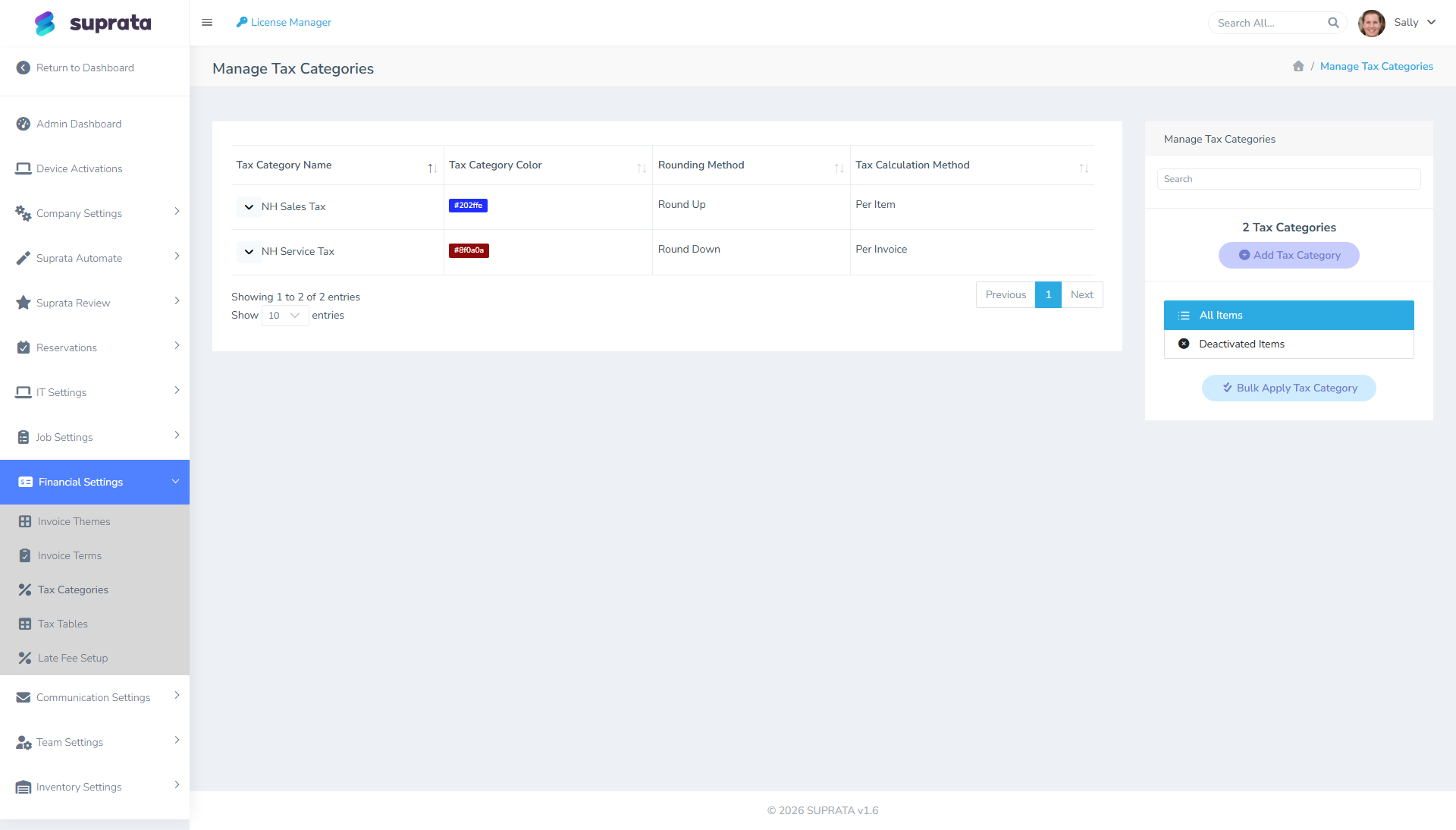
Each category has a name, a color (used for chip rendering on items), a rounding method, and a calculation method (Per Item vs. Per Invoice).
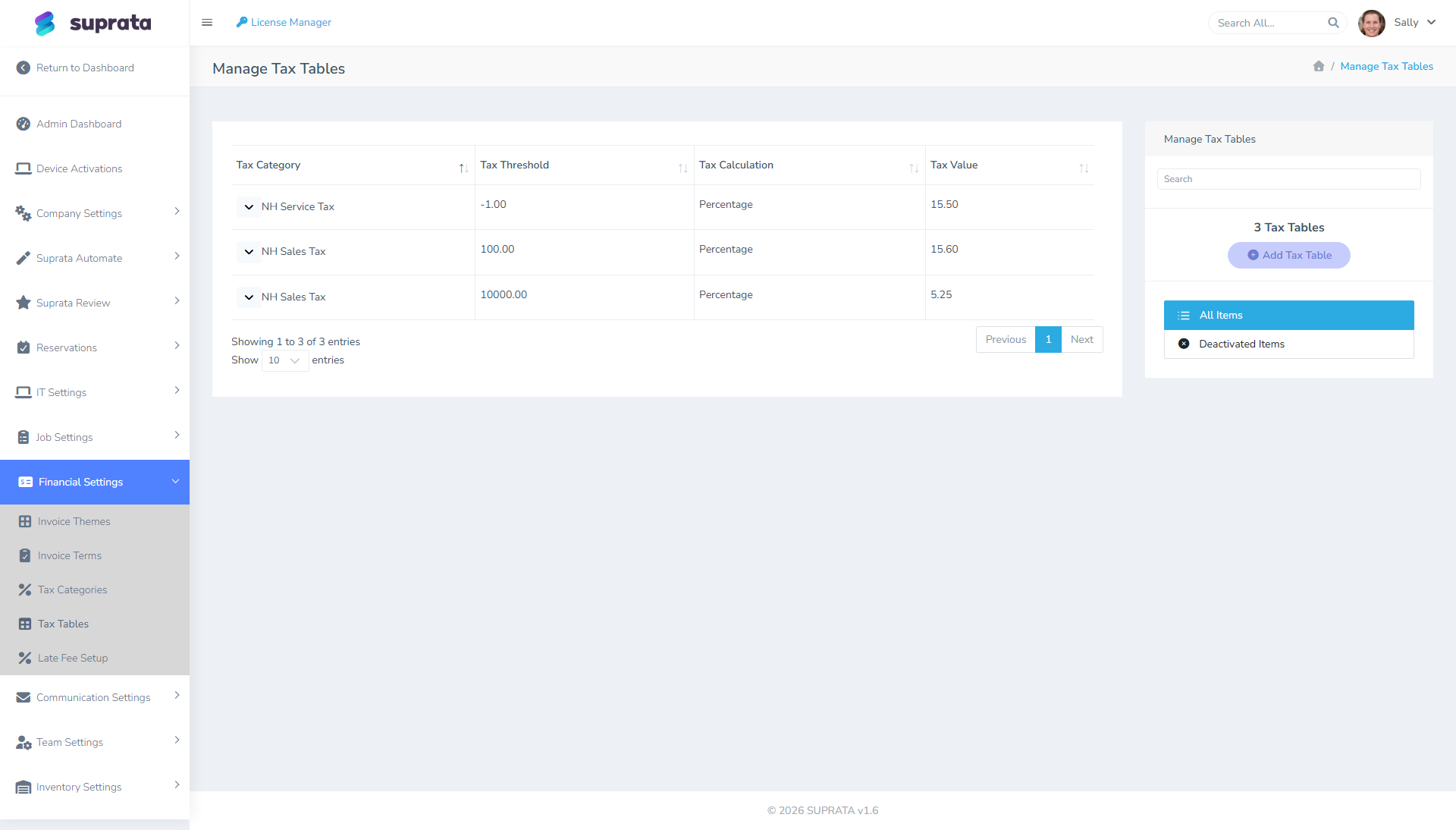
Each row maps a category to a threshold, a calculation type (Percentage or Flat), and a value. Tax Tables are where the actual percentages live. A category charges one rate per price: for most categories that's a single row with Threshold -1 (any price). Several rows on the same category don't add up.
Pick the strategy that matches your business
Most service businesses fall into one of these four shapes. Find yours, set up accordingly, and stop.
Strategy 1: Single rate, no exemptions
You qualify if: you're in a jurisdiction with one general sales tax rate, you sell only taxable items (or only non-taxable), and you've never had a tax-exempt customer.
The setup: One Tax Category called something like "Standard". One Tax Table at your rate. Every pricelist item gets the "Standard" category. Done.
This is rare for service businesses (most have at least labor-vs-goods variation) but common for pure-product retailers.
Strategy 2: Goods vs. labor
You qualify if: your state taxes tangible goods (parts, materials, equipment) but exempts labor or services. This describes most US service-business taxation.
The setup: Two Tax Categories — "Taxable Goods" and "Labor (Exempt)". One Tax Table at your goods rate, linked only to "Taxable Goods". Leave Labor unlinked so it computes 0%.
Then on the price list: parts items get "Taxable Goods", service/labor items get "Labor (Exempt)". From now on, every invoice automatically taxes parts and not labor — no per-line overrides.
This is the strategy most service companies should use. Even if you currently bill flat-rate (parts and labor combined into one line), moving to this structure now means you don't have to retrofit later.
Strategy 3: Combined or price-based rates
You qualify if: you charge a combined state + local rate (state + county, or state + city + special district), or your jurisdiction charges a different rate on cheaper items. New York City, for example, exempts clothing and footwear under $110 per item.
The setup: Categories like Strategy 2 (one for goods, one for labor), then the pattern that fits. First, one rule: each category charges exactly one rate per price. Several rows on the same category don't add up; the matching row wins and the others are ignored.
- Combined rate, reported as one number (most businesses): one row on "Taxable Goods" at the combined rate, with Threshold
-1(any price). State 6% + county 1% is one row at 7%. - Combined rate, reported per authority: one category per taxing authority, such as "State Sales" at 6% and "County Surtax" at 1%, each with a
-1row. Give every taxable item all of them. Separate categories do add up: a $100 part shows $6.00 and $1.00 as two tax lines. It's only worth it if your return asks for each authority's amount separately, because every taxable item then needs every category. - A different rate for cheaper items: a price bracket. A row with Threshold
109.99at 0% covers items priced at or under $109.99; the-1row at the full rate covers everything else. Set the category to Per Item, so each item is checked on its own price.
Brackets can only give cheaper items a different single rate. They can't add an extra rate on the part of a price above an amount, such as a surcharge above $5,000 or Tennessee's single article tax. Ask your accountant how to handle those sales.
Never use Threshold 0 for "applies to everything". 0 means "items priced $0.00 or less", so the tax charges nothing on a real sale. Use -1.
If the rate depends on where the work is done (you work in more than one state, or in a city with its own rate), don't build categories per state. Keep your categories as they are and set up tax locations. Each invoice then charges the rate of the place where the job was done.
Strategy 4: Customer-driven exemptions
You qualify if: you have some customers who don't pay tax (resellers, government, nonprofits, agricultural exemptions) but most do.
The setup: Don't try to model exemptions as item categories — model them at the customer level. Set up your default categories per Strategy 2 or 3. Then on the customer's Account, set their default tax category to "Exempt" (a third category linked to no tax tables). When you create an invoice for that customer, every line picks up "Exempt" by default and computes 0%.
For occasional one-off exemptions (a customer who's exempt this one time because they provided a resale certificate for a single sale), override the category on the specific invoice rather than changing the customer's default.
Decision shortcut
Answer these in order. The first "yes" tells you your strategy:
- Do you have any tax-exempt customers, ever? → You need Strategy 4 layered on top of whichever of 2/3 also applies.
- Do you charge a combined state + local rate, or a different rate on cheaper items? → Strategy 3. (Work in more than one state? Add tax locations on top of whichever strategy you pick.)
- Does your jurisdiction tax goods differently than labor, or are some product types non-taxable? → Strategy 2.
- Single rate on everything, no exemptions, never? → Strategy 1.
Naming conventions that age well
Tax setup tends to outlive the people who configured it. Pick names that make sense to a stranger walking in two years from now.
- Name categories by type, not by rate. "Taxable Goods", not "7% Tax". When the rate changes from 7% to 8% (and it will), you only update the table, not the category and every item linked to it.
- Name tables by jurisdiction + rate. "FL State Sales 6%", not "Tax 1". You'll thank yourself when you have ten of them.
- Use the color field. It's there for a reason — assigning red to "Exempt" and green to "Taxable" makes line items visually scannable on invoices.
Common mistakes
- Starting with "I'll figure out tax later." Then six months in, you've issued 800 invoices with the wrong category, and re-issuing is its own painful project.
- Naming categories after rates. When the rate changes, you have a category called "7% Tax" that now charges 8%. That's an audit trail nightmare.
- Modeling exemptions per item. Don't create an "Exempt" version of every item. Use a customer-level override (Strategy 4).
- Skipping the rounding method. Each category rounds tax to the cent in one of three ways: Round Up (to the next cent), Round Nearest (half a cent or more rounds up) or Round Down. On top of that, Per Item categories round each unit's tax and multiply by the quantity, while Per Invoice categories round once on the category's total. The combinations differ by pennies between what you bill and what you owe. Pick one and use it on every category. Round Nearest is ordinary rounding and what most states expect (check yours). Many accountants prefer Per Invoice, because it matches how the state expects you to remit.
- Treating tax tables as historical truth. When the rate changes, update the existing row, don't create a new one and orphan the old. The new rate reaches every unlocked invoice the next time it's opened or changed. Locked invoices keep the tax they were locked with, and closed or voided invoices never change. If invoices must keep the old rate, lock them before you change it.
- Configuring tax for one state because that's where you're based, then ignoring the customer in the next state. If you cross a border (literally or via online sales), you have nexus to think about — talk to a tax pro before assuming the same rates apply. Once you know what to charge, tax locations charge it automatically.
What this article does NOT cover
- The exact click-path for setting up categories and tables. That's How tax categories work in invoicing.
- Whether you have nexus in another state. That's a tax-professional question. Suprata can compute whatever rates you tell it to; it can't tell you whether you're legally required to charge them.
- Exempt-certificate management. Currently a manual process — you store the customer's exemption documentation outside the system and override their default tax category accordingly.
After this, you usually want to
- Set up your Tax Categories and Tax Tables according to the strategy you picked.
- Pre-tag a couple of test pricelist items with the right category before importing your full price list.
- Create one practice invoice end-to-end before letting real customer invoices flow.