Payments not coming through
A customer says they paid, but you don't see the payment in Suprata. Or a payment has been "pending" for days. Or autopay didn't run when it was supposed to. Payment problems feel urgent because money is involved, and they're confusing because the trip from "customer types in their card" to "money in your bank account" passes through several different systems that can each have their own hiccup.
This article walks through the most common payment problems and how to fix each one.
How payments actually move
It helps to picture the path:
Customer enters their payment
   → The payment processor (Stripe, USIO, etc.) charges the card
   → The processor tells Suprata the payment went through
   → Suprata records the payment on the invoice
   → If you use QuickBooks, Suprata sends it over
   → A day or two later, money settles into your bank account
A break anywhere in that chain looks like "the payment didn't come through." The question is where it broke.
When to start digging in
- A customer says they paid, but you don't see it. Most common.
- Autopay didn't run when expected.
- A saved card failed for a charge you expected to go through.
- A bank-transfer (ACH) payment is stuck in "pending" for more than 5 business days.
- You see the money at your processor but not in Suprata.
- Suprata shows the payment but the money never reached your bank.
Each of those points to a different piece of the chain.
How to diagnose it
Step 1: Did the processor actually charge the customer?
Log into your processor's dashboard (Stripe.com, your USIO portal, etc.) and look up the payment by amount, date, or customer email.
What you might find:
- The payment is there and it succeeded. The processor did its job. The problem is in the handoff between the processor and Suprata. Go to Step 2.
- The payment is there but it failed or is pending. The problem is on the processor's side or with the customer's bank. Go to Step 4.
- There's no payment at all. The customer may not have actually completed it, or they paid through some other method. Confirm with them — ask for a confirmation number or a screenshot of their bank charge.
If the customer is sure they paid, ask for a confirmation from their bank or a screenshot from their statement. That tells you whether the charge actually happened.
Step 2: Did the processor's notification reach Suprata?
When a payment succeeds at the processor, the processor sends Suprata a behind-the-scenes notification that says, in effect, "payment X for invoice Y went through." Suprata uses that notification to record the payment. If the notification didn't get through, Suprata doesn't know the payment happened.
Open the recent activity log:

For payment-specific issues, also check the payment diagnostic:
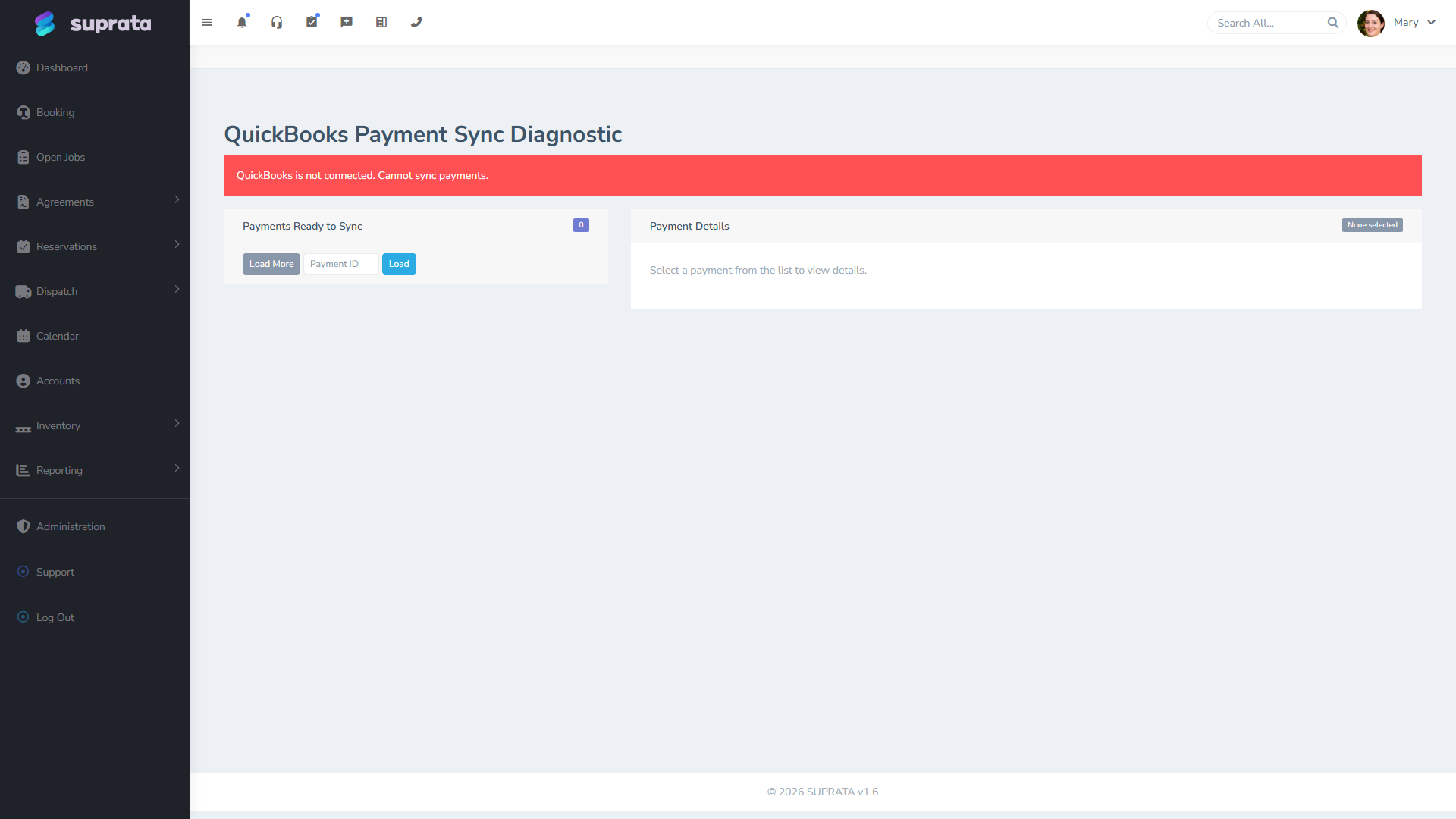
You're looking for any record of the payment notification. A few possibilities:
- The notification arrived and was processed cleanly. Suprata has the payment somewhere — search the customer's payment history, it should be there.
- The notification arrived but ran into an error. Read the error message. Common cause: the payment couldn't be matched to a specific invoice (maybe the customer paid through a generic payment link rather than from a specific invoice). The payment exists but is sitting unmatched.
- No notification ever arrived. Either the processor didn't send it, or the connection between the processor and Suprata is broken. This usually needs Suprata support to fix the connection.
Step 3: Manually record the payment if you need to
If the payment is at the processor but Suprata doesn't have it, you can record it manually:
- Look in the integration settings for a "refresh" or "re-sync" option — sometimes that's all it takes.
- If that doesn't work, manually create a payment in Suprata against the invoice. Mark it as paid through the processor and include the processor's transaction ID for reference.
- Reconcile the customer's balance.
This is a temporary fix. Whatever broke the connection still needs to get fixed, or the same thing will happen on the next payment. Contact Suprata support if it's a recurring issue.
Step 4: When the processor says the payment didn't go through
Common reasons for a failed payment at the processor:
The card was declined
The customer's bank declined the charge. Reasons:
- Not enough money in the account.
- Card has expired.
- Bank flagged it as suspicious.
- The billing address on file doesn't match what the bank has.
Suprata records the attempt as failed. The customer needs to use a different card or call their bank.
A saved card has expired
For autopay or saved-card charges, the card may have expired between when the customer saved it and when the charge ran.
Some banks and processors quietly update the expiration date when a card is reissued. Stripe does this for many issuers automatically. But you can't count on it — the safe move is to run an "expiring soon" report once a month and email those customers.
Fix: contact the customer for an updated card.
A bank transfer (ACH) got returned
Bank-account payments don't fail at the moment the customer submits them. The bank accepts them, then days later the customer's bank may bounce them back. Common return reasons:
- Not enough money in the account.
- The account has been closed.
- Wrong account number.
- The customer told their bank to stop letting you charge them.
- The customer disputed the charge with their bank.
The return arrives 2 to 5 business days after the original payment. Suprata's payment status changes from "pending" or "succeeded" to "returned" or "failed." You'll need to chase the customer for a different payment method.
Something on Suprata's side is misconfigured
If every payment is failing at the same point, it's usually a configuration issue with the processor connection — credentials that need refreshing, or a settings change that needs to happen. Symptom: the processor is fine, but Suprata never receives the notification, or rejects it when it does. Contact Suprata support.
Managing saved-card expirations
A specific recurring issue: autopay customers whose cards expire.
Best practice:
- Once a month, pull a list of saved cards expiring in the next 60 days.
- Email those customers asking them to update their card. Don't wait for the charge to fail.
- For your bigger autopay customers, call them. A failed charge on a $5,000 monthly maintenance contract creates real friction.
- For bank account info on file, re-confirm annually. Account closures are silent.
Common patterns by symptom
"Customer paid but I don't see it"
- Check the processor (Step 1).
- If the processor has it, check whether the notification reached Suprata (Step 2).
- If it didn't, record the payment manually and contact support to fix the connection.
"Autopay didn't run"
- Check the schedule — is autopay set up for the right date on this customer?
- Check the saved card — is it still valid?
- Make sure autopay is actually turned on for the customer.
- Check whether a previous failed attempt put the customer in a "do not retry" state.
"Bank transfer (ACH) is stuck in pending"
ACH payments normally settle in 3 to 5 business days. If it's been longer:
- Check the processor — is there a return notice?
- If returned, the customer's bank rejected it. Chase the customer.
- If still pending after a week, contact the processor's support.
"Suprata shows the payment but it's not in my bank account"
This is between the processor and your bank, not Suprata.
- Check the processor's payout schedule. Most processors pay out a day or two after the charge.
- Make sure your bank account is connected and verified at the processor.
- Sometimes processors pause payouts for verification — check whether yours has any holds.
- Contact the processor's support if money has been sitting at them for more than a week.
"Refund didn't reach the customer"
Refunds also take time — 5 to 10 business days for most cards. Customers often don't see them right away. If it's been more than 10 business days:
- Check the processor for the refund's status.
- If the processor shows it as refunded but the customer doesn't see it, they need to check with their card-issuing bank.
Common mistakes
- Assuming "marked paid in Suprata" means "money received." It doesn't always — especially for bank transfers, which can be reversed days later. Cross-reference with the processor.
- Not reading the decline reason. When a card is declined, the processor tells you why. Read it before retrying — there's no point in retrying the same expired card.
- Not handling returned ACH payments quickly. A return that came back 5 days ago and got ignored for another 5 days is a 10-day-old problem when you finally call the customer. Check your processor for returns daily.
- Manually marking a payment as paid to "make it look right" without actually receiving the money. Now your books say you got money you didn't. Chase the actual payment first.
- Ignoring a chronic "the connection between Stripe and Suprata is broken" pattern. If you keep having to manually record payments, get the connection fixed — manual reconciliation will eventually let one slip through.
Prevention
- Once a day, glance at the processor's recent activity to make sure payments are flowing.
- Once a month, run an "expiring saved cards" report.
- For ACH-heavy businesses, check returns daily.
- Make sure your team knows the difference between "submitted" and "actually settled" for bank transfer payments — they're not the same.
When to call for help
If you've worked through the patterns above and the issue is still there, escalate:
- Your processor's support for processor-side issues, settlement problems, or connection problems on their end.
- Suprata support for payment recording issues, broken connections to your processor, or anything that looks like a software issue.
- Your bank for "money should have hit my account but didn't" problems that aren't at the processor.
Have ready: the customer name, invoice number, payment amount, date, and the processor's transaction ID. Having those in hand makes the support call go much faster.