Diagnosing QuickBooks sync failures
Most QuickBooks sync problems aren't mysterious — they're one of about half a dozen common issues. The sync diagnostic screen tells you which one, and once you know what you're dealing with, the fix is usually quick. The trick is reading the error without panicking.
This article walks through the common errors and what to do about each. If you're hitting issues during your first-ever connection, also read QuickBooks prerequisites — a lot of "sync errors" are really "I skipped a setup step."
When you'd run the diagnostic
- An invoice (or several) hasn't shown up in QuickBooks after the usual delay — typically 5 to 15 minutes, sometimes up to an hour for a big batch.
- You see a red error mark next to a record's QuickBooks status.
- Your QuickBooks customer or item list doesn't match what's in Suprata.
- A payment is recorded in Suprata but isn't showing in QuickBooks.
- You're about to do something big — year-end close, a batch of historical invoices — and want to make sure sync is healthy before you start.
The sync diagnostic screen
The diagnostic screen shows recent sync attempts, which ones succeeded, which ones failed, and the error message for each failure:

For payment-specific issues, there's a separate payment diagnostic:
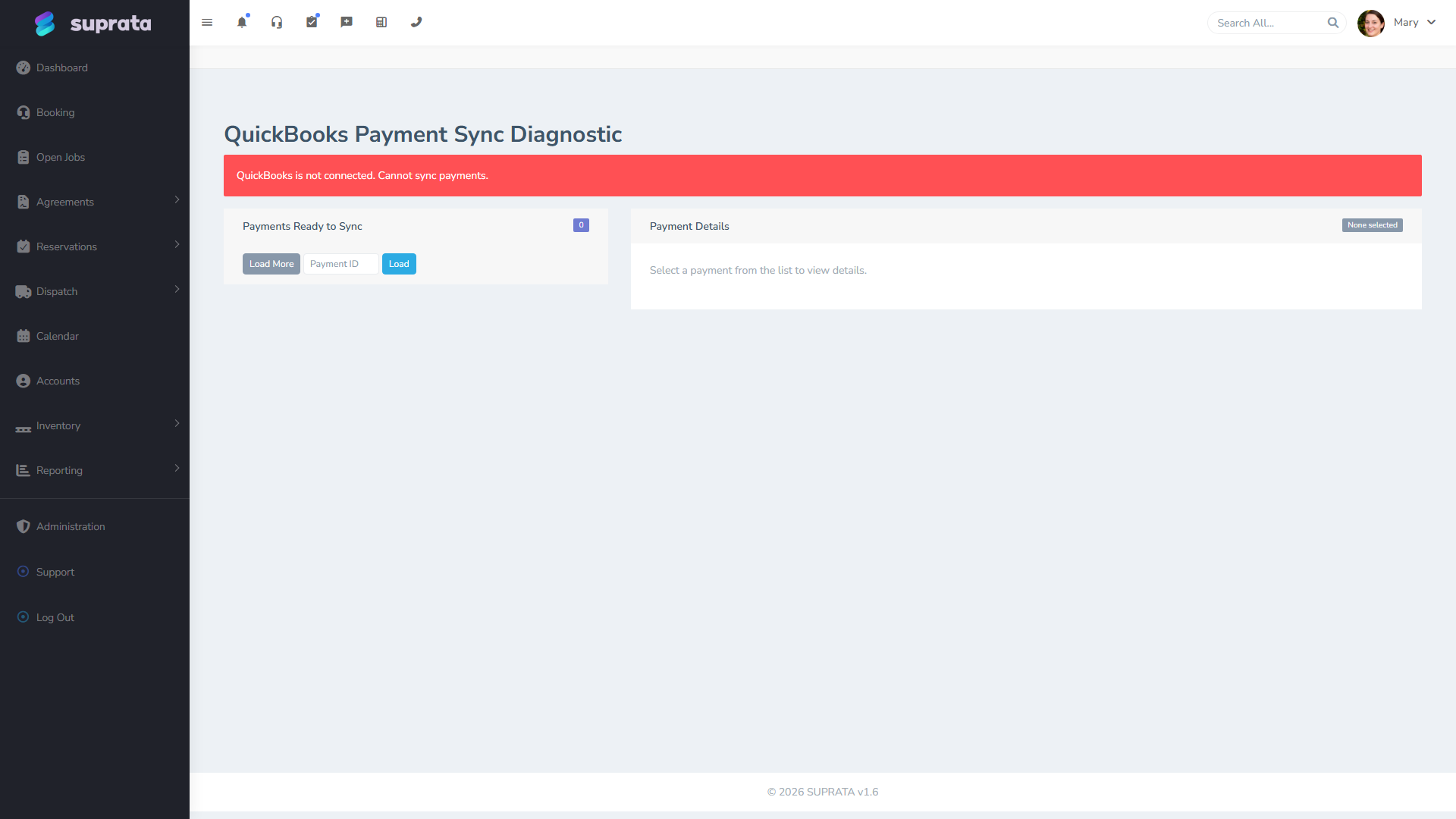
Open both when you're troubleshooting — sometimes the problem is on the invoice side, sometimes on the payment side, and sometimes a payment can't sync because the invoice it belongs to hasn't synced yet.
The recurring error patterns
Pattern 1: "Customer not synced"
What it looks like: the invoice failed because its customer doesn't exist in QuickBooks yet.
Why it happens: Suprata creates customers in QuickBooks the first time you try to sync something for them. If creating the customer failed for some reason, every invoice for that customer also fails.
Fix:
- Open the customer in Suprata.
- Look at the QuickBooks status on the customer record itself (separate from the invoice).
- If the customer shows an error, fix that first. Common reasons:
- QuickBooks is missing required info — usually email or phone.
- There's already a customer in QuickBooks with the same name and the system can't tell if they're the same person.
- The customer was deleted in QuickBooks but is still linked from Suprata.
- Once the customer syncs cleanly, retry the invoice.
Pattern 2: "Item name collision"
What it looks like: an invoice line item references an item name that already exists in QuickBooks but was never linked to the Suprata item. QB rejects the create.
Why it happens: QuickBooks requires every item to have a unique name. If QuickBooks already has an item called "Service Call" and Suprata tries to create another one with the same name, QuickBooks refuses. This is especially common when you're moving from another system — QuickBooks has your old item names, and Suprata is trying to add new ones.
Fix:
- Open the item in Suprata's price list.
- Either link it to the existing QuickBooks item using the integration's item-matching tool, or rename the Suprata item so it doesn't collide.
- Re-sync.
The cleaner long-term fix: take a pass through your QuickBooks item list and your Suprata price list and line them up before any invoices try to sync. See QuickBooks prerequisites.
Pattern 3: "Closed period"
What it looks like: an invoice or payment dated inside a closed QuickBooks accounting period gets rejected.
Why it happens: QuickBooks lets you "close the books" through a date — usually at year-end — and after that it won't accept any new transactions dated before that close. If Suprata tries to send over an old invoice (because someone back-dated it, or because sync got behind), QuickBooks pushes back.
Fix options:
- Temporarily reopen the period in QuickBooks (under Account and Settings → Advanced → Accounting). Sync the held-up records. Then close the books again.
- Re-date the records to the current period in Suprata before syncing. Only do this if the records actually belong in the current period — don't move legitimately old records.
- Enter the records manually in QuickBooks and mark them synced in Suprata so it stops trying. Last resort.
Talk to your bookkeeper before reopening a closed period — there are accounting reasons not to do it casually.
Pattern 4: "Tax mismatch"
What it looks like: the invoice's tax doesn't match what QuickBooks expects for the customer's address, or the tax category in Suprata doesn't have a corresponding QuickBooks tax set up.
Why it happens: QuickBooks has its own tax handling, especially for multi-state businesses. If Suprata's tax categories don't line up with QuickBooks's tax codes, the invoice either syncs with the wrong tax or fails.
Fix:
- Open your QuickBooks integration settings and check the tax category mapping.
- For each tax category in Suprata, make sure there's a matching QuickBooks tax code.
- If you operate in multiple states, you'll usually need per-state mappings.
- Re-sync.
Pattern 5: "Connection expired" / "Sign in again"
What it looks like: every record fails with a sign-in-related message. The whole integration stops working.
Why it happens: Like other apps that connect to QuickBooks, Suprata's permission to access your QuickBooks expires periodically. Normally it renews itself in the background, but if the integration sits unused for 100+ days, the connection lapses entirely.
Fix: reconnect. Open the QuickBooks integration page in Suprata, click Reconnect, sign in to QuickBooks again. Sync resumes within a minute or two.
Pattern 6: "Customer balance mismatch"
What it looks like: the customer's outstanding balance in QB doesn't match what Suprata shows.
Why it happens: usually one of three things:
- An invoice synced but its matching payment didn't.
- A payment was entered in QuickBooks directly, bypassing Suprata.
- A retry of an earlier sync ended up creating a duplicate.
Fix:
- Pick one record (usually the most recent invoice or payment that should be on both sides).
- Trace it: does it exist in both systems? Are the amounts the same?
- If you find duplicates in QuickBooks, void them carefully — don't delete them. Voiding keeps a history; deleting wipes it.
- If a payment is missing from one side, manually create the missing one rather than removing the existing one.
Balance mismatches are the most frustrating errors because they require accounting judgment. Loop in your bookkeeper if you're not sure.
Pattern 7: "QuickBooks temporarily unavailable" / "Try again later"
What it looks like: sync fails randomly, often in the morning or at the end of the month when everyone's syncing.
Why it happens: QuickBooks Online sometimes throttles incoming traffic during heavy periods, or has its own brief outages.
Fix: wait. Suprata retries automatically. Most of these clear up within an hour. If the same error keeps happening for more than a day, contact support — that's not a temporary issue.
The diagnostic flow
When triaging a sync issue:
- Start with the diagnostic screen. Read the error message; don't guess from memory.
- Check the customer first, then the invoice. Customer errors cascade to invoice errors.
- Look at the timing. Did the error start at a specific time? What changed at that time?
- Check if anyone made changes in QB directly. Direct QB edits sometimes confuse the sync.
- Try a single retry before doing anything else. Many errors are transient.
- If retry fails, fix the underlying cause based on the patterns above.
- If you can't identify the pattern, screenshot the error and contact support.
When to call support vs. when to fix it yourself
Self-fix:
- Customer or item not synced (you can see why and fix).
- Closed period (you can decide whether to re-open).
- Tax mismatch (you can re-map).
- Auth expired (just reconnect).
Support:
- Persistent errors with messages you don't recognize.
- Balance mismatches that involve historical records you don't fully understand.
- Errors that affect every record (suggesting a system-side issue, not data).
- Anything happening during a critical close-out window where you can't experiment.
Common mistakes
- Retrying the same record over and over hoping it works. If the underlying cause isn't fixed, retries don't help. Read the error.
- Editing records in QuickBooks directly to "fix" sync issues. This breaks the sync mapping; the next Suprata-side change will overwrite or conflict.
- Deleting records to start fresh. Deletions in QB orphan the Suprata mapping; the next sync may create a duplicate. Use Void instead of Delete for QB records.
- Ignoring sync errors. They don't get better on their own. A backlog of failed syncs becomes an A/R reconciliation nightmare.
- Treating sync errors as data-entry problems when they're configuration problems. If every invoice for a specific customer fails, the customer's mapping is wrong, not the individual invoices.
- Not having a bookkeeper involved. Many sync issues straddle the line between "tech problem" and "accounting problem". A 10-minute call with your bookkeeper resolves things 30 minutes of guessing won't.
- Skipping the diagnostic tool. It exists specifically to surface these errors; using it is faster than poking at individual records.
Prevention
Most sync errors are preventable with careful setup:
- Read QuickBooks prerequisites before connecting QB.
- Walk through one full invoice cycle (create → sync → confirm in QB) before any real data flows. See QuickBooks first sync walkthrough.
- Set up tax mappings carefully and test them.
- Keep the QB chart of accounts simple — fewer accounts and items = fewer collision opportunities.
- Run the diagnostic weekly even when there's no obvious issue. It catches problems before they pile up.