The Morning Dispatch Routine
The first thirty minutes of a dispatcher's day determine whether the next eight hours go smoothly. Done well, every tech leaves the yard knowing where they're going, every customer expecting service today knows you're coming, and every overnight surprise has been triaged before crews are halfway down the road. Done poorly, you're putting out fires by 9:30, the second-shift dispatcher has a four-text backlog by 11, and at least one customer is calling at noon asking why nobody showed up.
This article walks through that opening half hour as a routine — six steps you do in roughly the same order, every day. The screens you'll touch are the dispatch board, the calendar, your messages inbox, and the Account dashboards of customers you're chasing. Treat this as a checklist for your first week as a dispatcher; once it's muscle memory you can stop thinking about it.
Why a routine, not a vibe
Dispatching is a job that rewards consistency more than improvisation. There's always something on fire — but the fires that bite hardest are the ones that were already smoldering at 8:00 AM and nobody looked. A routine forces you to check the slow-moving things (unconfirmed appointments, overnight email replies, tech status) before you start reacting to the fast-moving ones (the customer calling about a leak, the tech who locked their keys in the truck). Reactive dispatching feels productive. Proactive dispatching prevents the calls you'd otherwise be reactive about.
Step 1 — Open the dashboard and the dispatch board
Two surfaces in two browser tabs. The home dashboard gives you the bird's-eye view. On the Dispatcher dashboard that means today's visits by where they stand, a timeline of who's where, what's running late and what's still waiting for a date. The summary line under your name collects anything that needs you. The dispatch board is your working surface for the day.

On the dispatch board, look at the row of techs. Who's clocked in already? Who hasn't? It's 7:45 AM and Dave's row is empty — text Dave. Maybe his alarm didn't go off, maybe he's stuck in traffic, maybe he forgot it was his day. Knowing now is much better than discovering at 9:15 when his first appointment is.
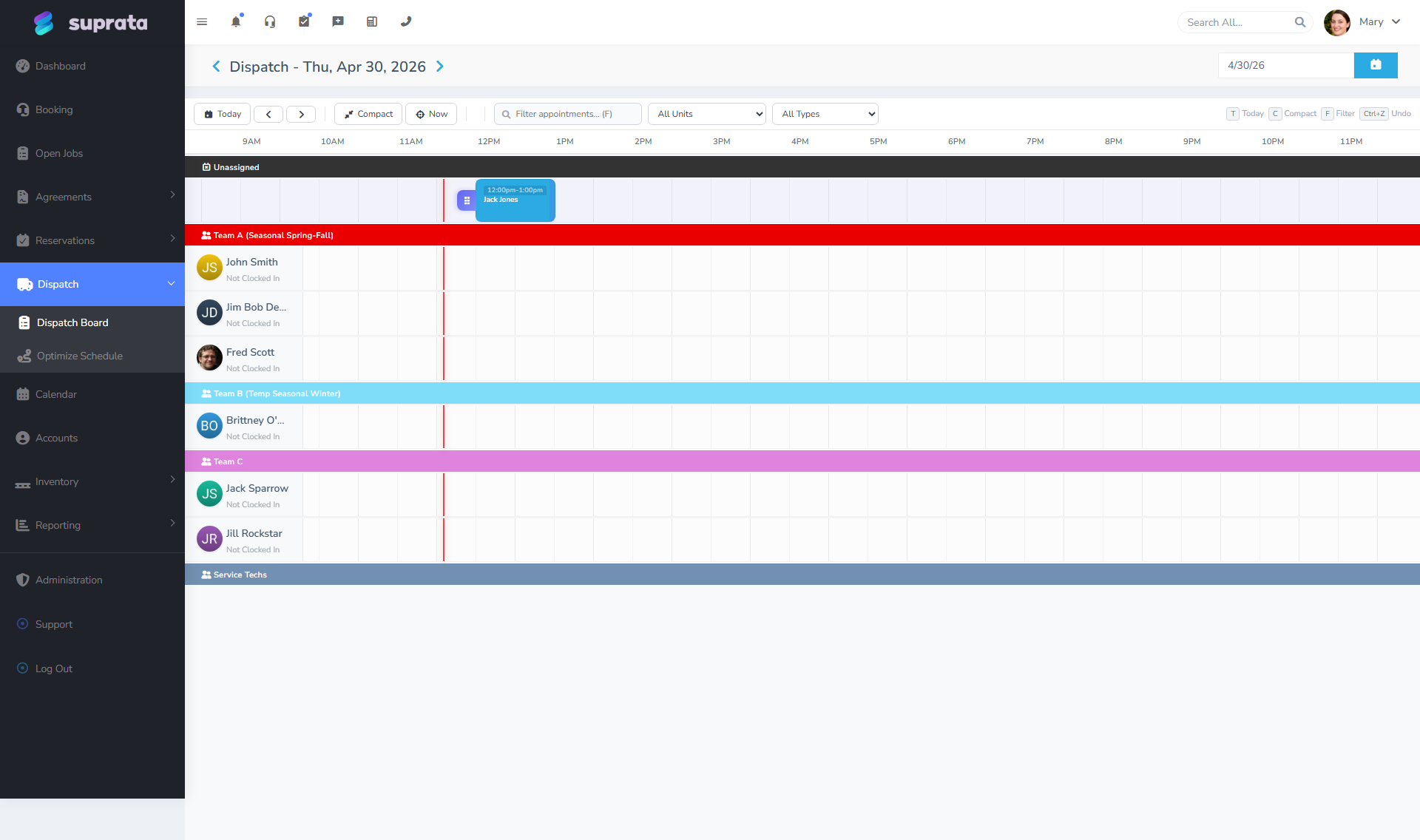
Then look at the appointments. How many slots are filled, how many are still empty? If today is short, you have room to absorb add-ons. If today is packed, you don't — and that affects how you handle every "can you fit me in?" call that comes in over the next eight hours.
Step 2 — Triage overnight messages
The phones, the email, and the SMS inbox have all been collecting overnight. Open each in turn — not to respond to them all, but to categorize them. Three buckets:
- Emergencies. Someone has a flooding basement, a broken AC in 95-degree weather, a no-heat call in winter. These need a same-day slot. Decide which tech is closest or most appropriate, slot it in, and call the customer back to confirm a window. See Handling a rush job or emergency.
- Replies to confirmations. Customers who are confirming or rescheduling appointments that are already on the books. Update the appointment, send a confirmation back, move on. The reason you scan these first is that a "please reschedule" reply that sits unread until 10 AM means you've already dispatched a tech to a house where nobody will be home.
- Everything else. Quote requests, billing questions, "is my part in yet?" — these go into a follow-up queue for the office to handle later. Don't let them eat your dispatch focus.
Suprata's Setting up IMAP — turning replies into actions lets the system pre-classify some of these, but the human judgment of "is this an emergency?" is still yours.
Step 3 — Confirm today's unconfirmed appointments
The system has been sending automatic confirmation messages to today's customers — typically the day before, sometimes earlier. Open the day's appointment list and look for the ones still flagged as unconfirmed.
For each unconfirmed appointment:
- Try a quick text first. "Hi, just confirming we're scheduled to see you between 9 and 11 today — please reply YES to confirm or call us if you need to reschedule." Most customers respond within ten minutes.
- If no response in ten minutes, call. A live phone call with a real human voice gets a confirmation 80% of the time when the text didn't.
- If you can't reach them, decide. Either dispatch the tech anyway and accept the no-show risk, or deprioritize them and use that slot for someone you do confirm. Generally, confirmed customers come first.
The cost of an unconfirmed appointment is enormous. Your tech drives forty-five minutes to a house where nobody's home; that's a chunk of revenue gone, and another customer somewhere else who could have had that slot. Spending three minutes on a confirmation call is the highest-ROI dispatch activity there is.
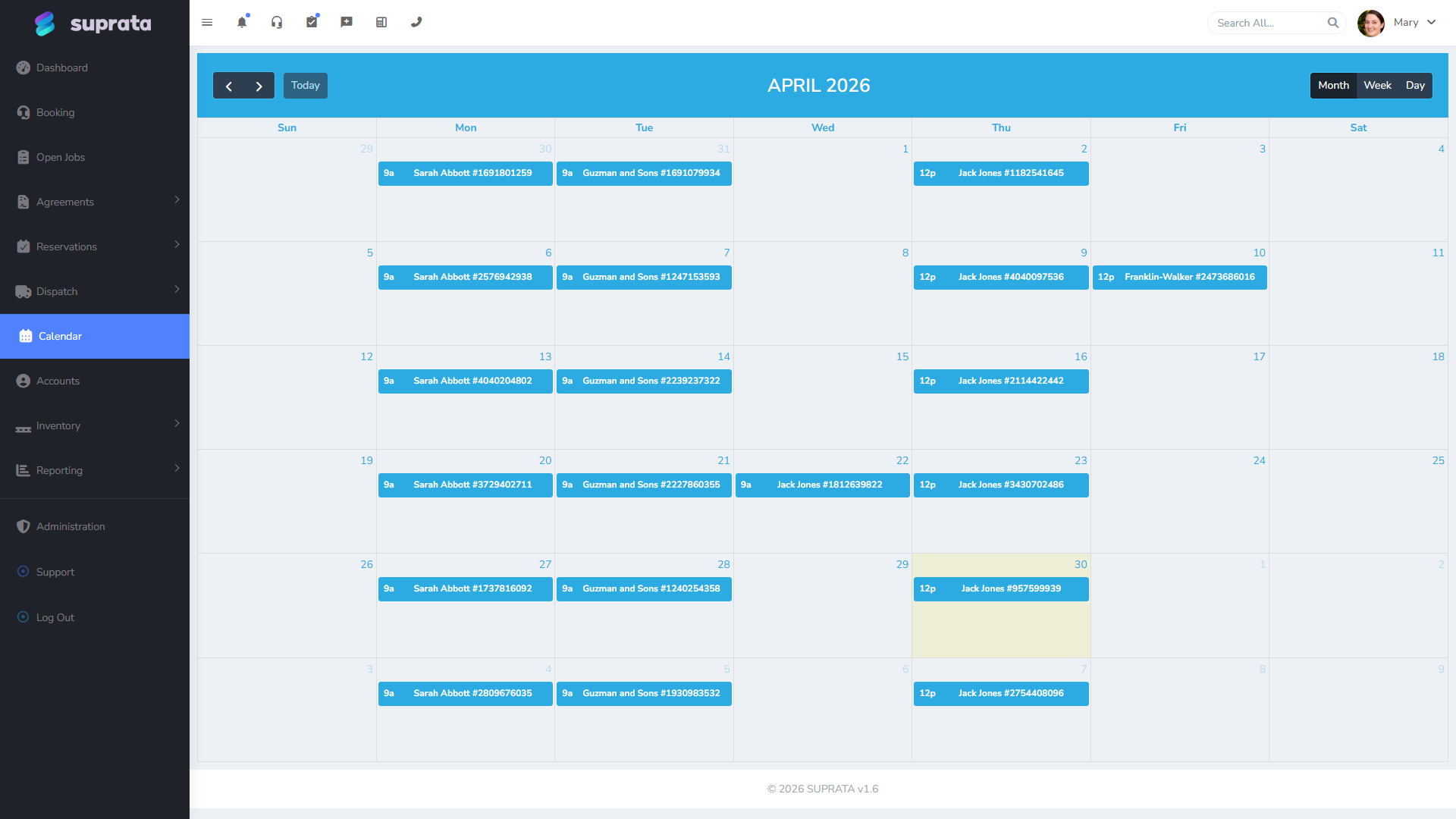
The calendar view is helpful here for a wider lens.
Step 4 — Reconcile tech availability against the schedule
By now you know who's clocked in and who's not. Reconcile that against today's assignments.
- Tech called in sick. Their appointments need to be redistributed. Look at each one: can it be moved to another tech? Reassign on the dispatch board. Can it be pushed to tomorrow? Call the customer, offer the reschedule, update the appointment. Can it just be split between two other techs? Sometimes the answer is yes, sometimes no. The judgment is yours.
- Tech is running late. If their first appointment is at 9 and they're not in the truck yet at 8:50, that customer needs a heads-up. Don't make them wait for the next automated message — send a manual "we're running about 30 minutes behind, sorry" SMS now.
- Tech has unexpected capacity. Maybe they finished yesterday's last job at 7 AM and their first appointment isn't until 11. That's a window for either an emergency add-on or pulling forward a confirmed-but-flexible customer.
The dispatch board is meant to be a live document. Drag jobs around as the day's reality shifts. The goal isn't to follow the schedule you made yesterday — it's to keep the schedule matching what's actually happening.
Step 5 — Send the "tech on the way" messages
As crews load up and roll out, send the "tech on the way" SMS to each customer. The exact mechanics depend on how you've set this up — some shops do it manually as the tech leaves, some have it triggered automatically when the tech updates their status to "en route" on the mobile app. Whichever way, make sure these are going out. Customers who get an "on the way" message are dramatically less likely to call asking when you're coming, and dramatically more likely to actually be home when you arrive.
If the customer has a parking gate code, a dog, a side entrance, or any other on-arrival quirk noted on the Account, that information should be in the SMS the tech receives — not just the message the customer gets. Configure your "tech-on-the-way" template to pull in arrival-instruction notes from the Account so your tech walks up to the right door without having to text the dispatcher.
See Customizing the appointment confirmation and SMS templates for past-due reminders for the template-editing mechanics.
Step 6 — Watch for last-minute add-ons
By 9 AM, the day is in motion and your job becomes orchestration. Calls that come in now want service today. Decide quickly:
- Is there capacity? Look at each tech's open windows. A 30-minute slot at 11 might be a perfect fit for a quick service call near another stop they already have.
- Is the geography sensible? Pulling a tech across town for one add-on costs more than the add-on usually pays. If the geography is awful, push to tomorrow.
- Is it actually urgent? "I'd like someone today" and "my pipe is spraying water" are different requests. Not every customer who asks for today actually needs today.
Use the GPS suggestions if you have route optimization enabled — it'll cluster nearby work and tell you which tech is closest to a new request. See GPS route optimization.
What can go wrong
- Confirming nothing because the system "did it automatically." Automatic confirmations send the message; they don't mean the customer received or read it. If you don't have a response, you don't have a confirmation. Your job is to chase the silences.
- Treating the dispatch board as set-and-forget. A board that hasn't been touched since 7 AM is a lie by 11. Drag, reassign, drop, and re-drop as reality changes.
- Overcommitting on emergencies. Every emergency you slot in displaces something already booked. If you cram two emergencies in on top of a full day, something is going to be late or skipped. Be honest with the customer at booking time about the window you can actually hit.
- Not communicating tech delays to customers. A delay you don't communicate is a complaint waiting to happen. A delay you do communicate is usually forgiven. The marginal cost is one SMS.
- Letting the messages inbox stack up. If you stop scanning replies after 9:00 because the day got busy, by 11:00 you have three rescheduled customers you don't know about and one tech driving to an empty house. Set a 30-minute alarm to swing back through the inbox.
- Forgetting that yesterday isn't over. Some appointments yesterday closed late, some didn't close at all. The end-of-day routine catches most of it — see The end-of-day closeout — but if your evening dispatcher missed something, your morning self inherits it. Spend two minutes scanning yesterday's "still in progress" jobs before you fully commit to today.
What "good" looks like
By 8:30 AM:
- Every tech that's working today is clocked in or accounted for.
- Every appointment that's happening today is confirmed (or actively being chased).
- Crews are loading and "on the way" messages are firing.
- Overnight emergencies have been slotted in.
- The dispatch board reflects current reality, not yesterday's plan.
If those five things are true at 8:30, the rest of your day will be reactive but not chaotic. If any of them are false, you're already behind.