Setting up IMAP — turning customer replies into actions
Send an invoice. The customer replies "Can I split this into two payments?" That reply has to land somewhere. If it goes to a personal inbox that nobody monitors, you lose the conversation. If it lands inside Suprata — attached to the right account, visible on the right job — your team can act on it.
That's what the inbound mail feature does. Suprata signs into your shared mailbox every couple of minutes, pulls in new messages, and matches them to the right account by the sender's email address. The reply shows up in the customer's account history alongside everything else.
This article covers when to turn IMAP on, how to configure it, and the edge cases that bite people the first month.
When you'd use this
- You already use Custom SMTP for outbound and want a complete loop. IMAP is the inbound half of "Custom IMAP/SMTP".
- You have a shared mailbox like
service@yourcompany.comorbilling@yourcompany.comthat customers reply to. You want those replies visible to whoever's working the account, not just to whoever owns that mailbox. - You're tired of the "did anyone follow up with so-and-so?" Slack thread. Once replies land in Suprata, the answer is on the account page.
- You're growing past 2 or 3 staff. Below that, one person can mentally track every reply. Above it, you need a system.
If you're still on the Built-in Email System, IMAP doesn't apply — Built-in is outbound only. You need to be on Custom IMAP/SMTP for inbound to work. See Setting up email (SMTP) for that switch.
How it fits together
The model is simple, but worth understanding before you click anything:
- A mailbox somewhere holds your inbound mail. Google Workspace, Microsoft 365, your hosting provider's mailbox — anything that speaks IMAP.
- Suprata checks that mailbox every couple of minutes using the credentials you provide.
- Each new message gets logged in Suprata's inbound mail log.
- Suprata tries to match the sender against the email addresses on existing contacts. A match attaches the message to that account's history.
- Unmatched messages still get logged, but they sit in a "no account match" state until someone reviews or assigns them.
Suprata reads from the mailbox without deleting anything — the original copy stays in your mailbox.
Setting it up — the typical workflow
1. Pick the mailbox
Don't use a personal inbox. Use a shared mailbox with a generic address (service@, support@, billing@, office@). Two reasons:
- Continuity. When the staff member who owns a personal inbox leaves, you don't lose the email history.
- Audit clarity. Customer replies belong to the business, not to one employee.
If you don't have a shared mailbox yet, create one in Google Workspace or Microsoft 365 first.
2. Get IMAP credentials from your provider
You'll need:
- IMAP host. Usually
imap.gmail.com,outlook.office365.com, or whatever your provider documents. - IMAP port. 993 for SSL (the modern default), 143 for STARTTLS.
- Username. Almost always the full email address.
- Password. For Gmail / Microsoft 365 with two-factor auth on (which it should be), you must generate an app password rather than using your real login password. Each provider has a slightly different path to do this in their security settings.
Test the credentials in a desktop mail client first if you can. If Thunderbird or Apple Mail can sign in with them, Suprata can.
3. Switch Suprata to Custom IMAP/SMTP
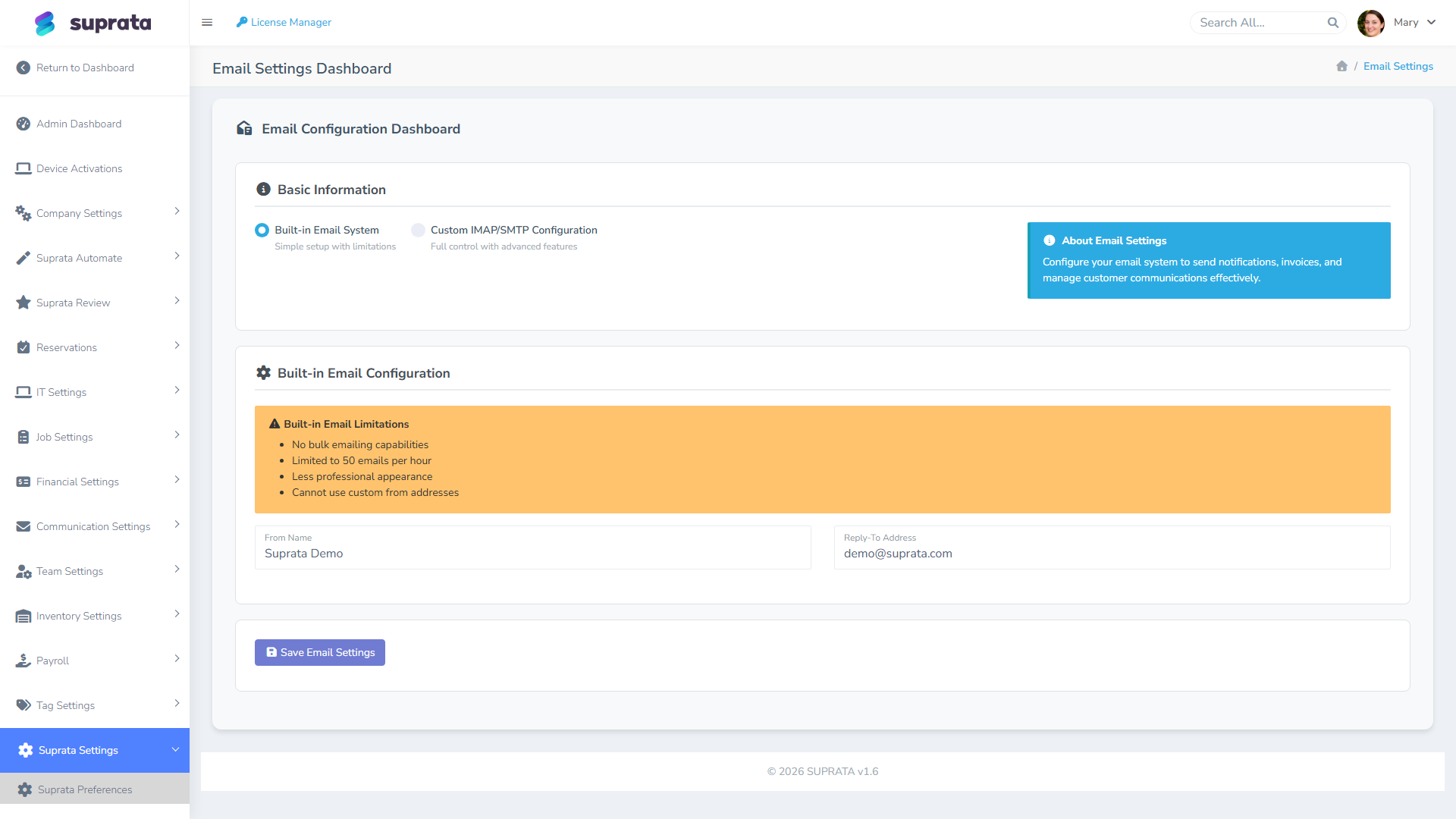
On the Email Configuration screen, flip the toggle from Built-in to Custom IMAP/SMTP. The IMAP fields appear alongside the SMTP fields. Fill in both halves — there's no point doing inbound without the matching outbound.
4. Save and wait for the next check
Mailbox checks happen every few minutes, not instantly. After saving, send a test message from another inbox to the mailbox you just configured. Wait two or three minutes. Then check whether it shows up on the matching account in Suprata (or in the unmatched-mail review).
5. Watch the activity log for a few days
The system activity log shows the last few inbound mail checks, how many messages each one pulled in, and whether anything went wrong. Glance at it on day one, day three, and day seven. Quiet logs mean it's working.

How sender matching works
The match is on the sender's email address. If bobjim@gmail.com replies to an invoice, Suprata looks for any contact with bobjim@gmail.com on file and attaches the message to that contact's account.
Several edges to know about:
- Multiple contacts share an email. A spouse and a primary contact might use the same household email. The message attaches to the first match. Practical fix: if the household truly needs two separate billing identities, give them distinct email addresses.
- The customer replies from a different email than the one on file. No match — the message lands in unmatched. Train staff to occasionally sweep the unmatched bin and either update the contact's email or note the alternate address.
- The customer's email forwards through a different system (a Mailgun re-write, a VIP forwarder, etc.) and the reply arrives with a munged sender. Same problem; same fix.
Common mistakes
- Pointing IMAP at someone's personal Gmail. Personal Gmail flags repeated logins as suspicious activity and may lock the account at random. Use Google Workspace, not personal
@gmail.com. - Using the regular login password instead of an app password. With two-factor authentication on (which it should be), the regular password will be rejected. The activity log will show
LOGIN failed. Fix: generate an app password in your provider's security settings and paste that in. - Pointing IMAP and SMTP at different mailboxes. Suprata sends from one address but reads from another. Customers reply to the From address, so their replies never reach the inbound mailbox. Use the same address on both sides.
- Not checking the unmatched bin. Customers will sometimes email you from an address you don't have on file. If nobody reviews the unmatched messages, those customers feel ignored.
- Expecting real-time inbound. Checks happen every few minutes. A reply that just landed in Gmail will show up in Suprata in one to three minutes — fine for almost everything, but not instant.
- Using the same shared mailbox for non-Suprata correspondence too. Vendor emails, internal threads, newsletters — they all get logged into Suprata along with the customer replies, which adds noise. A dedicated
service@mailbox just for customer-facing replies keeps things tidy.
What the inbound log shows you
For each message you'll see who sent it, the subject line, the time it arrived, and whether it matched an account. From a customer's account page you see the full email history with you — sent and received — in chronological order. That's the real payoff: a complete record without anyone having to forward or copy-paste a thread to keep the team in the loop.
Related articles
- Setting up email (SMTP)
- Customizing the invoice email template
- Email deliverability — fixing 'going to spam' issues
- Customizing the appointment confirmation