Customizing the invoice email template
When Suprata sends an invoice to a customer, it uses a stored email template — subject line, body, and signature — with placeholder variables (%fname%, %companyname%, %link%) replaced with the actual values for that specific invoice.
The shipped default template works, but it reads like a system notification. A 15-minute customization makes it sound like a person from your business sent it — which means more customers actually open it, and more customers actually pay it on time.
This article covers how to edit the invoice email template, the variables you have available, and the writing principles that make a template land well.
When to do this
- First-week setup, after SMTP is working but before you send your first real invoice.
- You changed your brand voice (rebrand, new tagline, new sign-off person).
- Customers aren't paying on time and you suspect the email isn't landing well. Often a template tweak is enough to fix it.
- You want different templates for different situations (a chipper "thanks for your business" for paid customers, a firmer "this is past due" for re-sends).
Where templates live
Sidebar: Administration → Communication → Email Templates.
Suprata maintains a catalog of templates for different system events:
- Invoice send (the most-used).
- Estimate send.
- Appointment confirmation.
- Appointment reminder.
- Payment receipt.
- Past-due notice.
- Customer-portal welcome.
- Service-agreement renewal notice.
Each template has a subject line, a body (rich text or HTML), and supports variable substitution using percent-wrapped tokens like %fname%.
You don't need to edit all of them on day one. Start with the Invoice Send template — that's the one your customers see most often.
What the template structure looks like
Looking at the SMS templates screen as an example of how templates are structured:
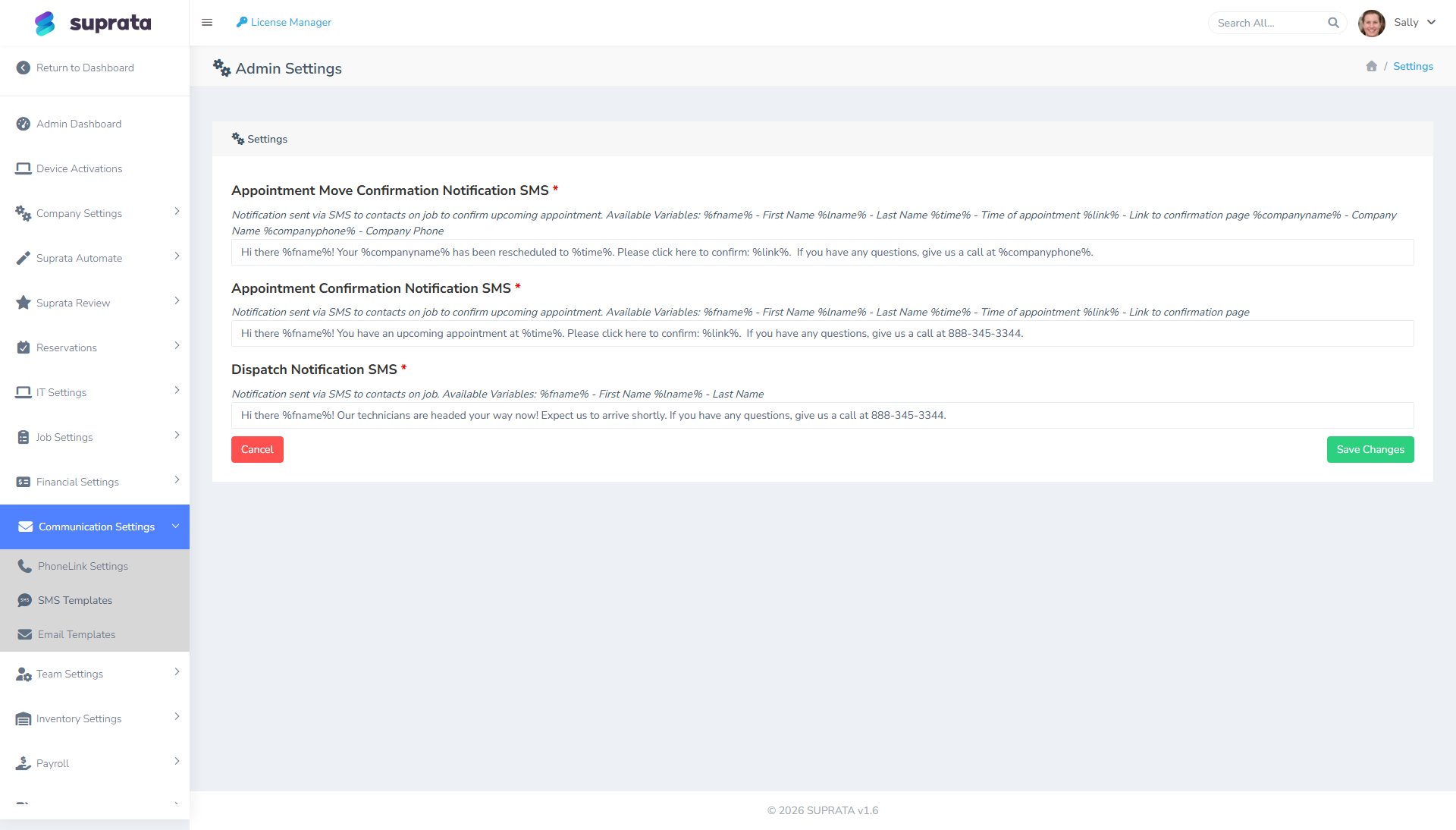
Sidebar: Administration → Communication → SMS Templates (the email template editor follows the same pattern). Each template has a description of available variables right above the field, then the editable body.
The same pattern applies to the email templates: variables shown at the top, editable body below.
Variables you can use in the invoice email template
The most common available variables (your specific template editor will list the full set in-context):
| Variable | What it means | Example value |
|---|---|---|
%fname% |
Customer's first name | "Sarah" |
%lname% |
Customer's last name | "Bakerton" |
%companyname% |
Your business's name (from Company Settings) | "ACME Plumbing" |
%companyphone% |
Your business's phone | "(555) 123-4567" |
%invoicenumber% |
The invoice number | "INV-1234" |
%amount% |
The invoice total | "$256.50" |
%dueamount% |
What's currently owed | "$256.50" |
%duedate% |
When payment is due | "May 15, 2026" |
%link% |
The customer's "Pay Online" link | (URL) |
%terms% |
The terms text from the invoice | "Net 30" |
%accountname% |
The Account's display name | "ACME Plumbing" or "Smith, John" |
Variables get substituted when the email is sent. If the variable can't be resolved (e.g., %duedate% on an invoice with no due date), it's typically left blank rather than erroring.
The 15-minute customization that matters most
Open the Invoice Send template. Replace the default with something like this (adjust to your voice):
Subject line
Default (often): Invoice from {your company}
Better:
Invoice %invoicenumber% from %companyname% — %amount%
Why: shows the amount up front. Customers skim subject lines fast — "what is this and how much" is what they want to see immediately.
Body
Default: a generic two-line "Please find your invoice attached" message.
Better:
Hi %fname%,

Thanks for the recent work — invoice %invoicenumber% for %amount% is attached and you can also view and pay it online here:

[Pay Online]( %link% )

If you have any questions about the bill, just reply to this email or give us a call at %companyphone%.

Thanks,
The %companyname% team
Why:
- Greets by first name (parsed automatically).
- States the why (the work) before the what (the invoice).
- Puts the "Pay Online" link prominently and high in the body.
- Invites questions and provides the channel (reply to this email — assuming your Reply-To is monitored).
- Sounds human.
Different templates for different situations
Once the basic Invoice Send is good, consider adding variants:
A "past due" variant
For when re-sending an unpaid invoice. Same structure, but with a slightly firmer tone:
Hi %fname%, this is a reminder that invoice %invoicenumber% for %amount% (originally due %duedate%) is now past due. Please use the link below to pay or reach out if there's an issue: ...
Pair this template with a "Past Due" invoice theme (red header) for visual consistency.
A "paid receipt" variant
For after payment is captured (auto-sent by the system):
Thanks %fname%! We've received your payment of %amount% for invoice %invoicenumber%. Your receipt is attached. ...
An "estimate" variant
For estimate sends (vs. invoice sends):
Hi %fname%, here's the estimate for the work we discussed: %estimatenumber% for %amount%. You can review and approve it here: %link%. The estimate is valid for 30 days. ...
Best practices for template writing
A few principles that consistently work:
- Lead with the why. "Thanks for the recent work" before "your invoice is attached".
- Keep it short. Three sentences and a call-to-action is enough. The PDF carries the detail.
- One clear action. "Click here to pay" should be the most prominent thing in the body. Don't bury it.
- Sound human. Write the way you'd talk to that customer in person. Avoid system-y language ("Please be advised...") and corporate-y phrases ("We endeavor to provide...").
- Use first names where you have them. "%fname%" lands warmer than "Dear customer" or "%lname%".
- Match the tone to the audience. Commercial customers expect a different voice than residential. If you serve both, lean toward the warmer residential side — commercial readers read it as personable; residential readers read it as friendly.
- Sign with a person or team, not "automated message". "The ACME team" or "Sally @ ACME" beats "ACME Notifications".
Subject line specifics
Subject lines deserve their own attention:
- Include the amount. People decide whether to open based on what's at stake.
- Include "Invoice" or "Estimate" or "Past Due". Sets expectations.
- Include your business name. Customers may not recognize your email address; the business name helps them place you.
- Don't write in all caps. Spam filters notice. So do customers.
- Don't use exclamation points unless your business voice genuinely uses them. "PAY THIS NOW!!!" is not the look you want.
Common mistakes
- Editing the template once and then forgetting it for two years. Customer expectations evolve; revisit annually.
- Using too many variables. Every variable is a place where substitution can subtly fail or produce awkward output. Use the few you really need.
- Pasting in HTML from external sources without testing. Some HTML doesn't render in all email clients. Test in Gmail and Outlook before going live.
- Writing for one specific customer. "Hi Bob," in the template body would substitute literally — every customer would receive "Hi Bob." Use
%fname%. - Forgetting the customer can't see images embedded in the template. Many email clients block images by default. Don't put critical info in image form; keep it as text.
- Not testing the template after editing. Send a test invoice to yourself, including the email. View it in inbox. Check the link works. Pay through it. Then roll out.
Testing your template
After editing, before letting real invoices flow:
- Create a fake customer with your own email.
- Create a $1 invoice for them.
- Send the invoice using your edited template.
- Open the email in your inbox (and on your phone — most invoices get viewed on phones first).
- Verify: Does the subject look right? Does the body read well? Does
%fname%substitute correctly? Is the Pay Online link visible and working? Click it; pay the $1; refund.
If all six are clean, you're good to roll out.
Related articles
- Setting up email (SMTP)
- Sending an invoice to a customer
- Setting up SMS via Twilio
- Customizing the appointment confirmation email (forthcoming)
- Customizing the past-due notice (forthcoming)