Setting up SMS via Twilio
SMS is the channel customers actually read. People answer texts; they ignore emails and decline phone calls. Once SMS is set up, your no-shows drop, your dispatch team spends less time on the phone, and customers get a smoother experience around their appointments.
The setup involves connecting a Twilio account (Suprata's preferred SMS provider), configuring templates, and following a few compliance practices around opt-in.
When to do this
- First-week setup, after email is working but before you start scheduling a lot of customer-facing appointments.
- You're seeing too many no-shows. SMS confirmations are the most effective single fix.
- Dispatch is spending too much time calling customers to say "the tech is on the way." Replace the calls with templated SMS.
- You're running more than a handful of appointments a day. That's roughly when SMS starts being a real time-saver over phone calls.
What you need
- A Twilio account at twilio.com. Sign up if you don't have one. The free trial is fine for testing; production needs a paid plan (it's pay-as-you-go, ~$0.0079 per SMS in the US, plus ~$1/month per phone number).
- A Twilio phone number — purchase one in the Twilio console. Pick a local-area-code number for your service area; customers are more likely to recognize and trust a local number than a toll-free one.
- Your Twilio Account SID and Auth Token — find them in the Twilio console under Account → API keys & tokens.
- (For high-volume sending) A registered Brand and Campaign — required by US carriers since 2023 for "Application-to-Person" SMS. More on this below.
Where SMS settings live
Sidebar: Administration → Communication → PhoneLink Settings (it reads Set Up PhoneLink until it's connected).
You'll be asked for:
- Twilio Account SID — paste from your Twilio console.
- Twilio Auth Token — paste from your Twilio console.
- Twilio From Number — the phone number you purchased.
- Default country code (usually +1 for US).
After saving, send a test SMS to your own phone to verify the connection.
SMS templates — the canonical three
Suprata ships with three core SMS templates that cover most appointment-related communication. Here's what they do, what they look like, and the variables they support.
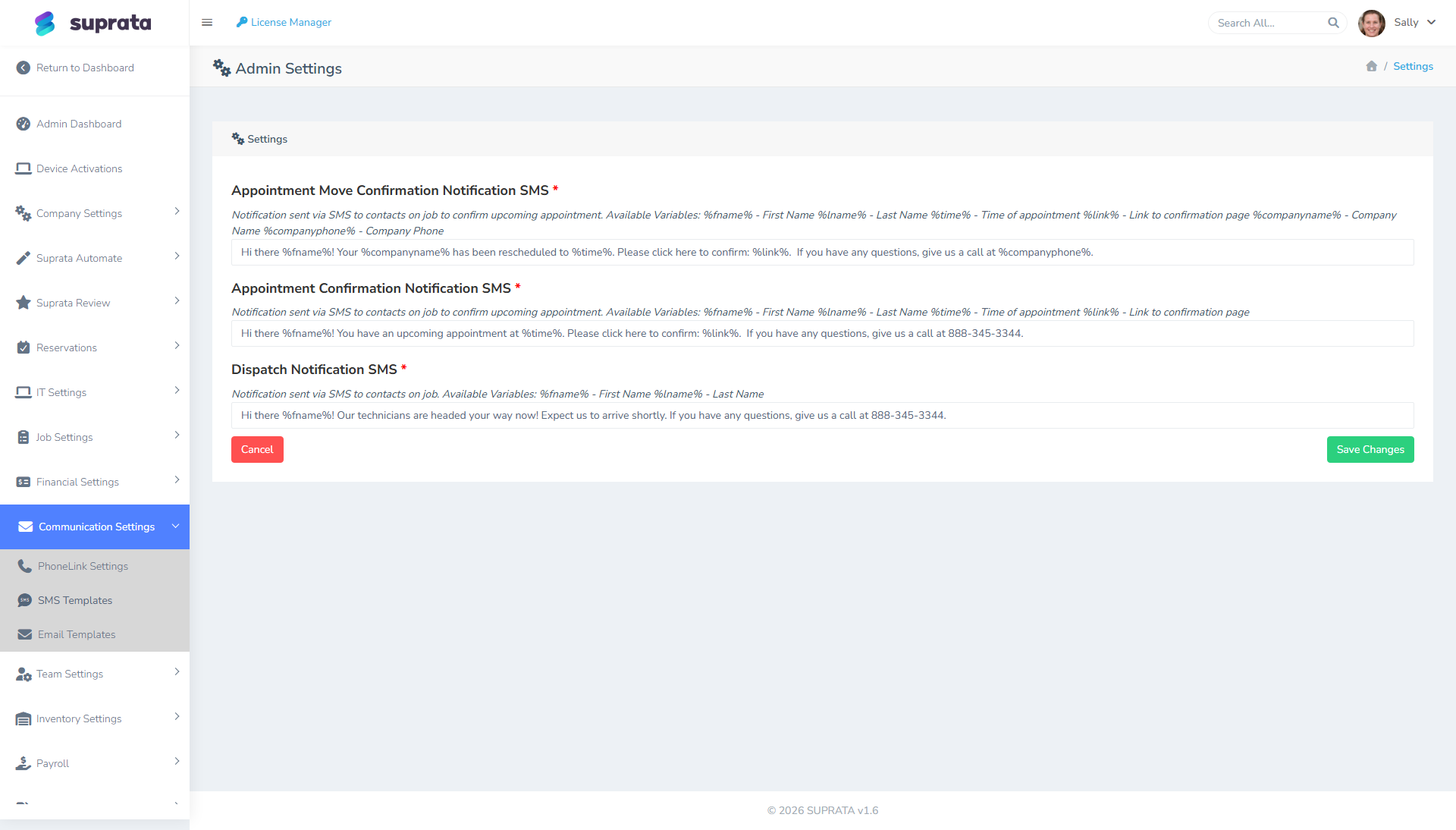
1. Appointment Confirmation SMS
Sent automatically when an appointment is created. Default text is something like:
Hi %fname%! You have an upcoming appointment at %time%. Please click here to confirm: %link%. If you have any questions, give us a call at 888-345-3344.
Variables: %fname% (first name), %lname% (last name), %time% (appointment time), %link% (confirmation page URL).
What this does: nudges the customer to confirm via a one-tap link. The confirmation flips a status flag in the system so dispatch knows the customer is locked in.
2. Appointment Move Confirmation SMS
Sent when an existing appointment's time is changed. Default:
Hi %fname%! Your %companyname% has been rescheduled to %time%. Please click here to confirm: %link%. If you have any questions, give us a call at %companyphone%.
Same variables, plus %companyname% and %companyphone%.
What this does: catches the customer who otherwise wouldn't notice the time change — critical for when dispatch shuffles the day's schedule.
3. Dispatch Notification SMS
Sent when a tech is en route. Default:
Hi %fname%! Our technicians are headed your way now! Expect us to arrive shortly. If you have any questions, give us a call at 888-345-3344.
What this does: lets the customer know the tech is on the way without your dispatcher making a phone call. Particularly nice for residential customers who want to be home (or unlock the gate) for the visit.
Customizing the templates — what works
The defaults are functional. A few tweaks that help:
- Use real names. Replace the placeholder phone numbers (888-345-3344) with your actual number — currently they're just placeholders.
- Match your voice. "Hey %fname%, this is %companyname% — your appointment is set for %time%" sounds more like a real text than the default's slightly stiff phrasing.
- Keep it under 160 characters where possible. Anything longer becomes two billable SMS segments. Trim greetings, drop redundancies.
- Always include the confirmation link (where applicable). It's the action you want them to take.
- Don't include emojis. They're inconsistent across phone OSes and can render as boxes or
??. - Sign with your business name in the body — texts don't show "From" the way emails do; the customer sees only the phone number, and they need to know who it's from.
The 160-character problem
SMS is broken into 160-character "segments." Twilio charges you per segment. A 161-character message is two segments — same price as a 320-character one.
Practical rule: keep routine messages under 160 characters. The dispatch confirmation goes out hundreds of times a week; trimming 20 characters saves real money over a year.
One thing to know: every message Suprata sends through Twilio gets a "STOP to opt out" line added automatically (it's required by US carriers). That counts against your character budget too.
US compliance — A2P 10DLC registration
This is the part of setup most people try to skip, and it's the part that bites them later.
Since 2023, US carriers (Verizon, AT&T, T-Mobile) require business SMS senders to register their Brand and Campaign with The Campaign Registry. If you don't register, the carriers will heavily filter or outright block your messages — your customers won't get them, and you may not even know it's happening.
In Twilio:
- Register your Brand (your business identity).
- Register your Campaign (the use case — usually "Customer Care" or "Account Notifications" for service-business confirmations).
- Wait for approval (typically 1-3 business days).
- Associate your phone number with the registered campaign.
Don't skip this. An unregistered number sending real customer messages gets throttled within days. Messages start silently failing. You don't notice until customers complain.
If your account is brand new and you're testing, your first 50-100 messages may go through fine without registration. Don't take that as a sign you're set — once you're sending real customer messages, you need to register.
Opt-in and consent
Carriers and the FCC (TCPA) require express consent before you send marketing SMS. Service-business notifications (appointment confirmations, on-the-way alerts, payment receipts) generally fall under "transactional" and have looser rules — but it's still best practice to:
- Get explicit consent when a customer signs up or schedules their first appointment ("We'll text you appointment reminders — OK?").
- Honor STOP requests immediately. Twilio handles this automatically — when a customer texts STOP, that number is blacklisted for your account. Don't try to override it.
- Don't send marketing SMS through your service-confirmation number without separate explicit opt-in.
Testing SMS before going live
Before letting real customer messages flow:
- Create a test customer with your own phone number.
- Schedule a test appointment for them.
- Verify you receive the Confirmation SMS.
- Reschedule the appointment.
- Verify you receive the Move Confirmation SMS.
- Mark the appointment "tech en route" via dispatch.
- Verify you receive the Dispatch Notification SMS.
If all three arrive on your phone with the right text and the link works, you're ready.
Cost planning
Rough budget for a typical service business (US, 2026 prices):
- Phone number: about $1/month per number.
- Each outbound SMS: about $0.0079.
- Each inbound SMS (if a customer replies): about $0.0075.
- A2P 10DLC registration: typically $4-50 one-time plus around $4/month per campaign.
For a business sending 30 customer messages a day, you're looking at roughly $7-10/month on top of the Twilio account itself — well worth it for the time saved on confirmation calls.
Common mistakes
- Skipping A2P 10DLC registration. Messages mysteriously stop delivering, you don't know why, customers complain. Register your campaign.
- Using a toll-free number for routine business texting. A regular 10-digit local number is usually a better choice for the kind of messages a service business sends.
- Pasting long URLs into the body. Long URLs eat your character budget. Use Suprata's built-in
%link%variable — it's already short. - Not testing. Same theme as everywhere else: send a few to your own phone before letting real volume flow.
- Sending at all hours. US convention is no business texts before 8 a.m. or after 9 p.m. local time. Suprata's automatic sends respect this; if you're texting customers ad-hoc, mind the time.
- Treating SMS as a marketing channel. Use it for appointment-related and billing-related messages. Sending sales offers and promotional blasts over the same number is what gets numbers flagged or blocked.
- Leaving the placeholder phone number in templates. The defaults show "888-345-3344" — that's a sample number. Replace it with yours before you turn anything on.
After SMS is working
A few next steps:
- Set up SMS templates for the rest of the customer journey — past-due reminders, payment receipts, follow-up surveys.
- Watch the delivery numbers in the Twilio console. If deliveries dip, it's usually a sign your A2P registration needs attention.
- Use SMS alongside email, not instead of it. SMS is for time-sensitive nudges; email is for documents and longer messages. Use both.
Related articles
- Setting up email (SMTP)
- Customizing the invoice email template
- Job statuses and the state machine (for which status changes trigger which SMS)
- Customizing the appointment confirmation message (forthcoming)
- SMS templates for past-due reminders (forthcoming)