Job statuses and what each one means
Every job in Suprata is in exactly one status at a time. Statuses aren't just descriptive labels you read on a list — moving between them does real work: an appointment gets created or cancelled, a customer gets notified, an invoice gets generated, a tech's daily count goes up or down.
Once you understand which status change triggers which result, three categories of "why did that happen?" disappear:
- "Why did the customer get an email?"
- "Why is there suddenly an invoice for this job?"
- "Why is this job showing up on the dispatch board when it's not scheduled?"
This article walks through the typical statuses, what each move between them does, and the rules that govern when you can move between them.
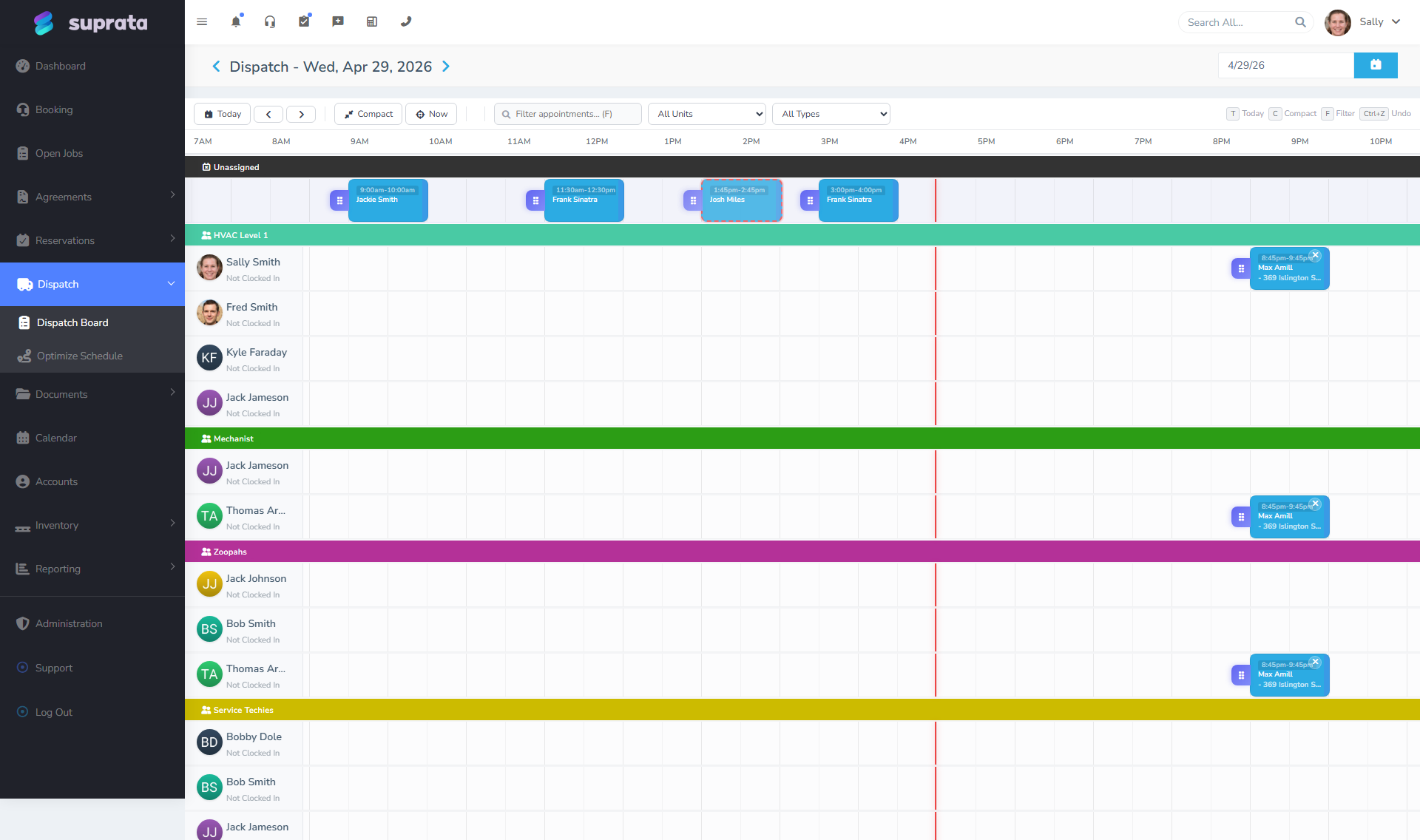
The default statuses
A new Suprata account ships with a sensible set of default statuses. The exact list may have been customized in your account, but it usually includes some flavor of:
- New / Unscheduled — Created, no appointment yet. Sits in the unassigned area of the dispatch board.
- Scheduled — At least one appointment has been set. Visible on the dispatch board for the scheduled day.
- In Progress — Work has started. The tech has clocked in or marked the job started.
- On Hold / Awaiting Parts — Work is paused for an external reason (waiting on a part, waiting on the customer, waiting on weather). Doesn't show up in "what's overdue?" reports the same way Scheduled jobs do.
- Complete — Work is done. Triggers the typical invoice flow.
- Cancelled — Job won't be done. Doesn't trigger invoicing.
Your account may also have additional statuses your administrator has added: "Quoted — Pending Approval", "Recall", "Warranty Claim", etc.
Where to manage the status list
Sidebar: Job Settings → Statuses (the exact menu label may vary). Each status has a name, a color (used for chips on the dispatch board and lists), and a flag indicating whether it's an "active" or "closed" state for reporting purposes.
Add new statuses sparingly. The temptation is to make a status for every variation ("Awaiting Parts", "Awaiting Customer Response", "Awaiting Insurance Approval", "Awaiting Warranty Claim"...). The reality is that 4–6 well-chosen statuses serve almost any business; 12 statuses you can't remember the difference between is worse.
Why some status changes are special
Most status changes you do manually — open the job, change the status, save. But some are triggered automatically by other actions, and that's where surprise happens.
Scheduling an appointment moves a job from "New" to "Scheduled"
If a job is in any unscheduled state and you create an appointment for it (whether through the new-job form, the dispatch board, or the calendar), the job's status moves to "Scheduled" automatically. This usually sends:
- An appointment-confirmation email/SMS to the customer (if you have those templates enabled).
- A dispatch-board entry for the tech.
If you're moving a job to "Scheduled" manually without an appointment attached, you're probably working against the grain. Add the appointment first.
Marking "Complete" usually creates an invoice
By default, completing a job creates a draft invoice for it (or appends to an existing draft, if items were already added during the work). The invoice pulls:
- The job's customer Account (for billing info).
- Items added to the job during work (parts, labor lines).
- Time entries logged against the job (if you bill by time).
- Tax categories from each item's pricelist record.
If a tech accidentally marks a job complete when it isn't, you'll find an invoice you didn't expect. The fix: re-open the job (transition back to In Progress), then delete or void the spurious invoice.
Cancelling a job is not the same as deleting it
A cancelled job stays in the system, in the customer's history, with all its notes and attachments intact. It just doesn't generate an invoice and doesn't appear on the dispatch board. This is the right move for "the customer changed their mind" or "we couldn't fit this in".
Don't delete cancelled jobs unless they're true duplicates. Keep them for the audit trail.
Re-opening closed jobs is sometimes blocked
If a job is Complete and an invoice has been generated and paid, re-opening the job is restricted (the system doesn't want you accidentally adding billable items to a paid invoice). The right pattern in that case:
- Create a new job for the additional work, tagged as a recall or follow-up to the original.
- Reference the original job in the new job's summary so history is searchable.
How status changes get logged
Every status change writes a row to the job's history with: who changed it, when, what the previous status was, what the new status was, and any note that was added at the time. You can see this on the job's detail page under the Activity / Timeline tab.
This matters because:
- Reports filter by status changes ("how many jobs were completed this week?").
- Disputes can be settled by reading the timeline ("the tech marked it complete at 3:14 p.m., but the customer claims he never showed up — here's the GPS punch from 2:48").
- Permissions can be set per move, not just per status. Some roles can move from "In Progress" to "Complete" but can't move from "Complete" back to "In Progress".
Notifications sent by status changes
Out of the box, the system sends notifications on certain status changes. You can change these in settings, so your account may differ:
| Status change | Default notification |
|---|---|
| → Scheduled | Customer gets appointment confirmation (email and/or SMS). |
| → In Progress | Sometimes: customer gets "your tech is on the way" SMS. |
| → On Hold | Often nothing automatic; some setups notify the customer. |
| → Complete | Customer gets the invoice (if invoicing is configured to auto-send). |
| → Cancelled | Customer gets a cancellation notice if there was a prior confirmation. |
If you don't want a notification to send — say, the customer is standing right next to you and an emailed receipt is silly — turn off auto-notifications for that customer or that status change specifically.
Common mistakes
- Treating statuses as one-way. Most are reversible (you can move back from In Progress to Scheduled if the tech showed up early and had to leave). Don't be afraid to walk a status backward when reality calls for it.
- Marking jobs Complete from the office. Statuses should be advanced by the person who actually advanced reality. If the tech finished at 4 p.m. but didn't update the job until 7 p.m., that's fine — they're still the right person to mark it. The dispatcher marking it from the office strips the time-and-place audit trail.
- Adding too many statuses. "Quoted — Awaiting Approval — Customer Said Yes — Need to Schedule — Scheduled" is five statuses where two would do. Lean toward fewer.
- Confusing job status with appointment status. A job has a status; each appointment on that job also has a status (e.g., Confirmed, No Show, Completed). The two interact (an appointment marked No Show might bump the job to Awaiting Reschedule), but they're different fields. Don't conflate them.
- Using "Cancelled" for "we made a typo". If a job was created in error and never communicated to the customer, just delete it — leaving cancelled placeholder rows pollutes reports.
A worked example
A customer calls Tuesday wanting AC service. Here's how a normal job's life looks:
- Tuesday 9:14 AM — Dispatcher creates the job. Status: New. Job summary written, Service Location confirmed, no appointment yet.
- Tuesday 9:15 AM — Dispatcher schedules an appointment for Wednesday 10–12. Status moves to Scheduled automatically. Customer receives SMS confirmation.
- Wednesday 9:55 AM — Tech checks in en route. Status moves to In Progress (or En Route if you have that status). Customer receives "tech on the way" SMS.
- Wednesday 11:30 AM — Tech finishes, logs parts and time. Marks status Complete. Draft invoice is generated. Customer receives invoice email.
- Wednesday 11:45 AM — Customer pays via the link in the email. Job stays Complete; invoice transitions to Paid.
Five status changes, three customer notifications, one invoice, one payment — and you can read the entire chain in the job's timeline if anyone asks.
Related articles
- Creating your first job
- Setting up job types (forthcoming)
- Customizing the appointment confirmation template (forthcoming)
- When to cancel vs. when to delete (forthcoming)