Industry Forms — What Attaches When
A generic job has a customer, a description, and an invoice. A useful job in a service business has all of that plus the structured information specific to your trade — refrigerant readings on an HVAC unit, hull condition on a boat, hardware specs on a computer that came in for repair, flue and damper notes on a chimney. Suprata calls these industry forms, and the system can attach them automatically based on the job type so techs aren't fumbling around looking for the right form to fill out.
This article explains how the auto-attach mechanism works, which forms ship with the platform, and how to wire your own job types to the right forms.
When you'd care
- You picked a job type and the expected form didn't appear on the job.
- You picked the wrong job type, the wrong form auto-attached, and now the right one is missing.
- You added a new job type and want to map it to the existing HVAC / marine / IT / chimney forms.
- A new line of business needs a brand-new form (a custom one), and you want to know whether to extend an existing form library or start from scratch.
- A tech is filling things out on paper because "the form's never there" — usually a misconfiguration of the type-to-form mapping, not a missing form.
The mental model
Three concepts to keep in mind:
- The form templates. "HVAC Evaluation", "Marine Boat Info", "IT Equipment List", "Chimney Inspection". These are pre-built into the system and can be customized using the form builder. A new account starts with the standard library; an industry-specific account may have additional forms.
- Job-type-to-form rules — the mapping. "When a job is created with type HVAC Service Call, attach an HVAC Evaluation form." One job type can have multiple forms mapped (an evaluation form and a refrigerant log, for example). One form can be mapped to multiple job types (the HVAC Evaluation might attach to both Service Calls and Maintenance Visits).
- Filled-out forms — the actual filled-in version. When the rule applies, Suprata creates a fresh, blank copy of the form attached to the specific job. The tech then fills it in. Each job gets its own copy — they don't share data across jobs.
Once you understand those three pieces, the troubleshooting becomes straightforward: if the form's missing, either the job type isn't mapped to it, or the rule didn't apply (which is rare but happens when types are changed after the job is saved).
What ships in the standard form library
The platform comes with several pre-built industry forms. Your account may have all, some, or none of these enabled. The most common ones:
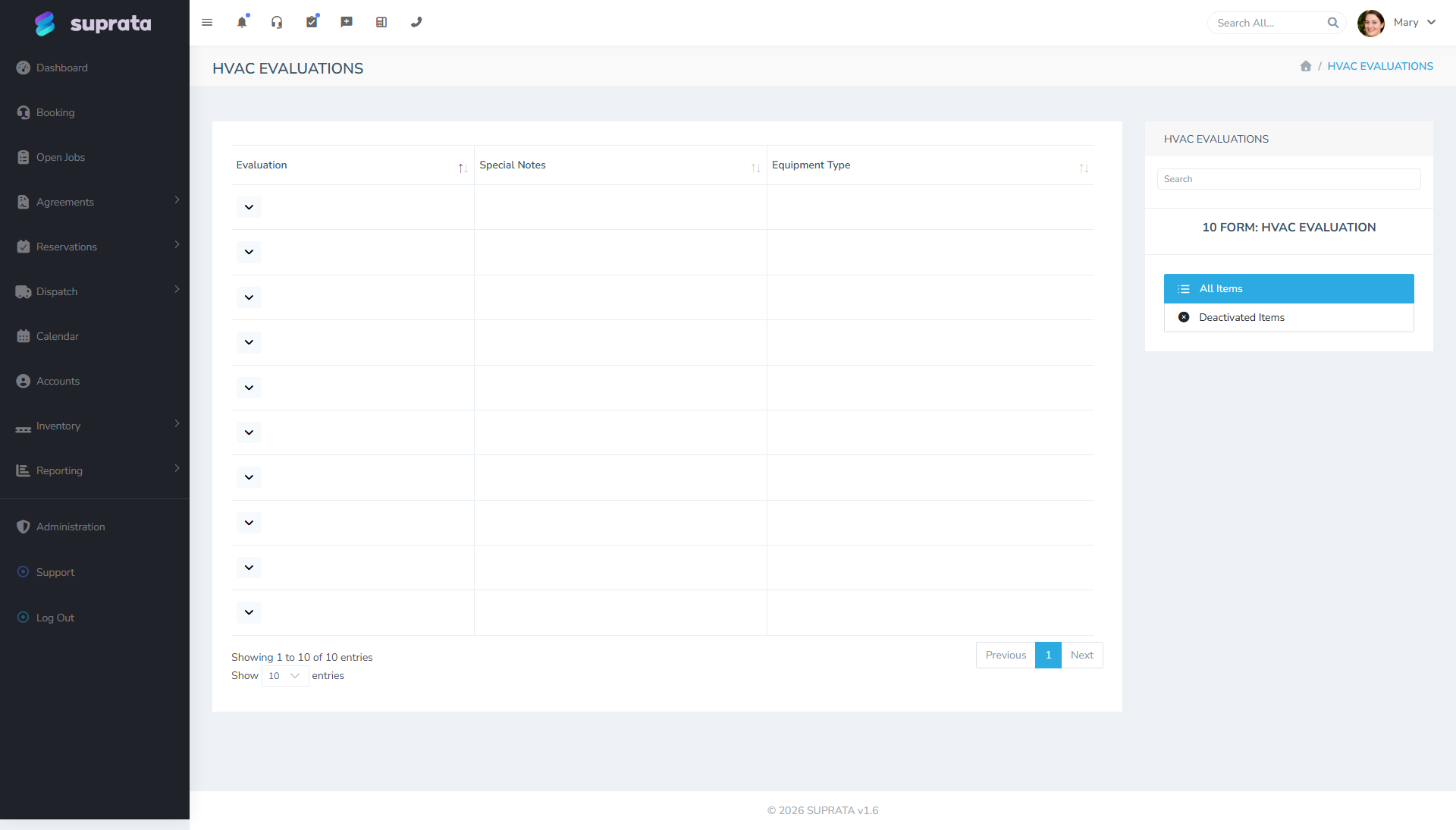
- HVAC Evaluation — pre-work assessment. Capacity, age, brand, refrigerant type, condition.
- HVAC Install — captures the new unit's details and the disposal/recycling info on the old one.
- General Warranty Claim — for any line of business; captures the part, the failure mode, and warranty coverage period.
- Computer Evaluation — pre-work IT assessment. Make, model, OS, symptoms.
- Computer Install / IT In-Store Evaluation — for repair shops or in-store services.
- Marine Boat Info, Marine Equipment, Marine Diving, Marine Conditions — boat name, hull, mechanical, dive details, water/weather conditions.
- Chimney Inspection — flue, damper, liner, cap.
- Equipment General / IT — for tracking pieces of customer equipment that came in (great for shops where multiple items can come in on one ticket).
If your business is a flavor that doesn't have a pre-built form (lawn care, pest control, roofing), you can either use the most-similar generic form or contact Suprata to have a new one built. Adding a brand-new form takes longer than adding a new job type — plan ahead if you need one.
Setting up the mapping — the typical workflow
You configure the type-to-form mapping on the Job Types screen (Administration → Jobs → Job Types) (or its companion form-mappings screen, depending on how your account is laid out). For each job type, you tell the system "these are the forms that should automatically attach when a job of this type is created."
Recommended approach for a new account:
- Decide your job types first (see Setting up job types). Don't try to map forms to a type list you haven't finalized.
- For each type, list the forms a tech would always fill out for that kind of work. Don't list forms that are filled out only sometimes — those should be added manually on a per-job basis.
- Map only those forms. A tech who wants to attach an additional optional form can do that from the job's detail page. Forms that auto-attach should be the "always" set.
- Test by creating a fake job of each type and verifying the right forms appear. Five minutes of testing here saves dozens of "the form's not there" support calls later.
A typical HVAC shop's mapping might look like:
| Job Type | Auto-attached Forms |
|---|---|
| HVAC — Service Call | HVAC Evaluation |
| HVAC — Maintenance Visit | HVAC Evaluation, Refrigerant Log (if your shop tracks it) |
| HVAC — New Install | HVAC Install, Equipment General |
| HVAC — Warranty Claim | General Warranty Claim, HVAC Evaluation |
| HVAC — Estimate Visit | HVAC Evaluation (only — no install or warranty paperwork yet) |
A typical IT/computer repair shop:
| Job Type | Auto-attached Forms |
|---|---|
| IT — In-Store Evaluation | IT In-Store Evaluation, Equipment IT |
| IT — On-Site Service | Computer Evaluation |
| IT — New Build / Install | Computer Install, Equipment IT |
What happens when the type changes after the job exists
Forms attach when the job is created. If you change a job's type later, the system attaches the new type's forms but does not remove the previous type's forms. This is intentional — the tech may already have filled in data on the original forms — but it does mean a few things:
- A type-changed job ends up with a superset of forms from both types.
- You should manually detach the now-irrelevant forms unless they have data on them.
- If the original forms were blank, removing them is safe and keeps the job clean.
The right time to fix a type mismatch is in the first minute or two after job creation, before any forms are filled in. Twenty seconds of "did I pick the right type?" up front is worth a lot.
Customizing the forms themselves — the underused tier
Each industry form can be tailored. Fields can be added, removed, or reordered using the form builder. Common customizations:
- Add a brand list specific to your service area (e.g., the HVAC brands you actually service, not the global manufacturer dropdown).
- Make a field required that the standard form leaves optional (e.g., refrigerant type, on a refrigerant-tracking shop).
- Hide fields you'll never use (e.g., for an HVAC-only shop that bought a marine-capable account, hide marine fields from the general-purpose forms).
These changes apply to the form template itself, not to forms that have already been filled in. Change the template once and every future form uses the new layout. Existing filled-out forms keep the layout they had at the time, so changes don't rewrite history.
Common mistakes
- Mapping too many forms to a job type. A tech who has to skip past five forms to fill in the one they care about will start ignoring all of them. Map only what's always filled in. Optional forms get attached manually.
- Picking the wrong job type at creation, then trying to "fix it" by deleting forms. The fix is to fix the type; the forms follow. Deleting forms one-by-one fights the system.
- Customizing the same form differently for two business units that share it. If "HVAC Evaluation" is used by two different brands you operate and they have different field needs, either accept a single combined set of fields or split it into two separate forms. Trying to make one form behave differently for each brand gets fragile fast.
- Asking for a brand-new industry form before exhausting the existing library. "Equipment General" and "Equipment IT" are intentionally generic so they cover unusual cases. A custom form takes longer to build and harder to change later than just adjusting the fields on an existing form.
- Treating forms as a substitute for notes. If you find yourself writing free-text observations into the same field every time, that field belongs on a form as a real structured field. If you find yourself never filling the field in, drop it from the form.
- Re-creating filled-out form data on a recall. Recalls (return visits) are a separate job; the recall job gets its own fresh forms. Don't try to "carry forward" data — copy what matters into the new job's notes or summary, and let the new forms reflect this visit's reality.
Where filled-out forms live
Each filled-out form is attached to its job and visible from the job's detail page (typically as a tab or section). Filled-out forms are also searchable from the form's master list — for example, the HVAC Evaluation list shows every job's HVAC eval data side by side, which is great for "find every customer with a unit older than 10 years."
That last bit — searching across all the filled-in forms — is one of the most underused payoffs of structured forms. Free-text notes can't be searched on their content the same way; form fields can. If you ever want to reach out to customers with a particular brand, age, or refrigerant type, the data is already there if your forms were filled in.
Related articles
- Setting up job types
- Creating your first job
- Job statuses and what each one means
- Job attachments — photos and signatures
- Customizing a form's fields with the form builder (forthcoming)