Job Attachments — Photos and Signatures
In a service business, the difference between "the customer says we never showed up" and "the customer is wrong" is almost always a photo with a timestamp. The difference between "the customer authorized that work" and a chargeback is almost always a signature on the work order. Suprata gives techs a fast way to capture both from the field, store them on the job, and pull them up later in disputes — but the feature only protects you if it's actually used.
This article covers what attachments are good for, how the capture flow works, where the files live, and the half-dozen mistakes that turn an evidence-rich system into "the photos are on Carlos's phone, but he left."
When you'd use this
- A tech is on-site and needs to document the condition of equipment before doing any work (the "this is how I found it" photo).
- A tech finished work and needs the customer to sign off on completion (and authorize billing).
- A customer disputes a charge weeks later and you need to prove the work happened, in the condition described.
- A warranty claim requires showing the failed part with serial numbers visible.
- Insurance requires before/during/after photos for a claim.
- A property management company requires per-visit documentation as part of the contract.
What counts as an attachment
The job's attachments area holds any file bound to the job: photos, customer signatures, scanned paperwork, PDFs of estimates, receipts for parts purchased mid-job. Anything that needs to live with the job's record rather than only on a person's device.
A few are special-cased:
- Photos — captured directly from the tech's mobile camera through the job interface. They get stamped with the upload time and the user who uploaded them.
- Signatures — captured as a finger-drawn or stylus signature on the device, stored as an image alongside the rest of the attachments, and timestamped. Useful for "approval to proceed", "completed work signoff", and "received cash payment".
- Generic files — PDFs, Word docs, images uploaded from elsewhere. No special handling.
The capture flow on a phone or tablet
Most attachment capture happens from a tech's mobile device while they're on-site. The job's mobile detail screen has a camera/upload control that handles permissions, prompts the OS for camera access, and saves the resulting photo back to the job in seconds.
Two practical notes:
- Photos save to the job, not to the device's camera roll — by design. This avoids customer photos sitting on personal phones and protects privacy. If a tech also wants a personal copy, they have to use their device camera separately.
- Signature capture is its own button that brings up a full-screen signature pad. Customer draws, hits save, and a timestamped image attaches.
For tablets used by ride-along inspectors or in-store techs, the experience is the same — the only difference is screen size.
Getting the contract signed by email
Not every signature happens in the field. When the customer isn't on-site — a job authorized over the phone, a remote property owner, an install being approved by someone at head office — you can email them a link to review and sign the work-order contract online. From the job you can send it for signature, and the customer opens a page that shows the job details up top, the terms below, and a place to sign right there in the browser.
Two things make this worth setting up as a default rather than a one-off:
- You can make it automatic. On the job type, you can have Suprata email the contract the moment a job of that type is created, and email the customer a signed copy the moment they sign. That turns "did anyone ever get this signed?" from a chase into a non-issue. See Setting up job types for those toggles — they only work if the job type has a Terms and Conditions template.
- The customer can fix their own contact info on the way through. The emailed contract page can let the signer correct their name, phone, and address before signing — but never the account name or the job details. Corrections save immediately and are logged, so the phone number you email the next invoice to is the one they actually use.
The emailed signature is exactly as binding as the in-field one: it's timestamped, the signer's IP is recorded, and once signed the document locks. Reopening the link afterward shows "already signed" rather than a second signature pad.
Where attachments live and who sees them
Attachments are bound to the job. They're visible:
- On the job's detail page (the Attachments tab), to anyone with permission to see the job.
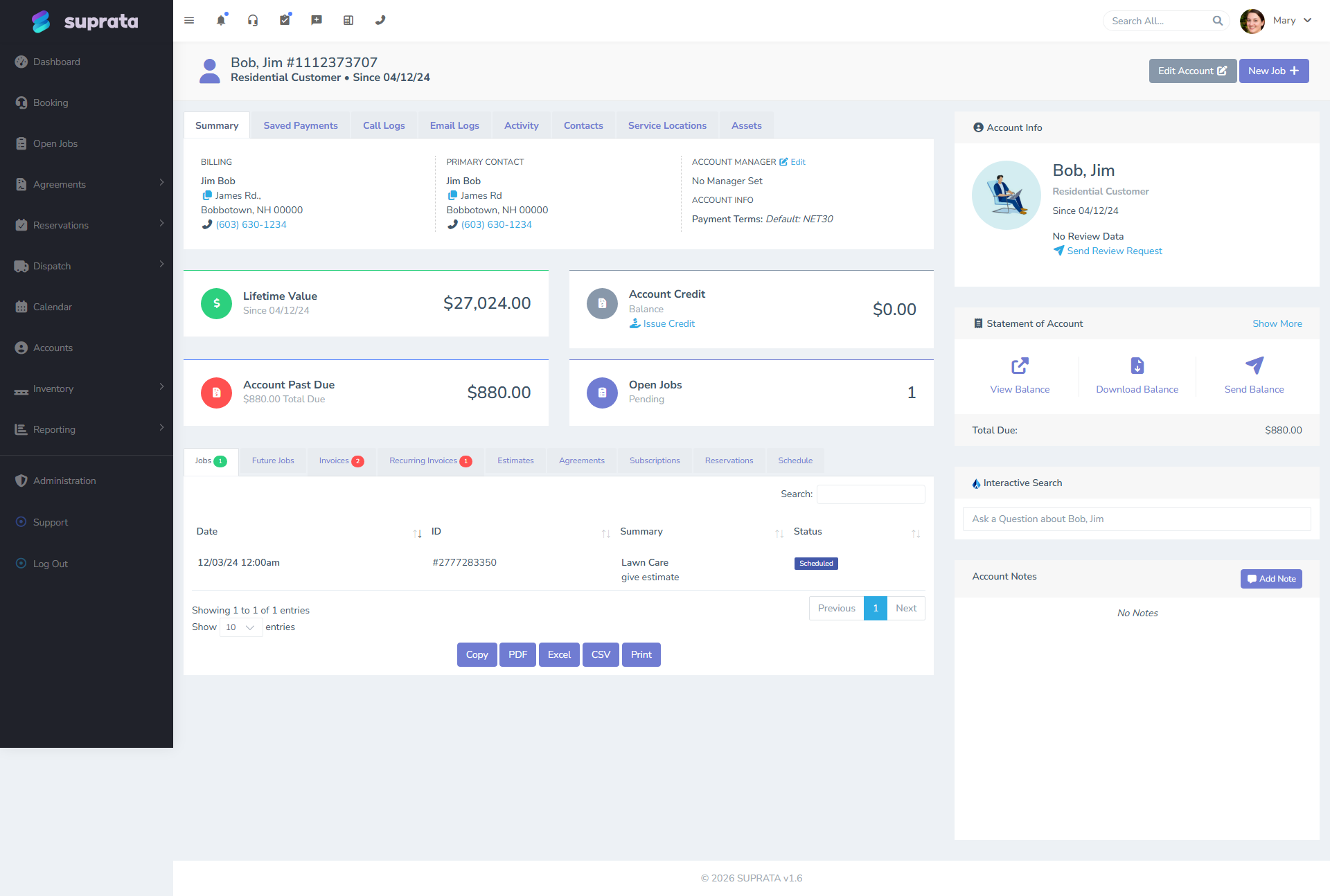
- Inside the customer's account under the Jobs tab, by drilling into a specific job. Account-level views show summary info but not every file thumbnail.
- In the print work order if you choose to include them — useful for paper-friendly customers who want before/after photos in their handout.
- In the customer portal if you've enabled customer-facing attachment visibility — most accounts keep this off by default since techs sometimes attach internal-only documentation.
Permission-wise, the same role rules that govern who can see a job govern who can see its attachments. A tech who can only see their own jobs can only see attachments on their own jobs. Admins and dispatchers see everything.
Recommended capture habits
The features only earn their keep if techs actually use them. The single most effective habit is "three photos and a signature on every job":
- Arrival photo — the equipment or area before any work is done, including any visible damage or pre-existing condition. Time-stamped on arrival, this is what wins "you broke that" disputes.
- In-progress photo — work being performed. Especially valuable on hidden work (under cabinets, in attics, in walls). The customer can't see it, but the photo can.
- Completion photo — the finished result, plus any nameplates with serial numbers (warranty claim ammo).
- Signature — the customer signs off acknowledging the work was completed and the cost was as agreed.
Train techs to do this on every job for the first month. After that it's automatic.
For high-value or warranty-prone work (HVAC installs, electrical panels, anything over a few thousand dollars), require it as a hard rule before the tech can mark the job complete.
How attachments interact with closing a job
When a job is marked Complete, attachments are locked into the job's history. The system keeps them indefinitely (subject to your account's storage limits and retention rules — talk to your administrator if you need a specific retention policy).
The completion signature in particular is what makes the closing transition meaningful for billing. A signed completion is a strong defense against later "I never authorized that". An unsigned completion is just the tech's word.
If you re-open a closed job (rare, see Closing and recalls), the attachments stay attached — they're not deleted on reopen. New attachments added during the reopened phase are timestamped accordingly.
Common mistakes
- Photos on personal phones never make it to the job. "I have it on my phone, I'll send it later" is the same as "you don't have it." Train techs that the photo doesn't exist until it's on the job. The phone-only photo never survives the device upgrade three months later.
- No before-photo, only an after-photo. The dispute is always "what did it look like before?". Without an arrival photo, you have nothing.
- Customer signature taken on the office's tablet at the office, not the customer's site. That's not a customer signature, that's a forgery (a friendly forgery, but legally one). Signature must come from the customer, on-site.
- Uploading 40 photos to a single job because the tech "wasn't sure which were important". Curate. Three to six well-chosen photos beat forty unsorted ones. Storage isn't the issue — you finding the right photo six months later is.
- Forgetting to capture serial numbers and nameplate data on warranty work. A photo of "the unit" is useless to the manufacturer; a photo of the serial number plate is everything.
- Using attachments as the only record of important info. If a piece of data matters, capture it as a structured form field too (see Industry forms — what attaches when). Free-form photos can't be searched or aggregated; form fields can.
- Sharing attachments with the customer without thinking. If the tech took a photo of "the inside of a panel showing 14 unsafe wiring decisions", you may not want that going to the customer (you may even be obligated to share it — but read your jurisdiction first). The default visibility setting matters.
A note on storage and bandwidth
Photos taken on modern phones are large. The system compresses and resizes on upload, but on a slow rural connection, capture-and-upload can take a minute per photo. Train techs to upload before they leave the site, not in batch at the end of the day — if the upload fails on the drive home, the photo's still on their phone but never made it to the job.
If you're consistently fighting bandwidth (rural coverage, basement equipment rooms with no signal), the upload will queue offline on most modern devices and complete when signal returns. Don't force a tech to wait — let the queue handle it, but train them to check that the queue did complete before clearing the device.
Related articles
- Creating your first job
- Job statuses and what each one means
- Closing and recalls
- The print work order
- Industry forms — what attaches when
- Configuring the customer portal (forthcoming)