The Folio Chain: Meters, Walks, Settlements, and Billing
Most reservation systems handle a weekend booking fine — pick dates, swipe a card, done. They fall apart on month six of a long-term tenant who's been racking up electric usage, ordered a propane refill in week two, broke a water spigot the manager replaced, and is now disputing a charge they didn't expect.
Suprata's answer is the folio: a running tab attached to each reservation. Meter readings, audit-walk findings, and manual charges all land on the folio as they happen, and once a month (or whatever cadence you've set) Suprata totals it up into a single defensible invoice. This article walks the whole flow end-to-end so you understand where every dollar on the final invoice came from — and where to look if something seems off.
When you'd use this
You need this whenever a reservation lasts longer than a single transaction:
- A monthly tenant at an RV park or marina who pays rent plus utilities every month.
- A seasonal slip rental where deposits, electric, water, and pump-out fees all accrue separately.
- A long-term storage unit where the bill changes month-to-month because of add-ons.
- Any "rent plus consumption" model where you can't price the stay up front because part of it depends on how much they use.
If your reservations are short and pre-paid in full, you don't need most of this — you collect at booking and you're done. Skip ahead to the booking wizard walkthrough. The folio is for the customers who can't be priced up front.
The mental model
Think of the folio as a manila folder for one reservation. Every time something happens that the customer will eventually owe money for, a slip of paper goes in the folder. At the end of the period, you stack them up, total them, and that becomes the invoice.
The pieces that put slips in the folder:
- Meter readings for electric, water, sewer dump.
- Audit-walk findings — things staff noticed and recorded during the monthly inspection (a propane refill, a damaged item, a complaint that turned into a charge).
- Manual charges entered by office staff — recurring rent, add-ons, one-off fees.
Then a settlement closes the period, totals the folder, and produces the invoice. Late fees, if any, get added to the next period if the customer doesn't pay on time. Then the invoice goes out.
Step 1: Meters — capturing utility usage
Utility metering is where most folios start, because it's the line item customers dispute most often. Meters either report their readings to Suprata automatically, or staff record them by hand during a property walk.
Each meter is assigned to a reservation's asset (a slip, a site, a unit). When a new reading comes in, the difference between it and the previous reading is the consumption for that period. That delta is what eventually becomes a line item.
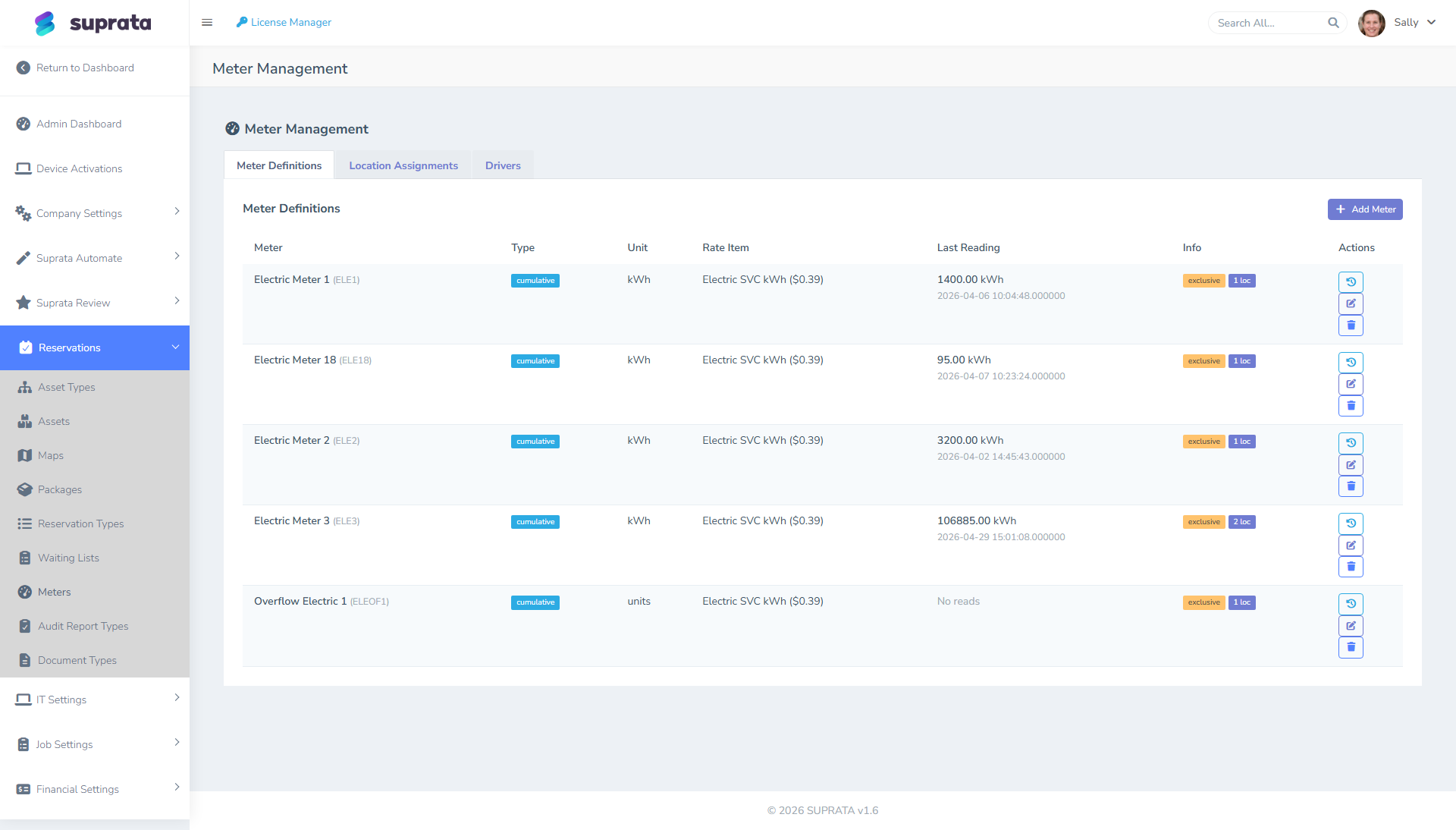
The meters screen shows every meter you've configured, what asset it's assigned to, and the latest reading. If you've set up automatic meter reporting — readings flowing in from a smart meter — you only visit this screen to spot-check. If readings are entered manually each month, this is where they land.
A few things worth knowing:
- A reading isn't a charge yet. It's just a number. The conversion to dollars happens at the end of the month, using the rate set on the asset type or reservation.
- A missing reading at month-end is the #1 reason a folio looks wrong. If the meter went offline that week, the system uses the last good reading and undercharges.
- Don't edit a reading that came in wrong. Record a corrected reading instead. The history matters when a customer disputes a bill.
For setup details, see Setting up utility meters.
Step 2: Audit walks — the monthly inspection
Audit walks are the second source of folio entries, and the one most operators underuse. A staff member (or team) walks the property on a schedule, opens an audit walk, and records findings per asset — utility readings they verified by eye, condition issues, customer complaints, anything worth noting.
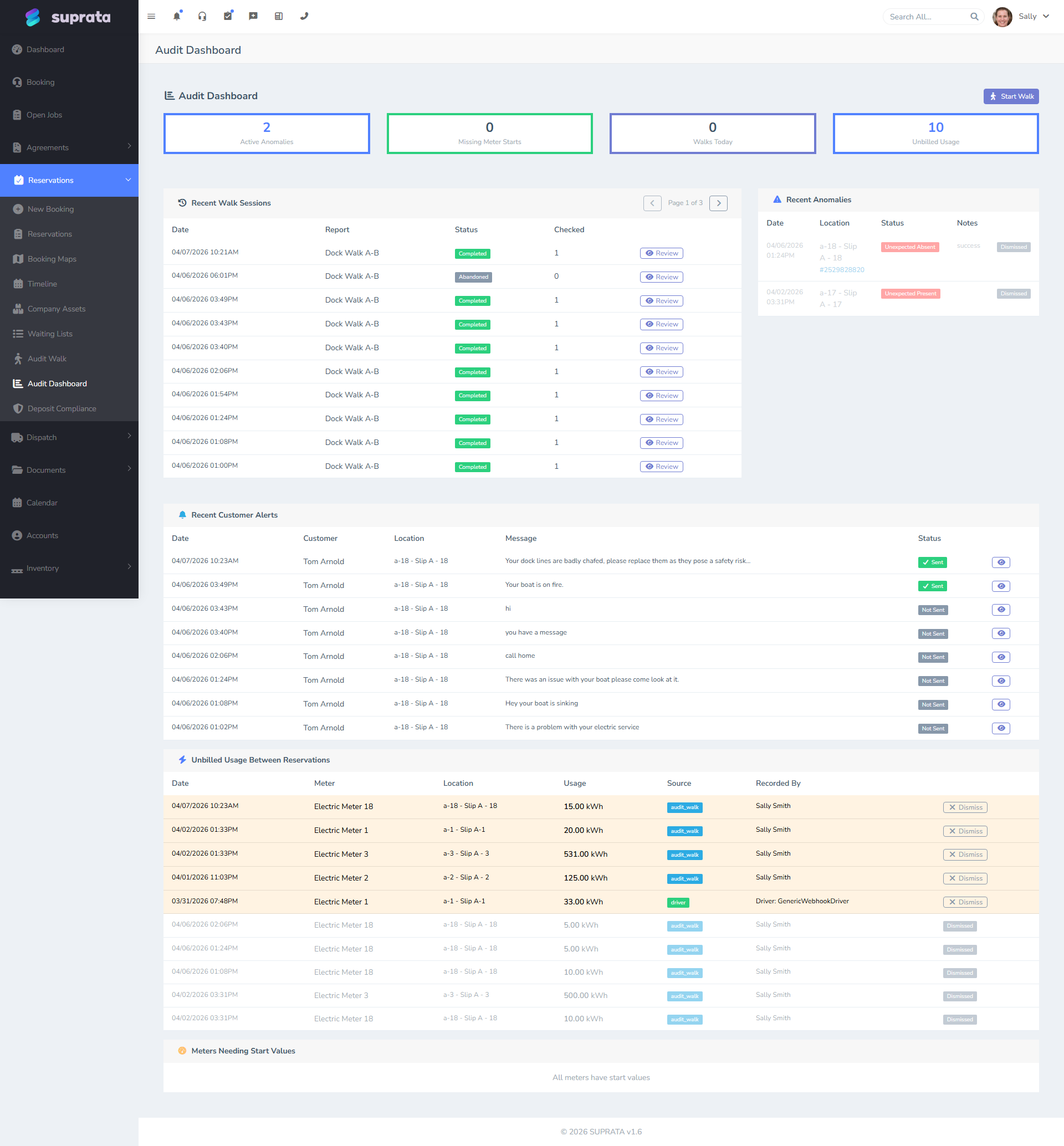
The dashboard shows every walk session — when it ran, who walked, how many findings were recorded, and what's still open. Click into a walk to see the per-asset responses.
Audit walks feed the folio in two ways:
- Verified utility readings. If a walker hand-records a meter reading, that reading goes onto the folio just like an automatic one. This is your safety net when the automated reporting fails.
- Ad-hoc charges from findings. When a finding generates a chargeable item (a propane refill the walker witnessed, a damaged-equipment fee, a cleaning charge from a complaint), it gets logged against the reservation. At month-end it appears as a folio line.
Findings that aren't financial (condition photos, complaints, gate-code issues) still get recorded for your operational history — they just don't end up on the invoice.
For setup details, see Audit walks: the monthly property inspection.
Step 3: The folio — the running tab
The folio is the running tab on each reservation. There usually isn't a screen called "folio" — it's the billing tab on the reservation itself, showing pending charges that haven't yet been rolled into an invoice.
You'll see entries from:
- Meter consumption waiting to be priced and posted.
- Audit-walk findings flagged as chargeable.
- Manual charges added by staff (a propane refill the office logged, a guest-pass fee, a deposit return).
- Recurring rent added on the cadence of the billing schedule.
- Credits for refunds, deposit returns, or goodwill adjustments.
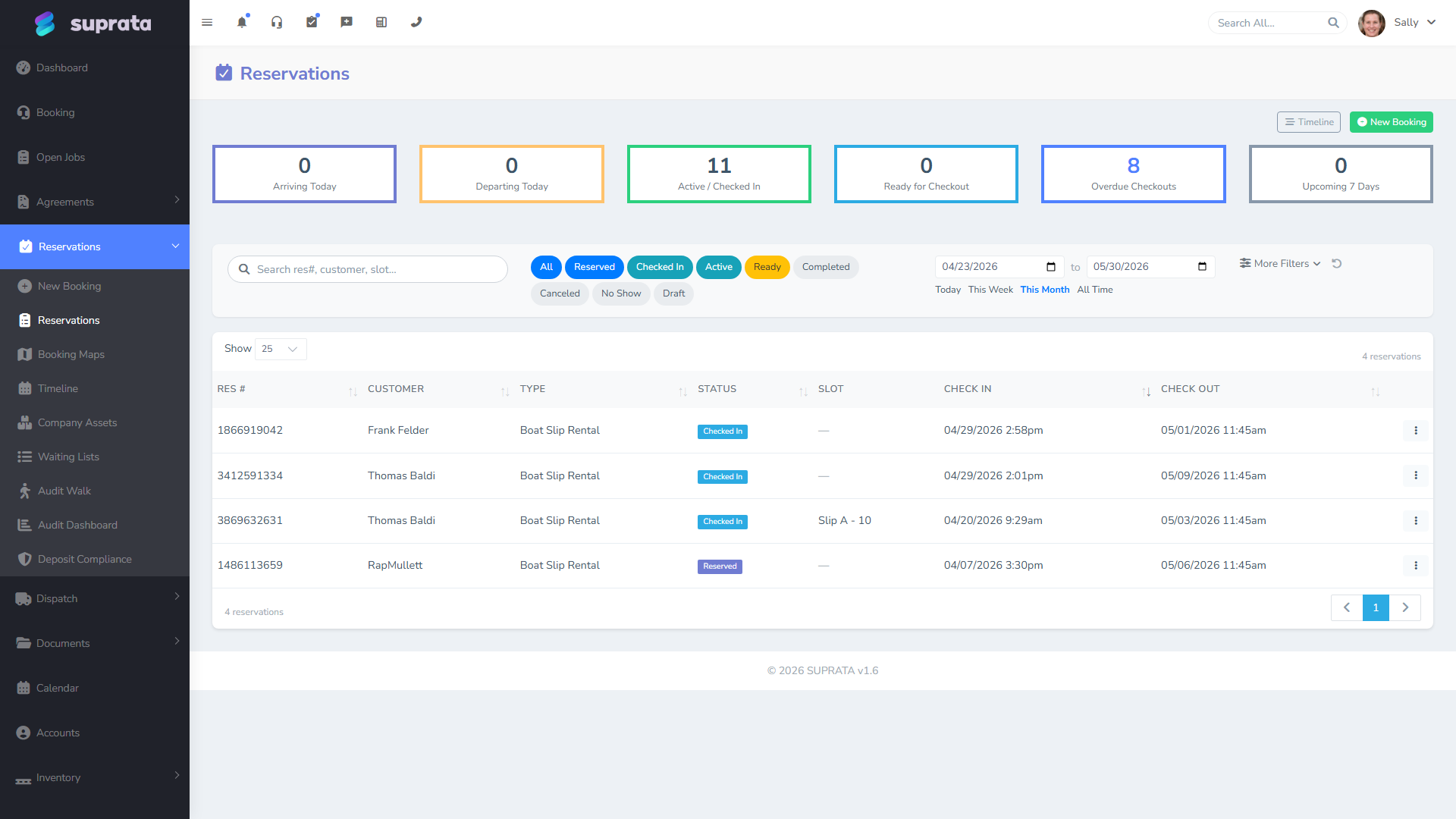
The reservations grid is your jumping-off point. Open any reservation to see its current folio, what was charged last period, and what's pending for the next.
Two rules for working with the folio:
- Open period = you can edit it. Anything that hasn't been settled yet can be added, edited, or removed.
- Closed period = leave it alone. Once the period has been settled and the invoice has gone out, those entries are locked. To correct a closed period, issue a credit on the next period — don't edit the closed one.
This is the same way a hotel folio works: charges build up during the stay, and at checkout (or at month-end for long stays), the folio gets totaled into an invoice.
Step 4: Settlement — closing the period
Settlement is the operation that closes a folio period and produces the invoice. It runs automatically on a schedule (typically once a day, looking for any reservation whose billing schedule says "this period is now due"). You can also settle manually for one-offs.
When a settlement runs against a reservation, it:
- Confirms the period has ended according to the billing schedule.
- Prices any unpriced meter consumption using the current rates.
- Adds prorated rent for the period if the customer's mid-month.
- Pulls in any audit-walk charges flagged for this period.
- Applies any deposit holds or releases that should hit this period.
- Creates the invoice and links it to the reservation.
- Marks those folio entries as settled so they don't double-bill next time.
After a settlement runs, the folio is empty for the next period and the invoice is sitting in the customer's account ready to be sent or paid.
Once a settlement has produced an invoice, undoing it means voiding the invoice and reopening the folio entries by hand. Run one full settlement on a single test reservation before you turn this on for everyone. The full mechanics are in Long-stay billing and settlements.
Step 5: Late fees — catching the overdue
Late fees are a separate step because they have their own rules: how many days past due before a fee applies, what the fee is, whether there's a grace period, which asset types are exempt.
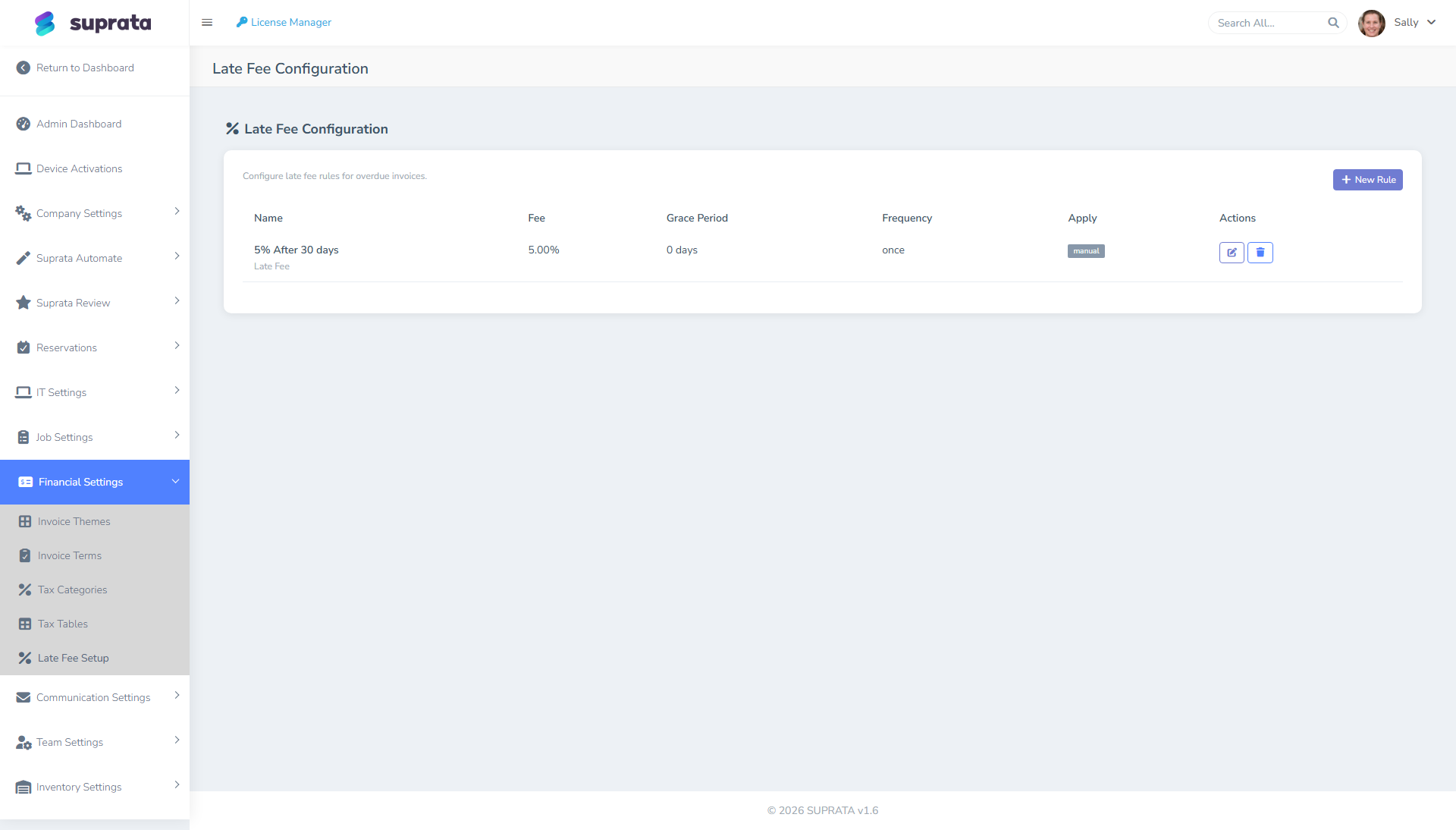
The late-fee setup screen is where you encode those rules. You set:
- The grace period — how many days past due before a fee applies. Five days is a common default.
- The fee structure — flat fee, percentage of balance, or a flat fee plus a percentage.
- Per-asset-type overrides — long-term tenants can have a stricter rule than transients, for example.
- A maximum — a cap so a small overdue invoice doesn't snowball forever.
Suprata runs nightly, scans every closed reservation invoice, and if anything qualifies, the late fee shows up on the next period's folio. The closed invoice it relates to stays closed and clean — the fee rides on the next bill instead.
For setup, see Late fees configuration.
Step 6: Billing — the invoice goes out
The final step is the invoice itself, which is just a normal invoice that happens to be linked back to a reservation, with line items pulled from the folio. From here it's regular billing — send it via email, accept payment online or in office, sync to QuickBooks, take a partial payment if the customer disputes a line.
The thing that distinguishes a reservation invoice from a job invoice is the trail behind it: every line item can be traced back to a folio entry, and every folio entry can be traced back to a meter reading, an audit-walk finding, or a manual charge. When a customer asks "why am I being billed $84.30 for electric this month?", you can answer with timestamps and reading deltas — not "well, that's what the system said."
For the billing-side mechanics, see Sending an invoice to a customer.
Common breakdowns
Where the folio breaks tells you what to fix:
- Meter readings stop arriving and nobody notices until month-end. The automatic meter reporting hit a problem six weeks ago, so the last six bills were short. Fix: glance at the meter readings list weekly. Audit walks are your manual backup — but only if your walkers actually record readings.
- Audit-walk findings recorded but not flagged as chargeable. The walker noted "propane refill — 12 gal" in a free-text field but didn't tag it as a charge. The customer was just gifted $40 of propane. Fix: train walkers on which finding types are charges and which are notes-only. Don't make it ambiguous.
- Settlement runs before meter readings come in. Settlement is scheduled at 2 AM and meter readings come in at 3 AM, so settlement uses yesterday's numbers. Fix: get the order right. Meter readings, then audit-walk closeout, then settlement.
- Late fees applied to invoices that are in dispute. Customer is arguing over an electric line item, the invoice sits unpaid past the grace period, the system charges a late fee. Now they're disputing two things. Fix: mark disputed invoices as on hold so they're skipped for late fees. There's a flag on the invoice for this.
- Corrections done by editing closed periods. Someone went into last month's folio, edited a line, and now the invoice the customer received doesn't match what's in the system. Fix: never touch a closed period. Issue a credit on the next period with a clear note explaining why. The customer ends up with the same net amount and your records stay clean.
- Deposits not flowing through the folio at all. Operators often track deposits in a separate spreadsheet and forget to release them at checkout. Fix: deposits belong on the folio like everything else. There's a deposit-tracking screen to keep you honest. See Handling deposits.