The Booking Wizard Walkthrough
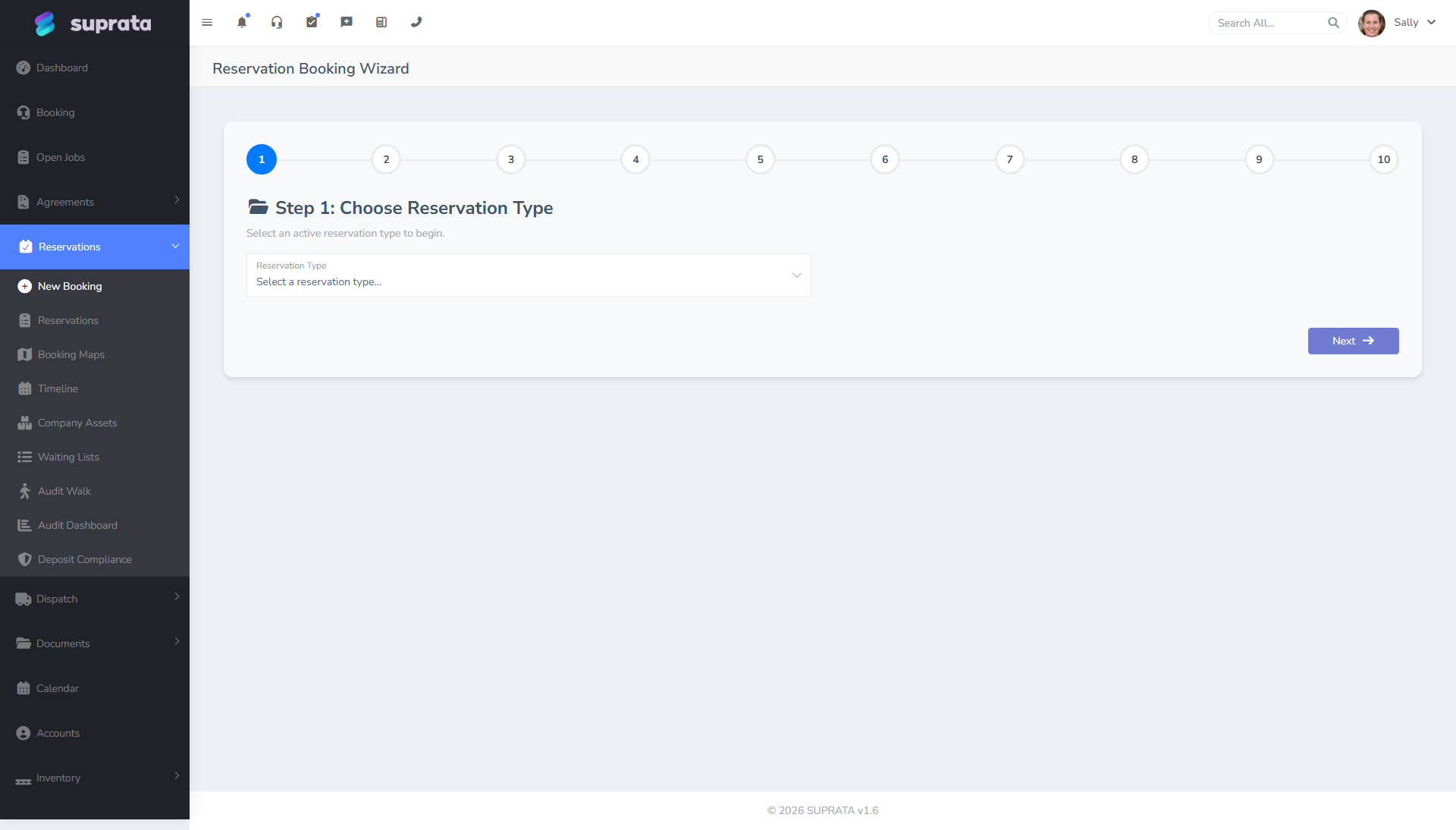
The booking wizard is the heart of Reservations. Every reservation in the system was created here. Customers hit a public version when they self-book; your front-desk staff hit an internal version when they book over the phone, on walk-ups, or from a call-back. Both versions share most of the same steps, but the staff version exposes a few extras (overrides, notes, manual price adjustments) that customers don't see.
If you've configured asset types, assets, and (optionally) a property map, the booking wizard is what you've been building toward.
When you'd use this
Every time a reservation is created. There are no shortcuts — the wizard is what runs the availability checks, the short-term hold during checkout, and the conflict detection that prevent double-bookings. Make changes to a reservation through the wizard or the reservation edit screen, never any other way. (See Handling conflicts and double-bookings.)
The customer's path (public booking)
This is the version a guest hits when they visit your public booking page. The flow varies by configuration but the typical shape is:
- Pick dates. A calendar widget asks for arrival and departure (or month-of for storage). Date selection drives availability.
- Pick an asset type or a package. "What kind of site/slip/unit do you want?" The customer chooses the category, optionally narrows by length, hookup, or other attributes.
- Pick a specific asset. Either via a list (with thumbnail and details) or by clicking a pin on the property map. Only assets available for the chosen dates appear.
- Customer details. Name, email, phone. If they have an existing account, they sign in to skip this. If not, a new account is created.
- Required documents. If the asset type requires insurance certificates, vessel registration, etc., the wizard asks for them or sends a follow-up upload link. (See Required documents per asset type.)
- Add-ons. Optional extras (pet fee, premium-site upgrade, firewood) are presented for selection.
- Deposit / payment. The wizard collects the configured deposit via Stripe or USIO. The customer sees a clear breakdown: deposit due now, balance due later, total of stay. (See Handling deposits.)
- Confirmation. The booking is finalized, a confirmation email goes out (with gate codes, directions, what-to-bring info as configured), and the asset is locked off the public availability calendar.
While the customer is in checkout, the asset is held for them for a short window so two people who start booking the same asset at the same time don't both succeed. If the customer leaves the page without finishing, the hold expires and the asset becomes available again.
The staff path (internal booking)
Front-desk staff use a longer version of the same wizard with extra capabilities:
- Customer first or asset first. Staff often start by searching for the customer (returning guest) before picking an asset. The wizard supports either order.
- Pick the customer or create one. Staff can attach the booking to an existing account, or create a new account on the fly. Don't share a single "Walk-in" account across multiple real customers — every booking deserves a real account so balance, history, and communication are correct.
- Pick the dates and asset. Same as the customer path, but staff can see all assets including held or out-of-service ones (and override).
- Apply manual price adjustments. Staff can override the rate, apply a discount, or add a custom line item. Use sparingly — every override breaks the predictability of your pricing reports.
- Skip or override required documents. If a long-time tenant promises to bring their insurance cert tomorrow, staff can mark the requirement as overridden with a note. Use this judiciously and make sure the document actually arrives.
- Override deposit. Some long-term customers don't pay deposits; some new customers pay double. Staff can adjust at this step.
- Add internal notes. "Customer prefers north-facing slip, repeat customer of 8 years, very particular about pier height." Notes are staff-only and follow the reservation through its life.
- Confirm. Same as the customer path: confirmation email goes out, asset is booked, deposit invoice is generated.
What a successful booking does
Once a booking is confirmed, you'll see all of these:
- The asset is no longer available on those dates for anyone else.
- The customer's account shows the new reservation.
- A deposit invoice (if a deposit is owed) is generated and either paid or marked due.
- The confirmation email goes out if email templates are configured.
- The reservation appears in the timeline view, calendar view, and the main reservations grid.
- Document tracking starts, and you'll get an alert if any required document is going to expire during the stay.
Recommended defaults
- Always book through the wizard. Adjusting reservations any other way skips availability checks, conflict detection, and document gating.
- Always create a real customer account. Even for one-time walk-ups. Empty/anonymous bookings are a reporting nightmare later.
- Send the confirmation email. Don't disable it for "low-touch" bookings — the email is also the customer's record of what they booked. They will call back two weeks later asking for confirmation; you'll be glad you sent it.
- Collect the deposit at booking time unless your business explicitly takes payment on arrival. Empty deposit handling causes most reservation disputes.
The rental contract and getting it signed
Each reservation type can hold a contract-terms template. When a booking is made, those terms are copied onto the reservation as a snapshot — the agreement the guest actually signs, frozen at booking time so a later wording change doesn't rewrite a signed contract.
The reservation type has three settings worth turning on for anything longer than a transient overnight:
- Auto-email the contract when a booking is made — the guest gets a link to review and sign online without anyone remembering to send it.
- Auto-email a signed copy after signing — the guest keeps their own copy; you keep the record.
- Let the customer edit their contact info on the contract — the signing page shows the guest their name, phone, and address and lets them correct it before signing. It never exposes the account name, the site/asset, the dates, or the price — only their contact details.
The signing page leads with the booking details (site, dates, package) above the legal terms, so the guest sees what they're agreeing to. For an open-ended (indefinite) stay there's no end date to show, so the contract reads that the reservation continues until it's terminated under the contract's own termination terms — which is exactly what a month-to-month tenancy needs. (See Handling deposits for the deposit side of long stays.)
Common mistakes
- Sharing a single "Walk-in" or "Cash Customer" account for many real customers. Their balances and reservations all collapse into one ghost account; you lose the ability to message any of them. Make a real account for every booking, even if it's the first time you've seen them.
- Overriding deposits without recording why. A note saying "customer paid cash on arrival" makes the override traceable. No note makes it look like the system is broken.
- Booking a date range that crosses a month with monthly-billed inventory. Long stays are different from transient stays; if you book a one-month stay on a transient asset type, the settlement run will struggle. (See Long-stay billing and settlements.)
- Skipping required documents "for now." The system tracks who's missing what; the alerts will haunt you. Better to upload the documents at booking time, even if they're "the same as last year."
- Using the asset's per-night rate when the customer is staying a month, or vice versa. Mixed cadences cause math problems at settlement time. Match the rate cadence to the stay length.
- Booking two adjacent assets for a family without using a multi-asset package. It works, but you've created two reservations and two invoices for what's really one stay. A package that bundles "two adjacent sites" is cleaner if this happens often. (See Building a package.)
- Not testing the public booking flow as a customer. What looks fine internally may have unclear copy, broken images, or confusing pricing on the public side. Run yourself through it once a quarter.