Calendar and Timeline Views
The same reservation data can be visualized in two very different ways: a calendar (date-centric, showing what's happening on each day) and a timeline (asset-centric, showing how each asset is occupied over time). Both views matter; staff who only know one are using the system at half capacity.
When you'd use each
Use the calendar when…
- The question is "what's happening on this date?" — checking arrivals, departures, and stays for a particular day.
- Front-desk staff need to know today's check-ins and check-outs to prep for arrivals.
- You're looking at how busy a specific weekend will be — Saturday counts vs. Sunday counts.
- You want a familiar calendar grid that staff can interpret instantly without training.
Use the timeline when…
- The question is "how is this asset booked over the next month?" — gaps, occupancy, turnover.
- You're trying to find availability for a specific stay length across multiple assets.
- You're looking at utilization — which slips are full all summer, which are gappy, which are dead.
- You're planning maintenance windows that need to drop into a real gap between bookings.
- You want to compare assets side by side — Asset A is busy, Asset B has a 3-week gap.
How they work
The calendar view
The calendar shows time on a 2D grid (weeks down, days across) with reservations marked on the days they touch. It mirrors the way most office calendar apps work — Google Calendar, Outlook — so staff already know how to read it.
Click a day → see who's checking in, who's checking out, who's staying. Click a reservation → drill into the booking details.
The timeline view
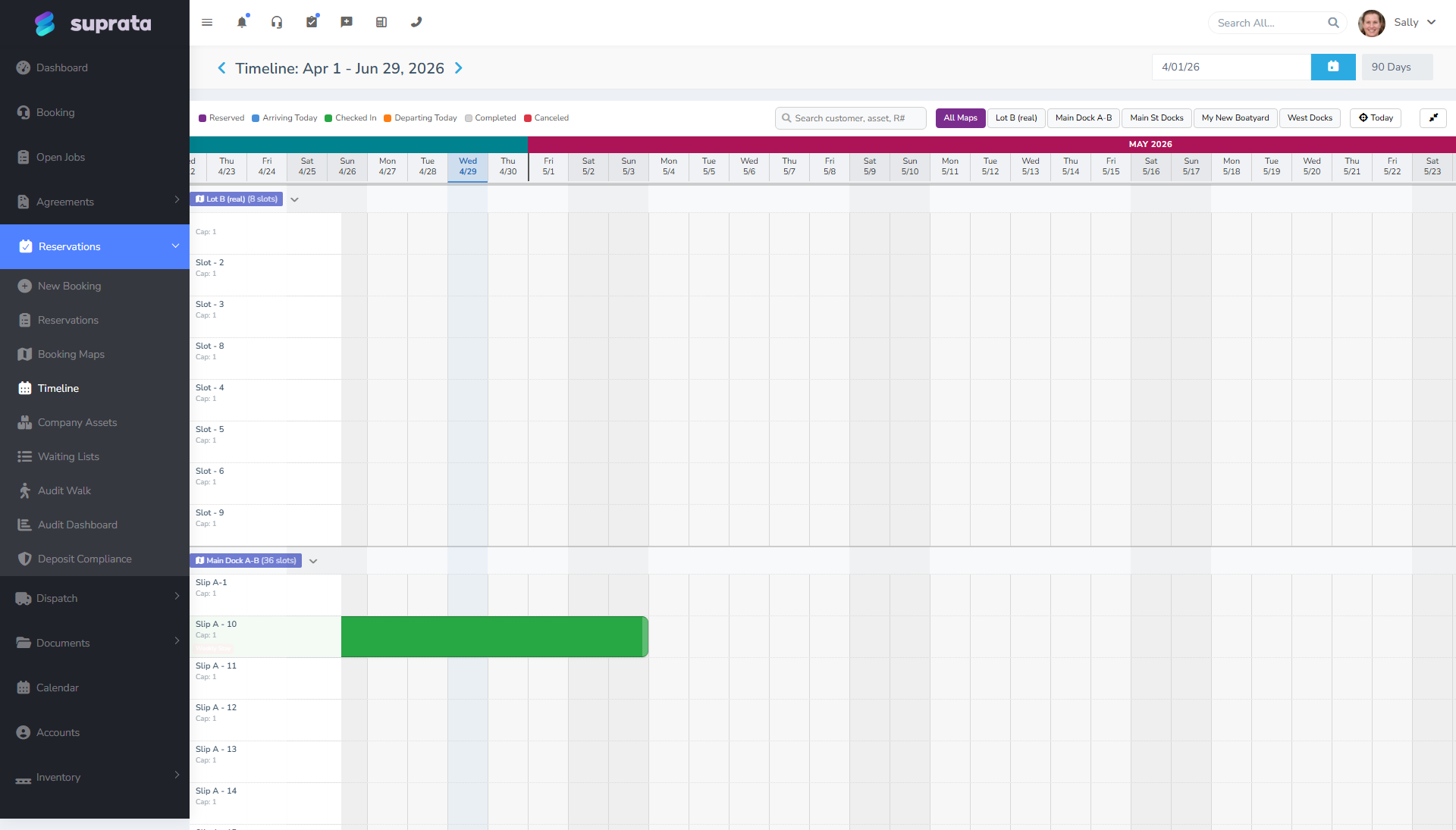
The timeline rotates the perspective: each asset is a row, dates run left to right, reservations appear as colored blocks spanning their date range. It looks like a Gantt chart for your property.
The timeline is the better tool when you need to see the gaps. Calendars hide gaps because they show what's happening; timelines highlight gaps because empty space on the row is empty space on the property. For a marina manager planning where to slot a 2-week request, the timeline answers the question instantly; the calendar answers it slowly.
A typical staff workflow using both
The two views complement each other. A common front-desk pattern:
- Morning open: pull up the calendar for today. See who's arriving and departing. Prep paperwork, gate codes, confirm any required documents are uploaded.
- Mid-day inquiry: a customer calls asking "Do you have any 30-amp pull-throughs available August 8th to 15th?" Pull up the timeline, filter to that asset type, scan for an open block. Find one, transition to the booking wizard.
- Weekly capacity review: pull up the timeline for the entire month. Identify gaps. Decide whether to advertise an opening, drop a deal email to the waitlist, or schedule maintenance.
- Operations meeting: pull up the calendar for the upcoming week. Review staffing needs against arrival counts.
Same data; different decisions; different views.
Filtering and what to filter for
Both views support filtering by asset type, by date range, and by reservation status. The right filter depends on the question:
- Filter to one asset type when planning capacity for that type.
- Filter to "in-house only" when prepping for tomorrow's check-outs.
- Filter to "checking in today" when staffing the front desk.
- No filter, full month when reviewing utilization or finding patterns.
Tips for getting more out of these views
Use color consistently
If your reservations show in different colors based on status (confirmed, deposit-paid, in-house, balance-owed), train staff on what the colors mean. A glance-test should be enough to spot the booking that needs attention.
Pin frequent filters
If you always filter to a specific section or asset type, save that as a default view rather than re-applying every time.
Print or screenshot for off-system communication
Sometimes you need to hand a paper schedule to a maintenance contractor or print a daily prep sheet. Both views support that, but the formats differ. Calendar prints look like familiar appointment schedules; timeline prints look like Gantt charts. Use whichever the recipient will read.
Subscribe from your own calendar app
If staff live in Google Calendar, Outlook, or Apple Calendar, they can subscribe to a Suprata feed and see today's reservations alongside their other meetings — no need to log into Suprata to glance at the day.
Recommended defaults
- Default the calendar to today / week view for front-desk staff — that's their primary use.
- Default the timeline to current month for managers and capacity planners.
- Train every staff member on both views. Staff who only know the calendar can't answer availability questions efficiently; staff who only know the timeline miss the daily check-in flow.
- Use both side-by-side on a second monitor at the front desk during peak periods. Calendar on one screen, timeline on the other.
Common mistakes
- Treating the two as redundant. They're not. Each answers questions the other can't. Use both.
- Editing reservations directly from the calendar drag-and-drop without verifying conflicts. Drag-to-reschedule is convenient but skips the booking-wizard checks that prevent double-booking. Verify the new dates are clean before confirming.
- Filtering and forgetting. A staff member filters to one asset type, forgets, then assumes "we have no availability" when really other types are wide open. Visible filter indicators help; clearing filters before sharing a screenshot helps more.
- Reading the timeline blocks as exact-to-the-minute. Most reservations are date-granular (check-in date, check-out date), not time-granular. The block shows the dates, not the literal hours of arrival.
- Not scrolling. Long timelines hide assets below the fold. If you have 200 assets, your scan only sees the first ~30. Scroll or filter.
- Trusting a stale screen. If you've left the page open for two hours and a new booking came in since you opened it, you won't see it until you refresh. Hit refresh before acting on what you see, especially during a busy check-in window.
- Using the timeline for daily work that the calendar handles better. If you find yourself counting today's arrivals on the timeline by squinting at where the bars start, switch views.