The Job-to-Invoice Chain: From Service Call to Synced Payment
A service business doesn't really sell jobs — it sells the outcome of a job, and that outcome lives on the invoice. So the most important flow in Suprata isn't how you create a job; it's how a job, once it exists, becomes an invoice that reflects what actually happened in the field, gets paid, and ends up matched in QuickBooks. That flow has six steps, and if any one of them is set up wrong you get the same frustrating symptoms — wrong taxes, missing line items, QB out of sync, customer disputes — but each one has a different fix.
This article walks the flow end-to-end so you understand what each step does for you and where to look when something is off.
When you'd use this
Read this if you're doing any of the following:
- Setting up a new account and need to understand which decisions affect what later.
- Trying to figure out why an invoice doesn't have the right tax on a particular line.
- Wondering why a closed invoice shows a "QB sync error" or never appears in QuickBooks.
- Training a dispatcher or office manager on what they should and shouldn't override.
- Tracing how a particular invoice came to exist (the history tour at the end).
The chain at a glance
Account ----+
            |
            v
    +-------+-------+
    | Job created   |  <-- Service Location selected
    | jobtype set   |  <-- Industry form auto-attaches
    +-------+-------+
            |
            v
    +-------+-------+
    | Tech in field |  Time, parts (pricelist), photos,
    | logs work     |  signature, notes
    +-------+-------+
            |
            v
    +-------+-------+
    | Job complete  |  Creates a fresh invoice OR appends
    +-------+-------+  to an open one for this account
            |
            v
    +-------+-------+
    | Invoice items |  pricelist item -> tax category ->
    | + tax alloc   |  tax table -> per-line tax breakdown
    +-------+-------+
            |
            v
    +-------+-------+
    | Close invoice |  Lock, then queue QB sync
    +-------+-------+
            |
            v
    +-------+-------+
    | Payment       |  Stripe/USIO/check; QB sync again
    +-------+-------+
            |
            v
        Reconciled
Six visible steps, three running history logs alongside them. We'll walk each.
Step 1: Job creation, the service location, and the industry form
A job has to belong to an account, and that account has to have a service location. The service location tells the job where the work happens — not the billing address, the work address. They're often the same, but for property managers, contractors, and any business with a billing-vs.-job-site split, they aren't, and you'll bill the wrong taxes if you confuse them.
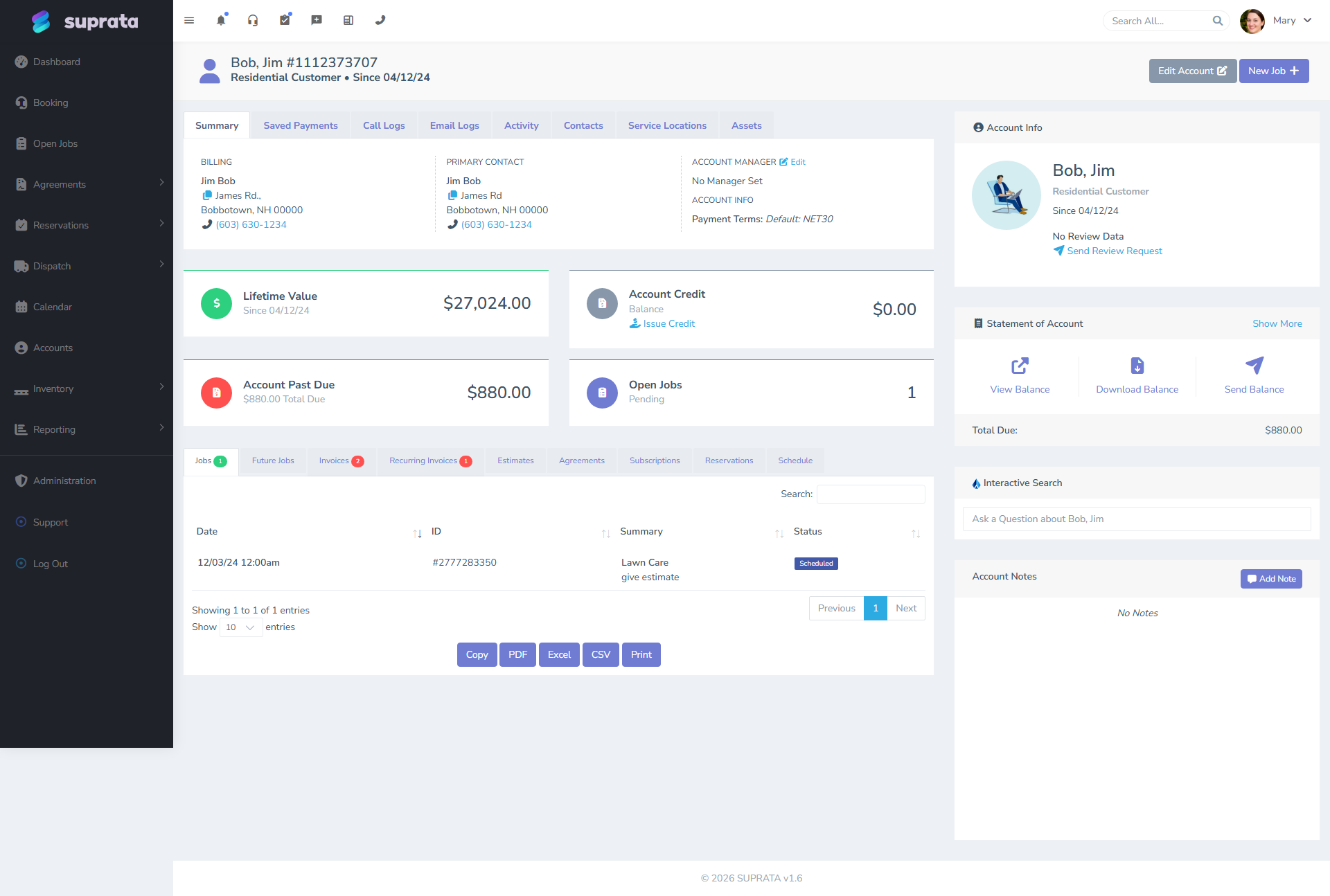
When the job is created, two automatic things happen that matter for every step after:
-
The job type drives which industry form attaches. Each job type (HVAC service call, marine winterization, IT install, etc.) is mapped to an industry form — a structured form attached to the job that asks the right questions for that line of work. A plumbing form asks about pipe materials and water pressure; an HVAC form asks about refrigerant and tonnage. Pick the right job type and the right form attaches itself; pick the wrong job type and your tech is in the field with the wrong checklist.
-
The service location is recorded on the job. That's what determines which tax rates apply when the invoice is created — because tax rates depend on jurisdiction, and tax authorities care about where the work happened, not where the bill is mailed. This matters again in Step 4.
For the basics, see Creating your first job and Job statuses and what each one means.
Step 2: The tech in the field
The middle of the flow looks like it has nothing to do with billing, but it determines everything about the invoice that comes out the other end. While the job is open, the tech (or the office, if you don't dispatch) logs:
- Time — start, stop, drive time, on-site time. This becomes labor line items at invoice time, priced by whatever labor item maps to the work performed.
- Parts — pulled from the pricelist. Each part is already tagged with a tax category and a unit price; choosing it on the job means the invoice will know how to tax and price it.
- Photos — before/after, damage documentation, equipment serial numbers. These don't enter the invoice, but they back up disputes about what was done.
- Signatures — captured in-app, attached to the job. The signature is what closes the dispute "I never approved this work."
- Notes — observations, customer requests for follow-up, parts on order. Notes are also what feed AI summaries and historical lookup later.
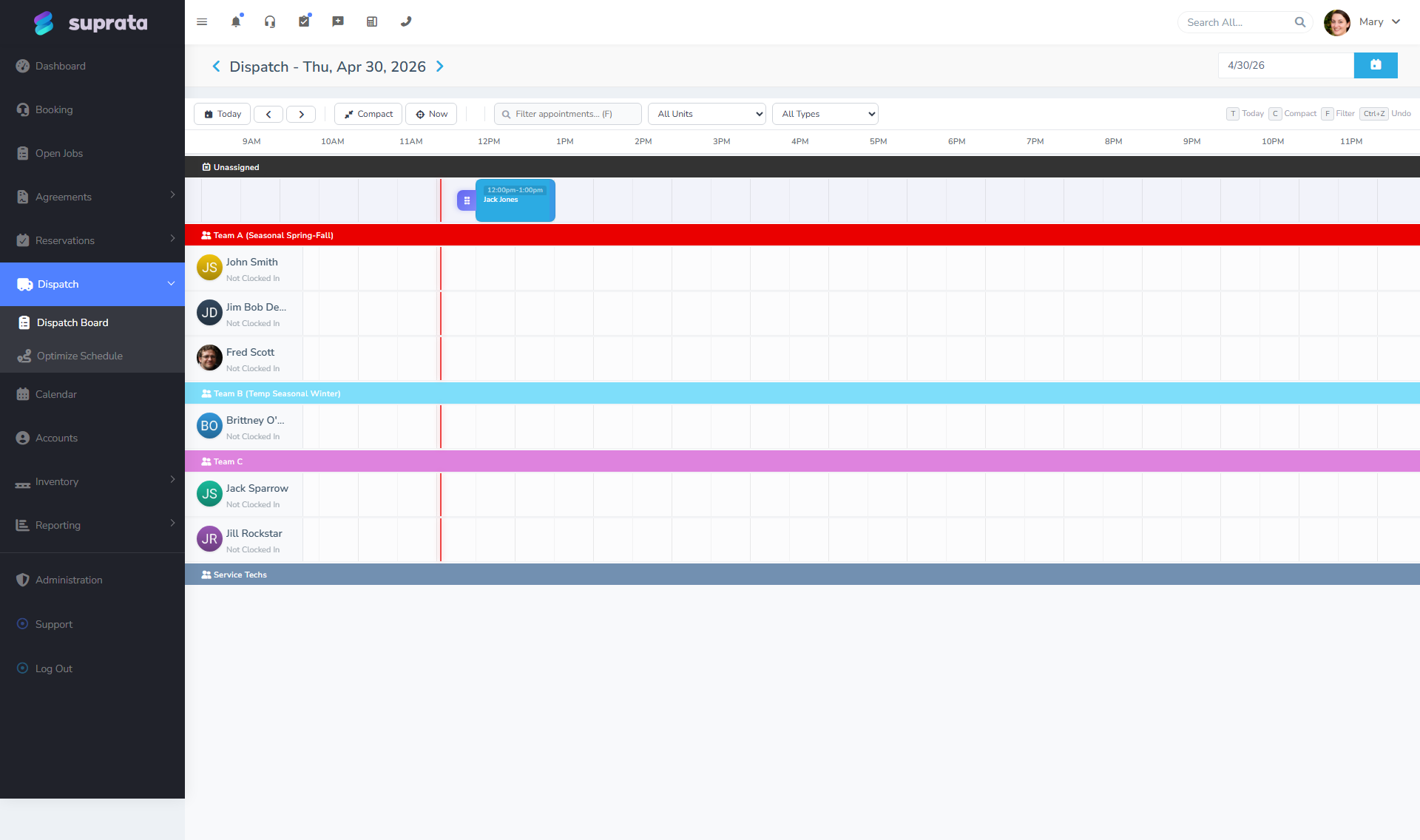
The dispatch board is the operations side of this step. Jobs flow left to right (or column by column) as they move through statuses. When the tech moves a job to Complete, that's what kicks off Step 3.
Step 3: Job complete — the invoice is created or appended
Marking a job Complete does one of two things automatically:
- Create a new invoice for this account if there isn't a draft one open.
- Append to an existing draft invoice for this account if one is open and unlocked.
The append behavior is what lets you bundle multiple jobs onto one invoice — useful for a property-management customer who wants one monthly invoice across ten units. It only happens when the existing invoice is still in draft state; once it's closed, the next job-completion creates a fresh invoice instead.
A few details that catch people:
- A job that's marked Complete but didn't generate an invoice usually means the job had no billable line items — no parts, no labor, just notes. Suprata doesn't create empty invoices; you'll have to add a line manually or change the labor entry.
- A job marked Complete that did generate an invoice you didn't want can be reopened (status back to in-progress) and the invoice items rerouted. There's a permission for this — not every user should have it.
- Recurring agreement-based jobs behave a little differently: they may attach to the agreement's recurring invoice instead of creating a new one. That's covered in Creating a service agreement.
Step 4: Invoice items and how tax gets applied
Once the invoice exists, each line item goes through its own chain:
Pricelist item  -->  Tax category  -->  Tax table  -->  Tax on this line
   (the part)       (what kind of      (rates by      of the invoice
                     thing is taxed)    location)
Every pricelist item is tagged with a tax category. The tax category isn't a rate — it's a kind of taxable thing: "labor", "tangible goods", "services", "non-taxable", whatever your jurisdiction needs. Categories exist because the same item can be taxed differently in different places.
The tax table is what turns a category plus a location into an actual rate. So a "labor" line item at a Florida service location might be taxed at 0%, while the same labor in another jurisdiction is at 6%. The invoice doesn't pick the rate — the tax table does.
When the line is added to the invoice, the rate in effect at that moment is recorded on the line. This matters: even if you change tax rates next quarter, the invoice you closed last month still shows the rate that was in effect when it was created. Tax history stays accurate per line.
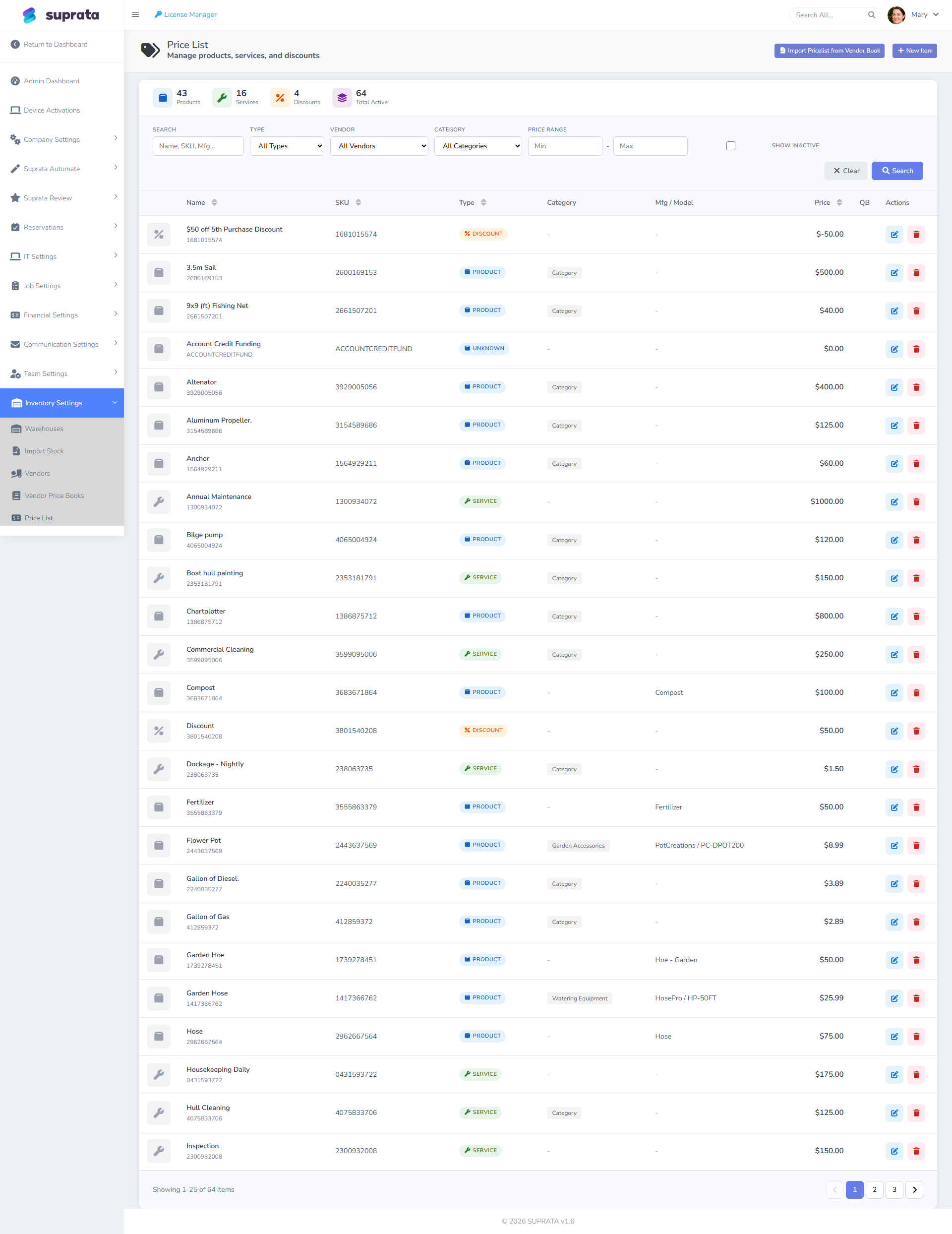
If invoice tax looks wrong, work down this list:
- Is the pricelist item tagged with the right tax category? Most "wrong tax" problems are this.
- Does the service location point to the right tax jurisdiction? Less common but happens with multi-state customers.
- Is the tax table for that jurisdiction up to date? Rate changes are a tax-table edit; nothing else.
For the deep dive, see How tax categories work.
Step 5: Close, lock, sync
When the invoice is finalized, you close it. Closing does three things:
- Locks the invoice so line items can't drift.
- Recalculates totals one last time so they match the line items exactly.
- Sends the invoice to QuickBooks if QuickBooks is connected.
The QuickBooks sync doesn't always happen the instant you close. It runs on a regular schedule, so closed invoices show up in QB minutes (sometimes hours, if there's a backlog) after closing rather than instantly. If you don't see an invoice in QB:
- Check the QB sync report.
- Confirm the invoice's customer is mapped to a QuickBooks customer (every customer needs a one-time mapping).
- Confirm every pricelist item on the invoice is mapped to a QuickBooks item.

The sync report is the one screen that tells you the truth about QuickBooks integration health. Get in the habit of checking it whenever something looks off in QuickBooks.
The setup steps are in QuickBooks prerequisites and QuickBooks first sync walkthrough.
Step 6: Payment, and another sync
Payment closes the loop. The customer pays — Stripe, ACH, check at the office, applied credit, doesn't matter — and a payment is recorded against the invoice. That sends another update to QuickBooks so QB shows the invoice paid.
The same prerequisites apply: the payment processor needs to be configured (see Connecting Stripe), and the invoice has to be in a state where it accepts payments (closed but not voided).
After the payment is reflected in QuickBooks, you're done: job done, invoice issued, payment captured, QuickBooks matched, customer history complete.
Three history logs running alongside
The flow keeps three different histories, each capturing a different slice. When you're investigating "what happened on this customer," you read all three:
- Job history — every status change, every assignment, every edit on the job. Who did what and when.
- Invoice history — every line added/edited/removed, every close/reopen, every void/un-void, every payment applied.
- Account history — customer-level events: contact info changes, balance shifts, agreement signups, tax-exemption changes.
Together they let you reconstruct the full story of any disputed charge: "the job was opened on the 14th, dispatched on the 16th, completed on the 17th, the invoice was created automatically, line item X was added by the tech in the field, taxed at the rate in effect that day, closed on the 18th, synced to QB on the 18th, paid on the 22nd via Stripe."
That kind of paper trail is what protects you in a chargeback dispute or a tax audit.
Common breakdowns
- Wrong industry form attached because the wrong job type was picked. The tech then either ignores the form (because it doesn't fit the work) or fills it out with garbage. Fix: review your job-type-to-form mapping. If you've been using one generic job type for everything, split it into the kinds of work you actually do.
- Service location set to the billing address. Tax is calculated against the wrong jurisdiction. Fix: on the account, separate the billing contact from each service location. The anatomy of an account vs. a contact covers this distinction.
- Pricelist items missing a tax category. A default tax (often 0%) gets applied without anyone noticing. Fix: review your pricelist for items that don't have a tax category set, and assign one to each. Make tax category a required field going forward.
- Closed invoice never appears in QuickBooks. Almost always one of: a customer not yet mapped to a QB customer, a pricelist item not mapped to a QB item, or a tax code mismatch. The sync report names the failure.
- Invoice was created but doesn't include the parts the tech logged. The parts were noted in free text, not picked from the pricelist. Fix: don't allow free-text part entry on jobs; force pricelist selection. Free text doesn't roll into invoices.
- Multiple jobs intended for one invoice ended up on separate invoices. The first one closed before the second one was finished, so the second one created a new invoice. Fix: don't close invoices on accounts where you know more jobs are coming. Or use a service agreement for true recurring work.