How customers pay, log in, and get help themselves
Every minute a customer spends on the phone with your office asking "what's my balance?" or "can you re-send that invoice?" is a minute neither of you wanted to spend. The point of the customer-facing tools in Suprata is to take routine questions off your phone and let customers handle them on their own, at 11 PM on a Tuesday if that's when they get to it.
There are four pieces customers can use, and they're meant to fit together. This article explains what each one does, when to point a customer at which one, and the gotchas that catch new businesses on their first month live.
When you'd use this
Read this if you're:
- Setting up the customer portal for the first time and trying to decide what to turn on.
- Trying to figure out why a customer says "I paid the invoice but I don't have a login."
- Deciding whether customers should have to log in before they can pay, or just click an emailed link.
- Configuring customer-submitted support tickets and email verification.
The four ways customers can interact with Suprata
There are four customer-facing surfaces, and they're separate on purpose:
- Click-to-pay invoice links — a customer clicks the link in an emailed invoice and pays it. No login.
- The customer portal — a logged-in account where the customer sees all their invoices, jobs, agreements, saved payment methods, and reservations.
- The help site — your knowledge base and ticket-submission area.
- The single sign-on that connects them — once a customer has logged into the portal, they can move between the portal and the help site without logging in again.
Your customer doesn't need to know any of this. From their side, it just works. Your job is to set the pieces up so the experience is seamless.
1. The pay-by-link invoice — no login needed
The simplest thing your customer can do is click "Pay" on an invoice you emailed them. Each invoice you send includes a unique link. When the customer clicks it, they see:
- The invoice with your branding, line items, and totals.
- A Pay Now button (assuming you've connected a payment processor).
- A note of when they last viewed the invoice — useful when a customer claims they "never got" the bill.
The link only ever shows that one invoice. Other invoices, account history, saved cards — those all require a portal login.
When the customer clicks Pay Now, they enter their card on a secure payment page, the charge goes through, the invoice marks itself paid, and they get a receipt. They never logged in.
This is the workhorse. Most customer payments come through this link because it's the path of least resistance. Setup is in Connecting Stripe.
2. The customer portal — when one invoice isn't enough
The pay-by-link flow handles "I want to pay this bill." It doesn't handle:
- "I want to see the last six months of invoices."
- "I want to schedule a service appointment myself."
- "I want to update the credit card on file."
- "I want to see my reservation balance."
- "I want a copy of the agreement I signed."
For all of that, customers need to log into the customer portal. The portal is a separate login from your staff's — your customers and your team will never accidentally end up in each other's areas.
There are two ways a customer ends up with portal access:
- They sign themselves up. If you've turned on self-registration, a customer goes to the portal login page, clicks sign up, proves they own an email address you have on file, and the portal links them to their existing customer record.
- You invite them. If you'd rather control who can register, you send an invitation from inside their customer record. They click the link in the email and set a password.
Either way, customers have to confirm their email address before they can see anything sensitive. That's what stops a stranger from signing up with a customer's email and reading their billing history.
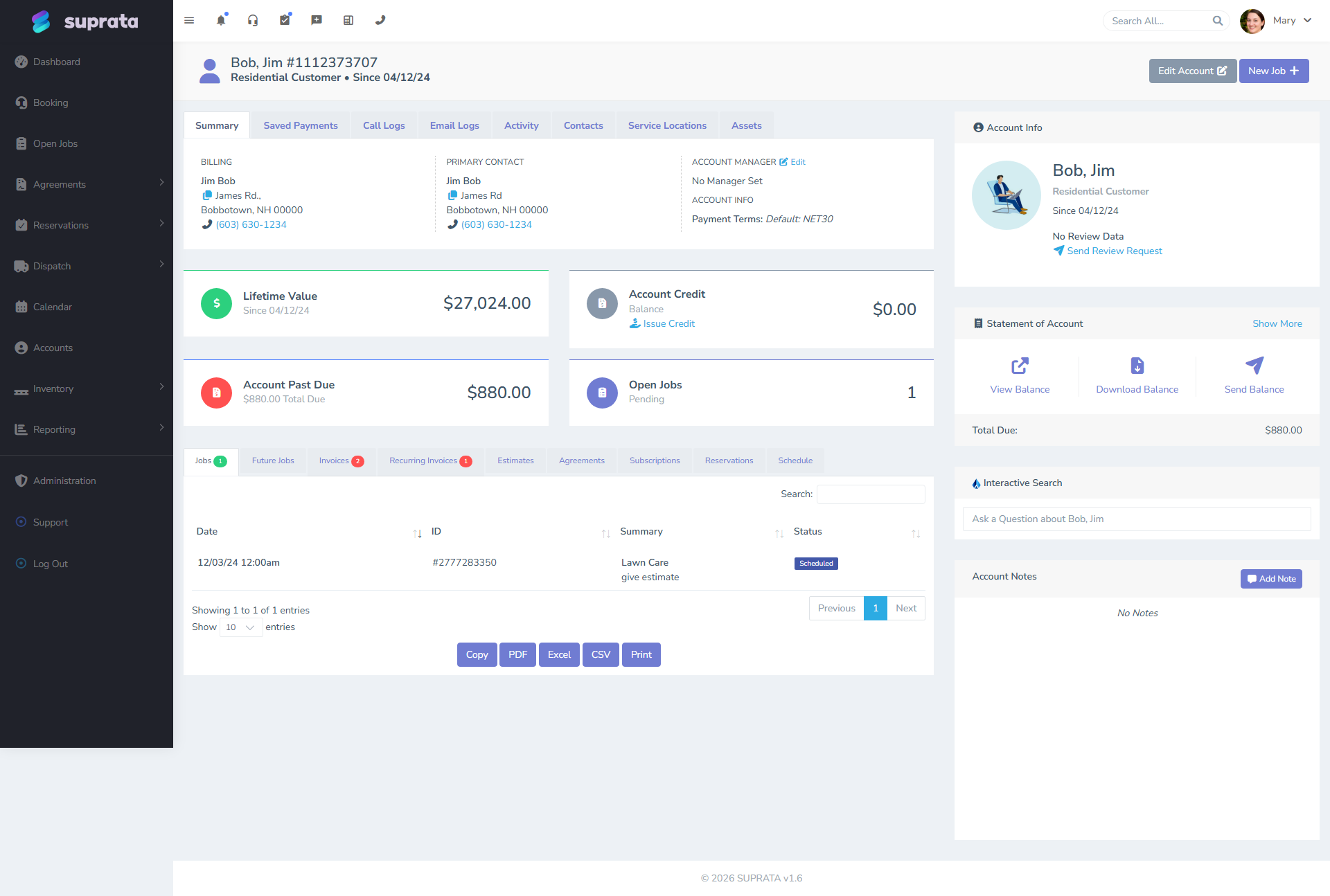
What the customer sees in the portal is a curated subset of what you see on their account record — their invoices, their jobs, their reservations, their saved cards. Internal notes, your costs, and anything else that's for your team's eyes stays on your side.
3. The help site, and how customers move between it and the portal
Customers don't think about which page of your business they're on. They click "Help," they expect to be helped. So once a customer is logged into the portal and clicks "Get Help," they shouldn't have to log in again on the help site.
That's what the single sign-on does. From the customer's perspective:
- They're in the portal, viewing their invoices.
- They click "Get Help."
- They land on the help site, already logged in. Their name shows in the corner.
- They read articles, submit a ticket, or check ticket status — all without a second login.
It works the other way too. A customer reading help articles who clicks "View my invoices" gets handed back to the portal without re-entering a password.
What this gets you:
- One login per customer. They don't have to remember which password works on which page.
- Tickets that already know who the customer is. When they submit a ticket through the portal, the ticket comes in already attached to their account. Your team isn't asking "what's your account email?" before they can help.
- One picture of the customer's activity. What they did in the portal, which articles they read, which tickets they opened — it's all linked to the same customer.
4. Customer support tickets, with a check that they're real
Tickets are the second-most-common reason a customer logs in (after billing). There are three ways customers can send you a ticket, in order of how much effort the customer puts in:
- Public form, no account. Anyone can submit a ticket through the public form on your help site. Before the ticket lands in your queue, the customer has to confirm the email address by clicking a verification link. That keeps junk and typo'd emails out.
- Logged into the portal. They've already proven who they are by logging in, so the ticket goes straight to your queue, attached to their customer record.
- Coming in from the main portal. Same as logged-in submission, just without the second login because the portal carried their identity over.
The email-verification step on public submissions is what keeps your queue from filling with garbage. Without it, you'd get bot submissions and typo'd email addresses. With it, you get real tickets from real people.
Once a ticket is in your queue, the rest is the normal ticket flow — assignment, internal notes, replies. Customers can check status from the portal or the help site, and they get notified by email when there's an update.
Saved payment methods and autopay
The last piece is saved payment methods, and it's where this whole self-service idea starts saving you the most time.
When a customer pays an invoice — through the link, the portal, or with a staff member on the phone — they can choose to save the card on file. Suprata never stores the actual card number; the card lives at Stripe, and Suprata stores a reference that lets you charge that card again without re-asking.
What you can do with a saved card:
- Charge invoices automatically when they're closed. With autopay turned on for that customer, they don't have to do anything when an invoice goes out — it pays itself, and they get the receipt.
- Auto-charge specific kinds of invoices. Service agreements, recurring rentals, monthly subscriptions — keep them on autopay and let everything else go to the customer for manual approval.
- Take a one-click payment over the phone when a customer calls in to pay. Pull up the account, click charge-saved-method, done.
A few rules that keep saved methods from going wrong:
- Run a real, manual payment end-to-end before turning on autopay. A failed automatic charge is much harder to untangle than a failed manual one. The first-payment walkthrough is in Connecting Stripe.
- Get explicit consent when saving a card. When a customer pays for the first time, the form asks if they want to save the card. Don't save cards without an explicit yes — your processor takes that very seriously.
- Treat a failed autopay like an unpaid invoice, not a system error. Cards expire, get replaced, get blocked by the bank. Your past-due flow needs to handle "card on file declined" the same way it handles "invoice never paid" — follow up with the customer, don't assume the system will fix itself.
Notifications — what ties it all together
Each piece sends its own notifications: invoice sent, invoice viewed, payment captured, ticket submitted, ticket replied. Those notifications are what makes the experience feel responsive to the customer, and you set them up separately from the customer-facing pages themselves.
You have two channels:
- Email for anything that's a record (invoices, receipts, ticket confirmations).
- SMS for time-sensitive prompts (appointment reminders, verification codes), where you have a verified phone number and the customer hasn't opted out.
Both can be customized. Take half an hour during setup to rewrite the customer-facing templates in your own voice — generic system text reads as a generic system, and the whole point of self-service is that it should feel like you, not like a vendor's stock messaging. Setup is in Setting up email (SMTP) and Setting up SMS via Twilio.
Common breakdowns
- The customer paid through the email link but never registered for the portal. This catches a lot of new businesses. They paid, you assumed they have a portal account, they don't. The pay-by-link doesn't create a portal account on its own. Fix it by sending a follow-up email after a payment that invites them to register, or accept that pay-by-link customers and portal customers are two different groups and that's fine.
- A customer can't sign up for the portal because the email they're using isn't on file. They register, the system can't find a matching customer, they're stuck. Decide upfront whether you want unknown emails to be rejected outright or queued for your staff to approve, and tell your team which it is.
- The verification email lands in spam. The customer never clicks the link, the ticket sits unverified forever. Fix it by setting up email authentication on your sending domain — see Setting up email (SMTP).
- An autopay charge fails and nobody notices. The card expired, autopay tried it, it failed, the invoice stayed open, the customer assumed they paid. Make sure failed-autopay notifications go to both the customer (so they can update the card) and your billing inbox (so you can follow up).
- Bot or junk tickets coming through the public form. This is what email verification is for. If you've turned verification off because it seemed like extra friction, turn it back on.
- A customer says they got bumped between the portal and the help site over and over. That's almost always a clock problem on your server — single sign-on is time-sensitive. Make sure your server clocks are accurate.