Connecting Twilio for SMS
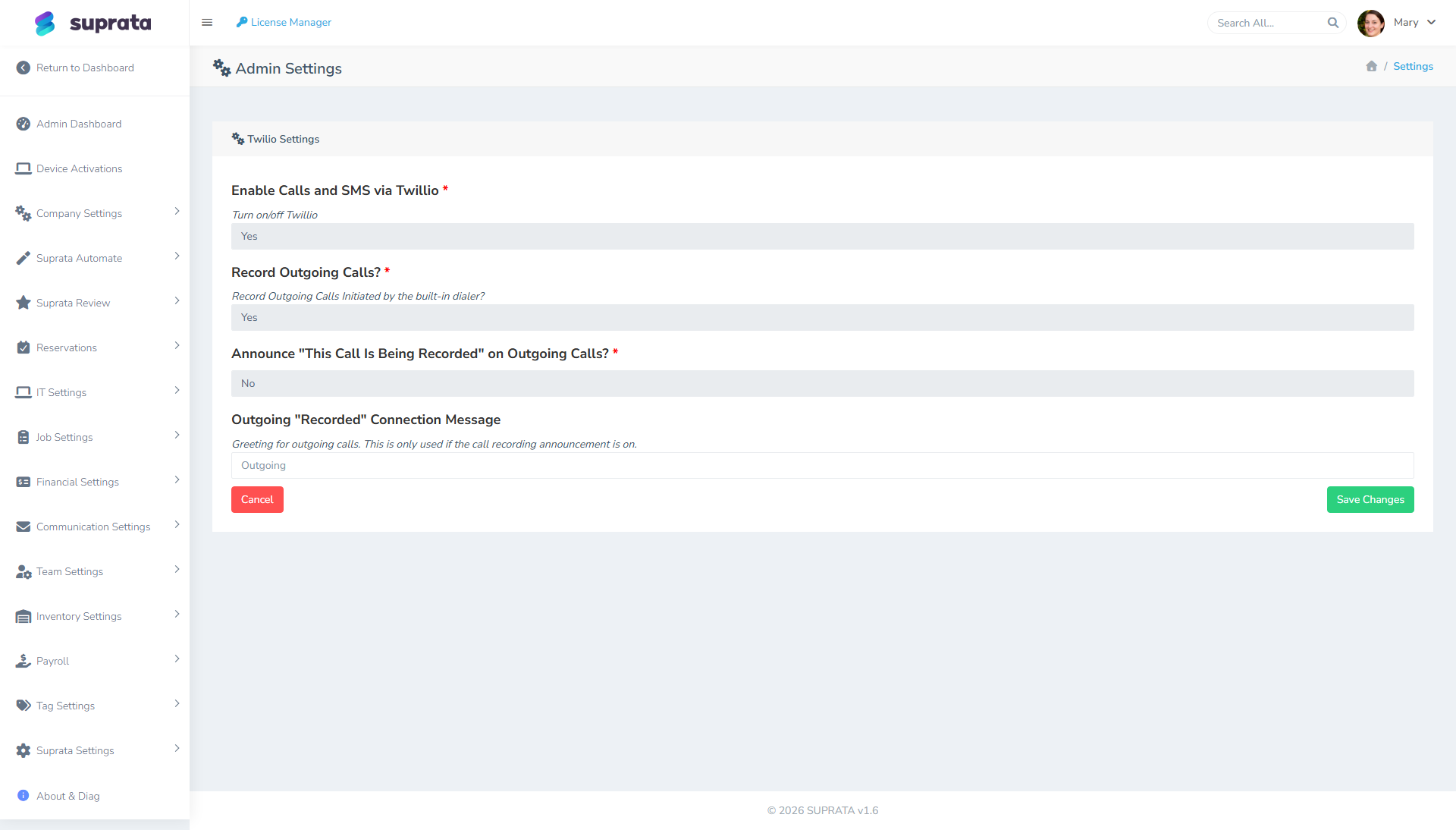
Twilio is the service Suprata uses to send and receive text messages. To send appointment reminders, past-due notices, or two-way replies with your customers, you need a Twilio account, a phone number purchased through Twilio, and a few pieces of information copied into Suprata.
This article walks you through that connection — sign-up, buying a number, copying the right info into Suprata, and testing both directions. If you want help writing the actual SMS templates and following the rules carriers apply to business texting, see Setting up SMS via Twilio.
When you'd use this
- First time setting up SMS in your Suprata account.
- You opened Twilio's site and are confused by which numbers and tokens to copy.
- You took over a Suprata account from someone else and want to confirm the texting setup is still working.
- You're moving from a Twilio trial to a paid account and need to swap the info cleanly.
- You're adding a second Twilio phone number (for example, one for reminders, one for billing texts).
What needs to be in place for SMS to work
You need three things lined up:
- Your Twilio Account SID copied into Suprata.
- Your Twilio Auth Token copied into Suprata.
- A Twilio phone number that's been purchased on Twilio's side and pointed back at Suprata so customer replies come through.
Miss any one of those and either outbound texts won't go out, or replies will vanish into Twilio and never reach you.
What you'll copy from Twilio
Account SID
Your Twilio account's unique identifier. It starts with AC and is followed by a long string of letters and numbers. You'll find it on the front page of your Twilio account dashboard. Copy it carefully — one wrong character and Suprata won't be able to send.
The Account SID is not a secret. You don't have to hide it.
Auth Token
This one is a secret. Treat it like a password — anyone with it can send texts through your Twilio account at your expense.
It sits right next to the Account SID on the Twilio dashboard, behind a "show" or eye icon. Click to reveal it, copy it, paste it into Suprata, and save. Don't email it to yourself or paste it into a chat.
Phone number
You need at least one Twilio phone number to send anything. In Twilio, go to Phone Numbers → Manage → Buy a Number. Pick:
- A local 10-digit number for most service businesses. Customers recognize and trust local numbers more than toll-free.
- In an area code your customers know. A local number gets opened and replied to more often than an out-of-area one.
- With SMS turned on. Voice is optional unless you're also taking calls through Twilio.
A Twilio number costs about $1 a month plus per-message fees. One number is plenty for a typical service business. You'd only need a second one if you wanted to keep different kinds of texting separate (for example, billing vs. appointment reminders).
What about "API Keys" in the Twilio console?
Twilio's site also shows a section called "API Keys." You don't need it. Suprata only uses the Account SID and Auth Token. If you saw API Keys and got distracted, just ignore that section.
The setup, step by step
1. Sign up for Twilio (or sign in)
Go to twilio.com and sign up. Twilio's free trial is fine for trying things out, but you'll need to add a credit card and convert to a paid account before you send real messages to customers — trial accounts can only text numbers you've personally verified, and the messages get a "Sent from a Twilio Trial Account" prefix that you don't want your customers to see.
2. Buy a phone number
In Twilio, go to Phone Numbers → Manage → Buy a Number. Pick a local number in your customers' area code with SMS turned on.
3. Copy your Account SID and Auth Token
On the front page of your Twilio account, copy both. The Auth Token is hidden behind a click-to-reveal button.
4. Paste them into Suprata
Open Suprata's phone or SMS settings (look for the section that mentions Twilio in your sidebar). Paste:
- Twilio Account SID — the
AC...string. - Twilio Auth Token — the secret you just revealed.
- Twilio Phone Number — the number you bought, with the country code, like
+13055551234. Suprata also accepts the number without the+1and fixes it for you.
5. Tell Twilio where to send customer replies
This is the step most people miss. For replies from customers — and STOP messages — to actually reach Suprata, you have to point Twilio's phone number at Suprata. In Twilio, open the phone number you bought, find the Messaging section, and paste the inbound URL that Suprata shows you on the phone settings screen. Set the method to POST. Save.
If you skip this, you'll be able to send texts but every reply your customers send will silently disappear.
6. Send a test text
From Suprata's phone settings, send a test message to your own cell phone. It should arrive within a few seconds. If it doesn't:
- Twilio shows "Failed"? The Account SID or Auth Token is wrong. Paste them again, carefully.
- Twilio shows "Delivered" but you didn't get it? Make sure the phone number you typed is correct. If everything looks right, your carrier may be filtering unregistered business texting — see Setting up SMS via Twilio for the registration step.
- Nothing in Twilio at all? Suprata couldn't reach Twilio. Re-check the credentials.
7. Reply to the test from your cell phone
Now reply to the test message. Open Suprata's SMS log — your reply should show up there within a minute. If it doesn't, the inbound URL in step 5 is wrong or wasn't saved.
Trial vs. paid Twilio accounts
A trial account is fine for testing but not for going live:
- It can only text numbers you've personally verified.
- Every message gets a "Sent from a Twilio Trial Account" prefix that real customers should never see.
- Trial numbers can't be registered for proper business texting, which means at any meaningful volume your texts get throttled or blocked.
Switch to a paid account before you start sending to real customers. You only pay for what you use — a fraction of a cent per text and about $1 a month for the number.
Keeping your credentials safe
Your Account SID and Auth Token live in your Suprata settings, where Suprata staff can't read them in normal operation. If you ever suspect the Auth Token has leaked — you pasted it somewhere public, or an ex-employee had access — go to Twilio and issue a new Auth Token, then update it in Suprata immediately. The moment you generate a new token, the old one stops working, so don't let outbound texting go down by forgetting to paste the new one.
What to expect on your Twilio bill
A small service business sending around 30 texts a day usually spends $10 to $30 a month on Twilio. The line items look something like:
- The phone number: a little over $1 a month.
- Outbound texts: roughly a penny each, so about $7 a month for a thousand sends.
- Inbound (replies): about the same.
- One-time and small monthly fees for registering your business with the carriers (covered in Setting up SMS via Twilio).
If your bill is much higher than that, look for an automation that's gone haywire or a customer who's gotten stuck in a back-and-forth loop with your system.
Common mistakes
- Pasting the Account SID and Auth Token into the wrong fields. They both look like long strings. Suprata won't be able to send. Double-check before saving.
- Skipping the inbound URL setup in Twilio. Outbound texts work, so you think you're done — until a customer replies STOP and your system never gets the message. That's a real legal problem. Take the extra minute.
- Using a trial account with real customers. Customers see "Trial Account" in every message and your texts get blocked at volume. Switch to a paid account first.
- Buying a toll-free number for routine business texting. Toll-free numbers have different rules and are usually not the right fit. Stick with a local number.
- Forgetting to register your business for proper texting. An unregistered number works for the first few dozen messages, then carriers start blocking you. Register right after connecting — see Setting up SMS via Twilio.
- Sharing the Auth Token with the whole team. Treat it like a master password. If staff need to see Twilio data, give them their own Twilio logins.
- Pointing two Suprata accounts at the same Twilio account. They'll share costs and message limits, and one account's bad behavior will hurt the other. Each Suprata account should have its own Twilio.