Connecting Google Reviews
For a local service business, Google Reviews are the most consequential piece of social proof you have. They're what shows up when someone searches your name. They're the shorthand a prospect uses to decide whether to call you. Volume and recency matter — a business with 200 reviews from the last year ranks and converts far better than one with 50 from three years ago.
Connecting Google Business Profile to Suprata does two things: it pulls existing reviews into your customer accounts so you can see who left them and how recently, and it lets you send a review-request to customers automatically after a completed job. This article walks the OAuth connection, the data you'll see once it's connected, and the post-job request flow.
When you'd use this
- You have an active Google Business Profile (the listing that shows up when people search your business on Google or Maps). If you don't, set that up on Google's side first — the integration is moot without it.
- You want to grow review volume without your team manually messaging every customer. The automation does it for you.
- You want to see reviews in context — alongside the job, account, and history they came from — rather than only in the Google admin.
- A specific customer left a low-star review and you want to find them in your records to respond — that's much easier when reviews are linked to accounts.
What gets connected
Google Business Profile uses OAuth — you authorize Suprata to read review data from your Google account, and Google issues a token that Suprata stores. Specifically:
- Read access to your Business Profile locations. A multi-location business has one entry per location.
- Read access to reviews on those locations. Star rating, text, reviewer name, and date.
- Permission to retrieve review changes as customers post new ones.
What Suprata cannot do:
- Post reviews on your behalf (Google doesn't allow that, ever).
- Reply to reviews automatically. Replies have to be human-authored. Suprata can show you which reviews need replies; the actual reply happens in Google's interface.
- Delete a review. Only Google can, and only for terms-of-service violations.
How the connection works
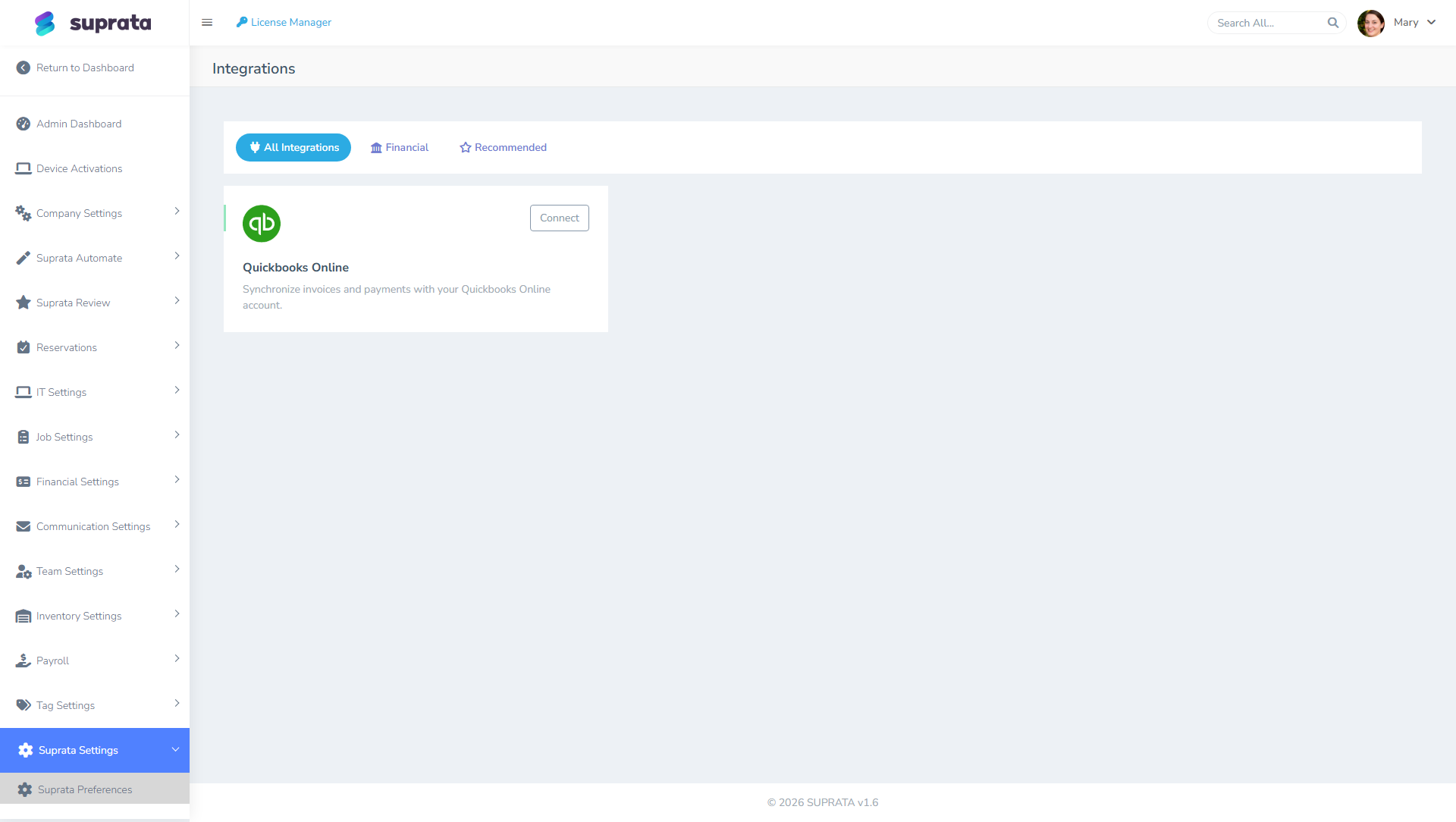
1. Open the integrations gallery
The Google Reviews tile sits alongside QuickBooks, Stripe, and other connectors.
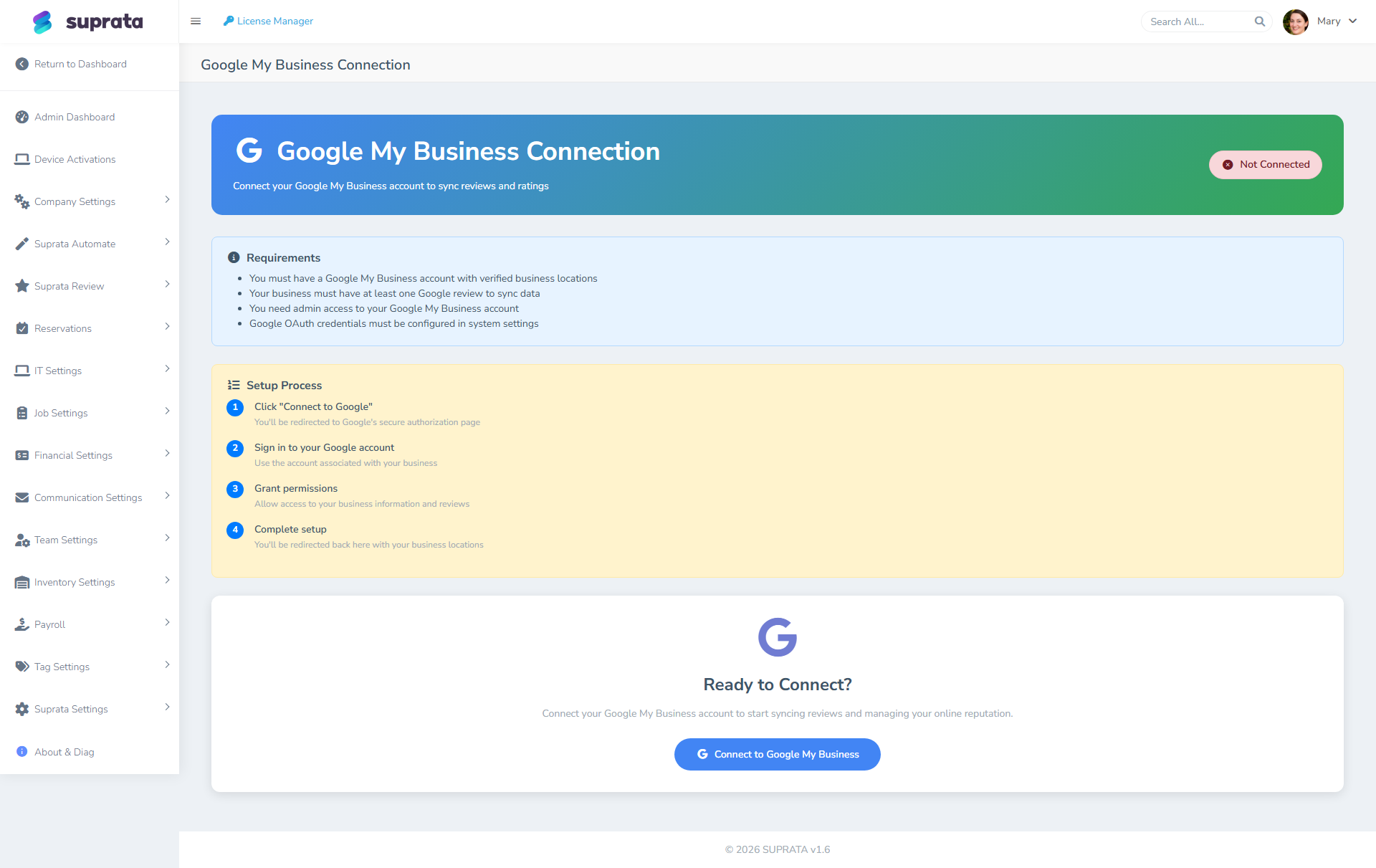
2. Click Connect — go through OAuth
You'll be redirected to Google's standard OAuth consent screen. Sign in with the Google account that owns or manages your Business Profile. Grant the requested scopes.
If you have multiple Google accounts (a personal one and a business one, for instance), make sure you sign in with the business one — the one that has access to your Google Business Profile. Signing in with the wrong account is the most common setup mistake; you'll connect successfully but no business locations will appear, because the chosen account doesn't manage any.
3. Pick the location(s) to sync
If your Google Business Profile has multiple locations, select which ones you want Suprata to track. Most single-location businesses pick the only option and move on.
4. Initial sync pulls existing reviews
The first sync fetches your historical reviews. Depending on volume, this takes seconds to a few minutes. Once it's done, you'll see existing reviews in the Reviews area, and they'll start appearing on accounts when there's a name match.
5. Set up the review request flow
This is where the integration earns its keep. The Review Trapper Center is where you configure the post-job ask.
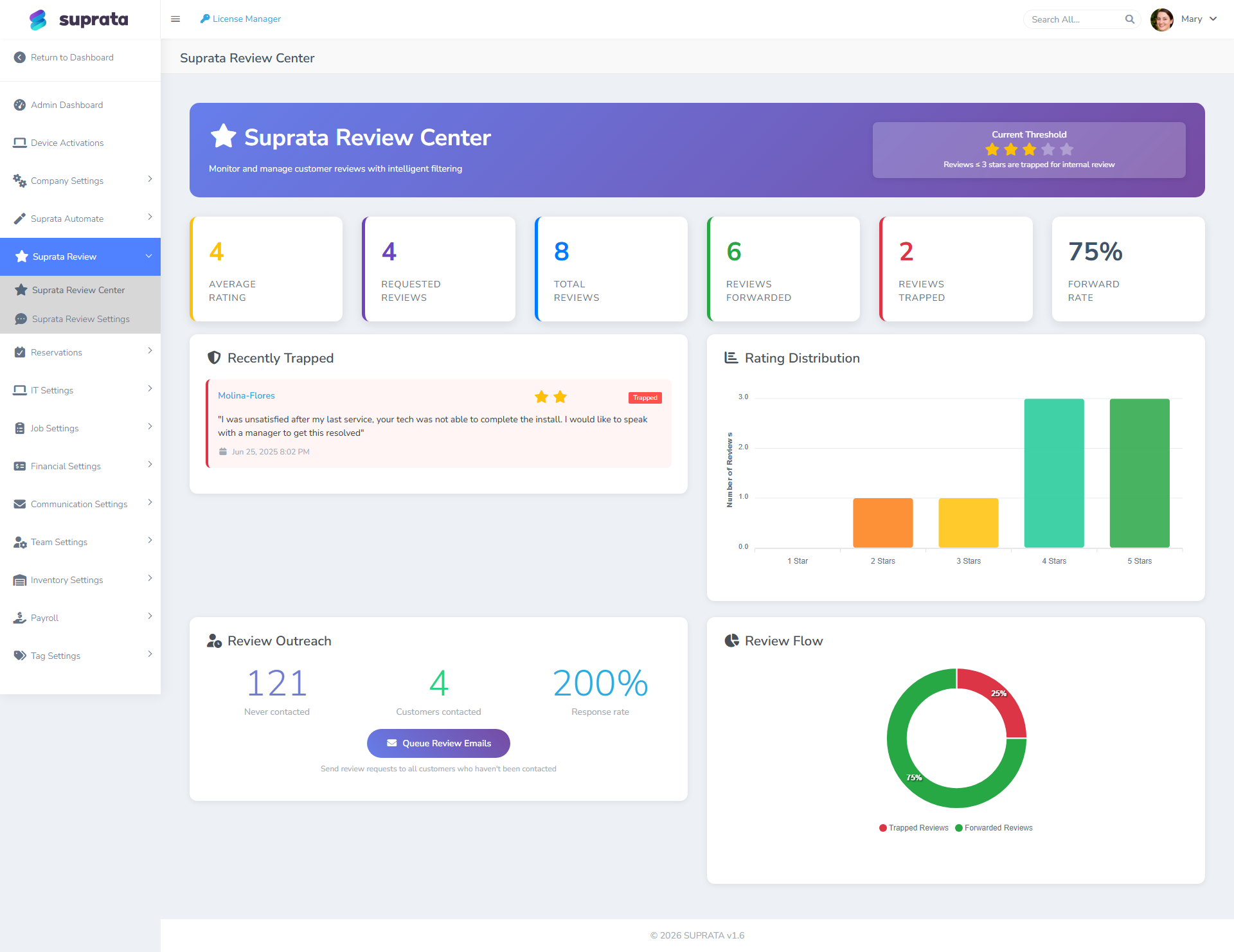
Decisions to make:
- Trigger. The default is "after job marked complete." You can also tie it to invoice paid, or to a specific job type.
- Delay. Don't send the request the instant the job closes — the customer is still busy with whatever just got finished. A 24–48 hour delay performs best.
- Channel. Email, SMS, or both. SMS gets answered more, but reviewers via SMS leave shorter reviews. Email gets answered less often but the reviews tend to be longer.
- Wording. Suprata ships a default; customize it. Include the tech's name if you can — "Sarah was here yesterday — would you mind sharing how it went?" outperforms "We hope you enjoyed your service."
- Throttling. Don't ask the same customer twice in 90 days. Suprata's request flow can be configured to skip recent-asks; turn it on.
How the post-job ask should be worded
A few principles drawn from what actually moves response rate:
- Specific, not generic. Mention the job ("your A/C tune-up yesterday"), not "your recent service."
- One link, not a buffet. A single tap to leave a Google Review. Don't also link to Yelp, Facebook, BBB, your survey form, and your newsletter signup. Pick Google and stop.
- Brief. Two or three sentences max. Long requests don't get answered.
- No incentive. Offering a discount for a review violates Google's terms and can get reviews removed and your listing flagged. Ask honestly.
- From a person, not a brand. "Hey — this is Sarah from ACME Plumbing" reads as a real ask. "We at ACME Plumbing kindly request" reads like a corporate template and gets ignored.
What you'll see in Suprata once connected
- A reviews list with star rating, text, reviewer, and date.
- Account-level fields showing the most recent review's date, stars, and text on each customer's account page (when there's a name match).
- A review feed for the team to skim — used to spot low-star reviews quickly.
- Per-tech review aggregation if you tag reviews to the tech who did the job. Some businesses use this in performance reviews; others find it punitive. Optional.
The low-star review playbook
A 1- or 2-star review is genuinely useful — it tells you exactly what went wrong on a visit. Suprata's review feed flags low-star reviews near the top so they're hard to miss.
When one comes in:
- Find the customer in Suprata. The integration links the review to the account (when names match). Open the account; look at the job(s) the review likely refers to.
- Read the technical record. What did the tech note? Was there a follow-up? Did anything get flagged at the time?
- Reply on Google within 24 hours. Acknowledge the issue, don't argue, offer to make it right. Google replies are public — your reply is read by every prospect.
- Decide whether to reach the customer privately. A phone call to fix the underlying problem often turns into a re-review or removed review. The integration doesn't do this for you; humans do.
Common mistakes
- Connecting with a personal Google account that doesn't manage the Business Profile. OAuth completes; no locations show up. Disconnect, sign out of Google, sign back in with the business-owning account.
- Asking for reviews too soon. The customer hasn't had a chance to use the result yet. 24–48 hours is the sweet spot.
- Asking everyone, including unhappy customers. If you can flag known problem visits, skip those for the auto-ask. A 1-star review is worse than no review.
- Offering an incentive. Tempting; against Google's terms. Don't do it.
- Ignoring 4-star reviews. They're good but not great, and often a sentence of thanks in your reply turns the customer into a 5-star advocate next time. Reply to them all.
- Linking to a generic Google search results page instead of your specific review-leave URL. Use the review URL Google generates for your specific Business Profile location.
- Not refreshing the OAuth token. Google tokens expire eventually. Suprata should refresh automatically, but if you ever see "Google connection expired" — reconnect.
A reasonable ongoing rhythm
- Daily. Glance at new reviews in the feed. Reply to anything 4 stars or below.
- Weekly. Skim all new reviews; reply to anything you missed.
- Monthly. Look at review-volume trends. If volume dropped, check whether the post-job ask is still firing — sometimes a workflow setting toggles off accidentally.
- Quarterly. Audit the wording of the request. Try one variant for a month, compare reply rate, keep the better one.
Related articles
- Setting up SMS via Twilio
- Customizing the appointment confirmation
- Connecting Stripe
- Job statuses and the state machine