Searching and Filtering Accounts and Contacts
A real Suprata account fills up fast. Six months in, a small service business will have a thousand accounts, a few thousand contacts, jobs and invoices threaded through both. The difference between a five-second customer lookup and a five-minute one is mostly knowing which of the search tools to reach for.
This article walks through the three lookup surfaces — the global search bar, the Accounts and Contacts list views, and tag-based filtering — and when to use each.
When you'd use this
- A customer is on the phone right now and you need their last invoice.
- You're building a list ("everyone we did a furnace tune-up for last fall") for a marketing send.
- You think you have duplicate contacts and want to see them next to each other.
- You're trying to track down "that one customer with the weird billing address" and only remember the street name.
The three lookup surfaces (and which to use)
There are three ways to find a customer. They're not interchangeable.
-
The global search bar. Best for: "I know roughly who this is and want to open their record." Type a name, phone number, or email — it searches across both Accounts and Contacts and gives you a small ranked list. This is what you use 90% of the time when a customer is on the line.
-
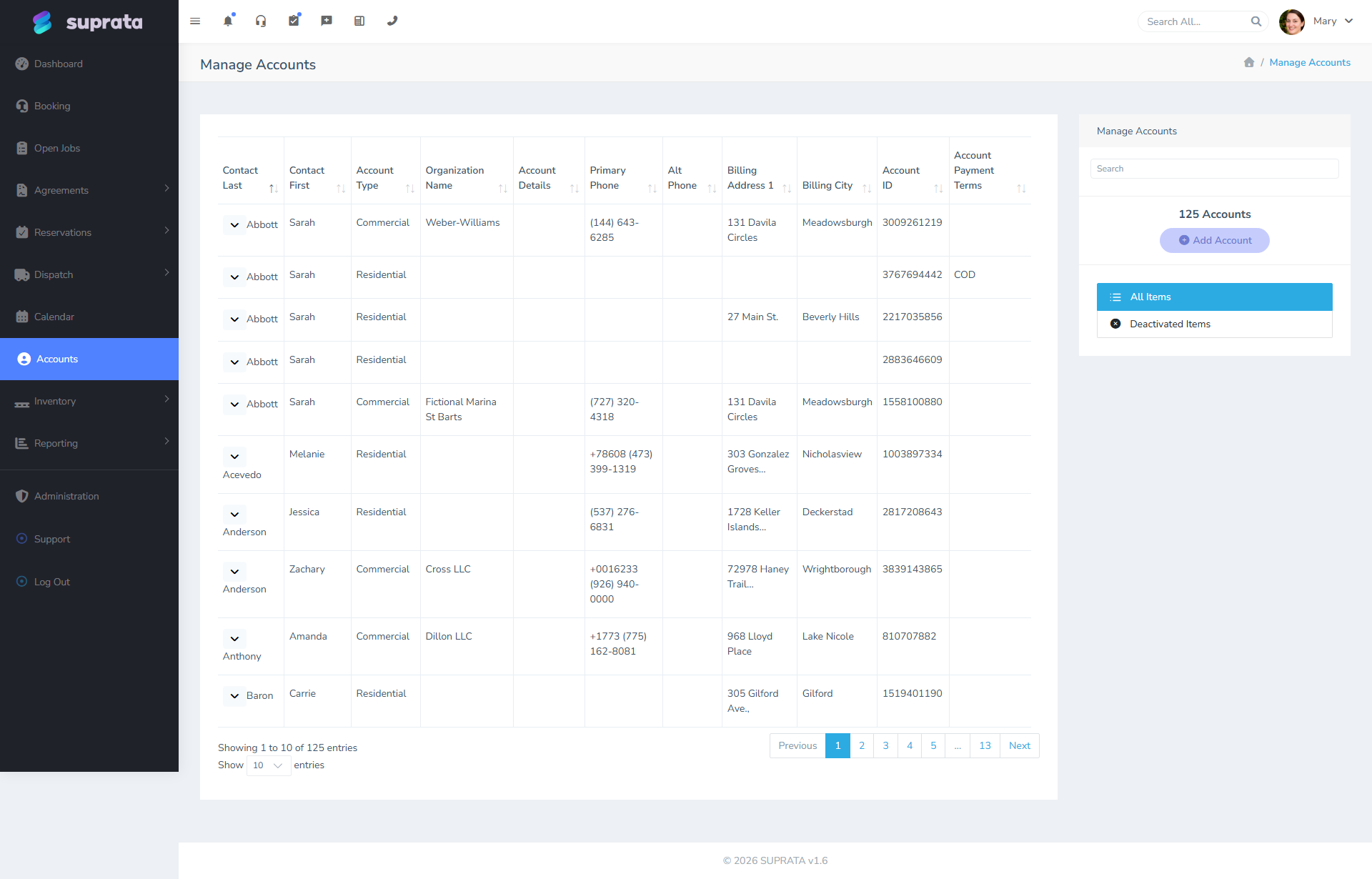
The Accounts list. Best for: working through a set of accounts — running down all your commercial customers, or all accounts with an outstanding balance, or everyone in a specific zip code. The list view supports column sorting and filter rows, so it's the right tool when you want to see many records at once and narrow them down by criteria.
-
The Contacts list. Best for: finding a person when you don't remember which Account they're attached to. The classic case: "Tom called from the bakery — was that Tom Smith from ACME or Tom Johnson from another job?" Search Contacts by name and you'll see which Accounts each Tom belongs to.
The conceptual rule: search bar = surgical, list = sweeping. Use the right one and you spend a fraction of the time.
The global search bar
The bar is at the top of every page. What it searches:
- Account display name (the household name for residential, organization name for commercial).
- Primary contact's first and last name on each Account.
- Phone numbers — both account and contact.
- Email addresses on contacts.
- Account ID number (useful when you have it from a paper form or a previous note).
Search is forgiving about partial matches. Typing "smit" finds "Smith". Typing the last four digits of a phone finds it.
What it does not search by default: notes content, invoice contents, job descriptions. Those are in the AI search (a separate surface) — see AI account and job summaries (forthcoming).
Tips that save real time
- Search by phone last-4 when a number flashes up on caller ID and you can't read it all. Four digits is usually enough.
- Search by partial email domain to find every contact at a company — type
@acmebakery.comand you get every Tom and Sarah at ACME. - Search by Account ID when you're cross-referencing a printed work order or a bank deposit memo.
- Don't search for everyone named "John" — too noisy. Add a last name fragment, a phone, or anything else that narrows it.
Filtering the Accounts list
Open the Accounts list (Accounts in the sidebar). At the top of each column is a filter input. Type into it and the list narrows live.
You can stack filters across columns — type "FL" in the state column and "Net 30" in the terms column, and you get every Florida Net-30 account.
Useful filter recipes:
- Find your commercial accounts only. Filter the Account Type column for "Commercial" (or your equivalent type).
- Find delinquent balances. Sort the Balance column descending. Anything significant up top is your accounts-receivable focus list.
- Find one zip code. Filter the Billing Address column by the zip — useful when you're planning a route or doing a marketing drop.
- Find recent customers. Sort by Account ID descending — newer accounts have higher IDs.
Filters do not persist across sessions. Close the list and the filters reset. (See "Saved filters" below for the workaround.)
Saved filters
If you find yourself typing the same filter combination every Monday, save it. The list view has a save-filters mechanism that retains the column filters under a name. Next time, pick the saved filter from the menu and the list reapplies it.
The default we recommend: save one filter per recurring task you do — "AR collections list", "this week's marketing pull", "out-of-state accounts". Don't save dozens; you'll forget what each one does. Three to five is usually plenty.
Tag-based filtering
Tags are the right tool when the criterion you want isn't a built-in column. "VIP customer", "Snowbird — winters in FL", "Subscription customer" — these are tags you create and apply, then filter by.
Two separate tag systems:
- Account tags describe the relationship — "Pays on Time", "Net Terms Approved", "Subscription".
- Contact tags describe the person — "Decision Maker", "Property Manager", "Speaks Spanish".
When filtering, choose the right list. Filtering Accounts by tag pulls accounts; filtering Contacts by tag pulls people. If you tagged the wrong entity (a common mistake — see Tagging accounts and contacts well), the filter won't find what you expected.
Exporting the list
Once you've filtered the Accounts list down to what you want, you can take it with you. Below the list are Export All, Copy, PDF and Print.
Export All is the one you want for a real list. It downloads a CSV of everything your filter matched — not just the page you're looking at — with your filters, your search text and your column sort all applied. Filter first, then export; the file is whatever the list was showing, minus the page boundary. CSV opens directly in Excel, Google Sheets and Numbers.
Copy, PDF and Print are page-scoped by design. They act on the rows visible on screen, which is usually what you want from them — a PDF of 12,000 accounts helps nobody. If you're grabbing a handful of rows to paste into an email, use Copy. If you want the list, use Export All.
If you don't see the buttons at all, that's a permission, not a bug. Export is gated behind the "Export Customer List" permission and is off by default for every role except full admins, because a customer list export is the one action that puts your customer data on someone's laptop instead of inside Suprata. An owner can grant it per-role under Team Settings → User Roles; see The permission catalog.
A few practical notes:
- Large exports take a moment. Several thousand accounts can take up to a minute to build before the download starts. That's the server assembling the file — let it run rather than clicking again.
- Exports are capped at 25,000 rows. If your filter matched more than that, the last line of the file says so explicitly (
*** TRUNCATED ***). If you see that line, narrow the filter — by state, by tag, by account type — and pull it in pieces. The cap exists so one export can't bog down the system for everyone else. - Values come out the way they read on screen, not as internal ID numbers — account types, tags and assigned users export as their names. Long text fields that get shortened with "…" in the table come out in full in the file.
When the search bar can't find someone you know exists
A few possibilities, in order of likelihood:
- Typo in the contact's name. They got entered as "John Smtih" once and you've been searching for "Smith" ever since. Fix the typo on the contact record.
- They're inactive. Inactive contacts and accounts may be excluded from default search. Look for an "include inactive" toggle on the list view.
- They were created as a Contact but never attached to an Account. Stray contacts not linked via the Account-Contacts relationship can hide. Check the Contacts list specifically — if they're there but not on any account, attach them.
- You're searching the wrong surface. Searching for a person's name in the Accounts list filter for "Organization Name" won't match — the org column is for the business name, not the contact's name. Use the global search bar or the Contact Last/First columns.
Common mistakes
- Treating the search bar as a list view. It returns a ranked short list, not a comprehensive table. If you need to see everyone matching a criterion, use the list with filters.
- Filtering Accounts when you meant Contacts. A search for "John Smith" in Accounts works only if John is a primary contact on his account; if he's a secondary contact, the Accounts filter misses him. Use the Contacts list if you're hunting a person.
- Saving every filter you ever build. A library of fifty saved filters that you can't tell apart is worse than no saved filters. Keep three to five named for recurring tasks.
- Relying on tags you haven't applied consistently. A "VIP" filter only works if you actually tagged the VIPs. Set the tag taxonomy first, apply it across the board, then start filtering.
- Using Copy or PDF when you meant Export All. Those three act on the visible page, so you get 25 rows and a spreadsheet that quietly under-reports. Export All is the one that takes the whole filtered set.
- Forgetting that the search bar doesn't read note bodies. "I wrote a note saying they hate phone calls" — the global search won't find that. Use AI search for content searches.