Cleaning Up Duplicate Accounts
Duplicates happen. A customer calls in, the dispatcher doesn't search hard enough, a new Account gets created — and now Bob Jim has two records, his job history split between them, his balance computed wrong on both. This article walks through how to find duplicates and the safe manual procedure to merge them.
There is no one-click "merge accounts" button in Suprata. That's deliberate — merging is a delicate operation that can do real damage when rushed (invoices floating without a customer, broken QuickBooks links, payments applied to the wrong record). The manual process takes more steps, but it's safe and reversible when you follow it carefully.
When you'd use this
- You spot two Accounts with the same address or phone.
- A customer calls and says "I see two different invoice numbers from you for the same job."
- QuickBooks sync starts complaining about ambiguous customer matches.
- Your statements report shows two rows with similar names and partial balances.
How duplicates happen
The four most common causes:
- Phone-call create-on-the-fly. Inbound caller ID doesn't match an existing record (number was entered with dashes one time, no dashes the next), so the dispatcher creates a new Account rather than finding the existing one. By far the most common cause.
- Importing from a previous system. A CSV import that didn't dedupe against existing records adds copies of customers you already had.
- Spelling variation. "Bob Jim" vs "Robert Jim" vs "Jim, Bob" — three records, one person.
- Residential vs commercial confusion. A homeowner who also has a small business gets entered once as a Residential account ("Smith, John") and once as a Commercial account ("Smith Plumbing LLC"). These are sometimes legitimately separate accounts (different billing entities); often they're not.
The first one is the bulk of all duplicates. The fix is upstream — train your team to search hard before creating, and use phone-number search rather than name search to confirm.
How to find duplicates
There's no automated duplicate-detection report yet, but a few list-view filters surface most cases:
By phone number
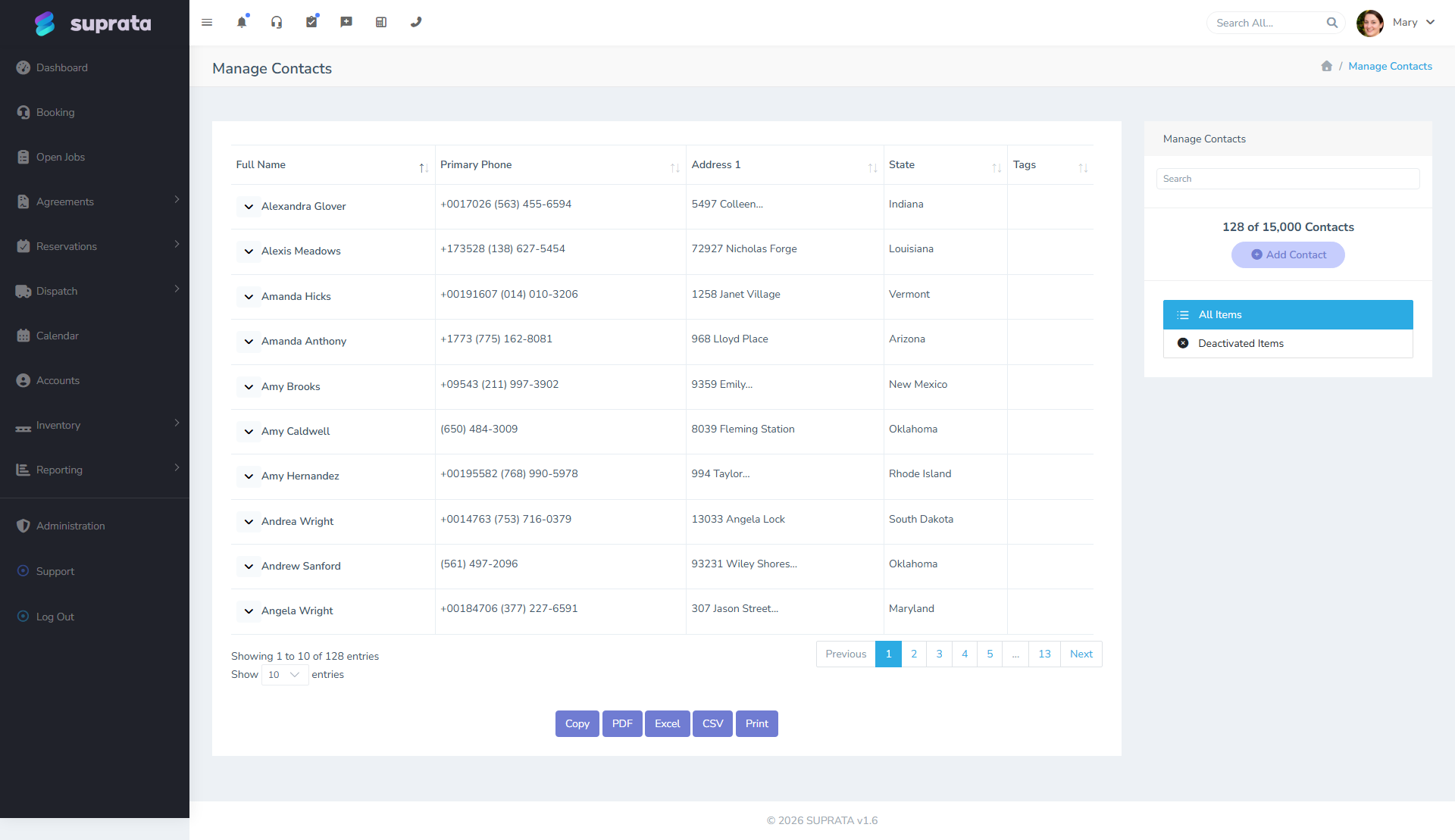
Open the Accounts list, sort by primary phone. Scroll for adjacent rows with the same number. Same phone, different name = look at it.
By address
Sort the Accounts list by billing address. Repeat addresses jump out. Some are legitimate (multiple businesses in one office park, multiple family members at one residence), but most are duplicates of one customer.
By contact name in the Contacts list
If a person was entered as a Contact on two different Accounts, you may have two separate Account records for the same household. Open the Contacts list, sort by last name, and look for the same first/last combo on different Accounts.
By recent activity
A specific case: when you suspect a duplicate of a current customer (you just created the duplicate today), sort the Accounts list by Account ID descending — the newest accounts are at the top. Scan the top 20 for anything that looks redundant.
The safe merge procedure
Once you've identified two Accounts that are actually one customer, decide which one is the survivor and which is the duplicate to retire. As a rule:
- The survivor is whichever Account has more attached data (more jobs, more invoices, the active QuickBooks link).
- If both have data, the survivor is the older one (lower Account ID) — that's the one your customer "knows" about and references on their end.
Then:
Step 1 — Inventory what's on the duplicate
Open the duplicate Account. Note everything attached:
- Open jobs (look at the Jobs tab).
- Invoices, paid and unpaid (Invoices tab).
- Payments (Payments tab).
- Service agreements (Contracts tab).
- Notes (any longer-form notes you'd lose).
- Contacts attached to the duplicate that aren't on the survivor.
Write this down — literally, on paper or in a scratch document. You'll need to verify everything moved at the end.
Step 2 — Move open work to the survivor
For each open job on the duplicate, edit the job and change its Account to the survivor. The job's history, status, and any attached forms stay with the job — only the Account pointer changes.
For appointments tied to those jobs, no separate action is needed; they follow the job.
Step 3 — Handle invoices carefully
This is the trickiest part. Don't move historical invoices unless you have to — moving an invoice changes which Account's balance includes it, which can disturb your accounts-receivable history.
Two acceptable approaches:
- Leave historical invoices on the duplicate Account, but mark the duplicate "Inactive" with a note pointing to the survivor. This preserves the historical record. The survivor going forward gets all new invoices.
- Move the invoices via direct edit, only if your team is comfortable with that. Update the duplicate's status to inactive afterward.
If invoices were synced to QuickBooks under the duplicate's QB Customer link, don't re-sync them under the survivor's link — you'll create double entries in QB. Leave the synced ones where they are.
Step 4 — Move contacts
Any Contact that's attached only to the duplicate gets re-attached to the survivor. Open the duplicate, find the contact, copy the relevant fields (or note the contact ID), then add that contact to the survivor.
If the contact is the primary on the duplicate, decide whether they should be primary on the survivor or just an additional contact.
Step 5 — Move notes
Account notes don't move automatically. Re-type or paste anything important from the duplicate's notes into a new note on the survivor. Tag the new note with something like "Migrated from Account #XXXX" so you have an audit trail.
Step 6 — Reconcile balance and credits
Look at the duplicate's balance. If it's nonzero, decide:
- Outstanding balance: invoice or write off, depending on whether it's collectible.
- Credit balance: issue a refund or move the credit by issuing it on the survivor and zeroing the duplicate.
A duplicate left with a residual balance is a mess that compounds over time. Drive both balances to zero before retiring.
Step 7 — Mark the duplicate inactive (don't delete)
Never hard-delete an Account. Set its status to inactive and add a top-line note like "DUPLICATE OF ACCOUNT #1234 — DO NOT REOPEN. Migrated [date] by [your name]."
Why not delete? Two reasons:
- The duplicate may still be referenced by a historical invoice or report. Deleting can break those.
- An audit trail of the merge is valuable later when someone asks "what happened to Account #5678?".
Step 8 — Verify
Reopen your Step 1 inventory list. Walk down it. Did everything that needed to move actually move? Run an account statement on the survivor and confirm the balance is right. Spot-check one or two of the moved items.
Common mistakes
- Hard-deleting the duplicate. Breaks historical reports and QB sync. Always inactivate, never delete.
- Moving historical invoices for a tidy balance. It changes your accounts-receivable history and can cause QuickBooks reconciliation problems. Leave historical financials where they were unless you have a specific reason.
- Not picking a survivor before starting. Halfway through you realize the other Account had more attached and now you're moving things twice. Pick once, commit.
- Forgetting to update QuickBooks. If the duplicate was previously linked to a QuickBooks customer, that link is now pointing at a dead-end account on your side. Either disconnect it or repoint it to the survivor before the next QB sync, otherwise you'll see sync errors.
- Skipping the audit-trail note. Six months later you'll find an inactive account and wonder if the data is recoverable. The note is the difference between "yes, this was a deliberate merge" and "I have no idea what happened here."
- Doing a merge while the customer is on the phone. Take the call, schedule the merge for after, and do it without time pressure. Mistakes here are costly.
Preventing duplicates in the first place
This whole article goes away if you prevent duplicates upstream:
- Train dispatchers to search by phone number first, name second. Phone is more unique than name.
- When unsure, ask the customer "have you been a customer before?" and search broadly.
- Treat the global search bar's "no results" message as a prompt to try a different spelling before creating new.
- Run a quarterly duplicate-finding pass — sort the Accounts list by phone, scan, fix any you spot. Catching them early makes the merge much easier (less attached data to move).
Related articles
- The anatomy of an Account vs. a Contact
- Searching and filtering accounts and contacts
- QuickBooks prerequisites
- Importing customers from a previous system (forthcoming)