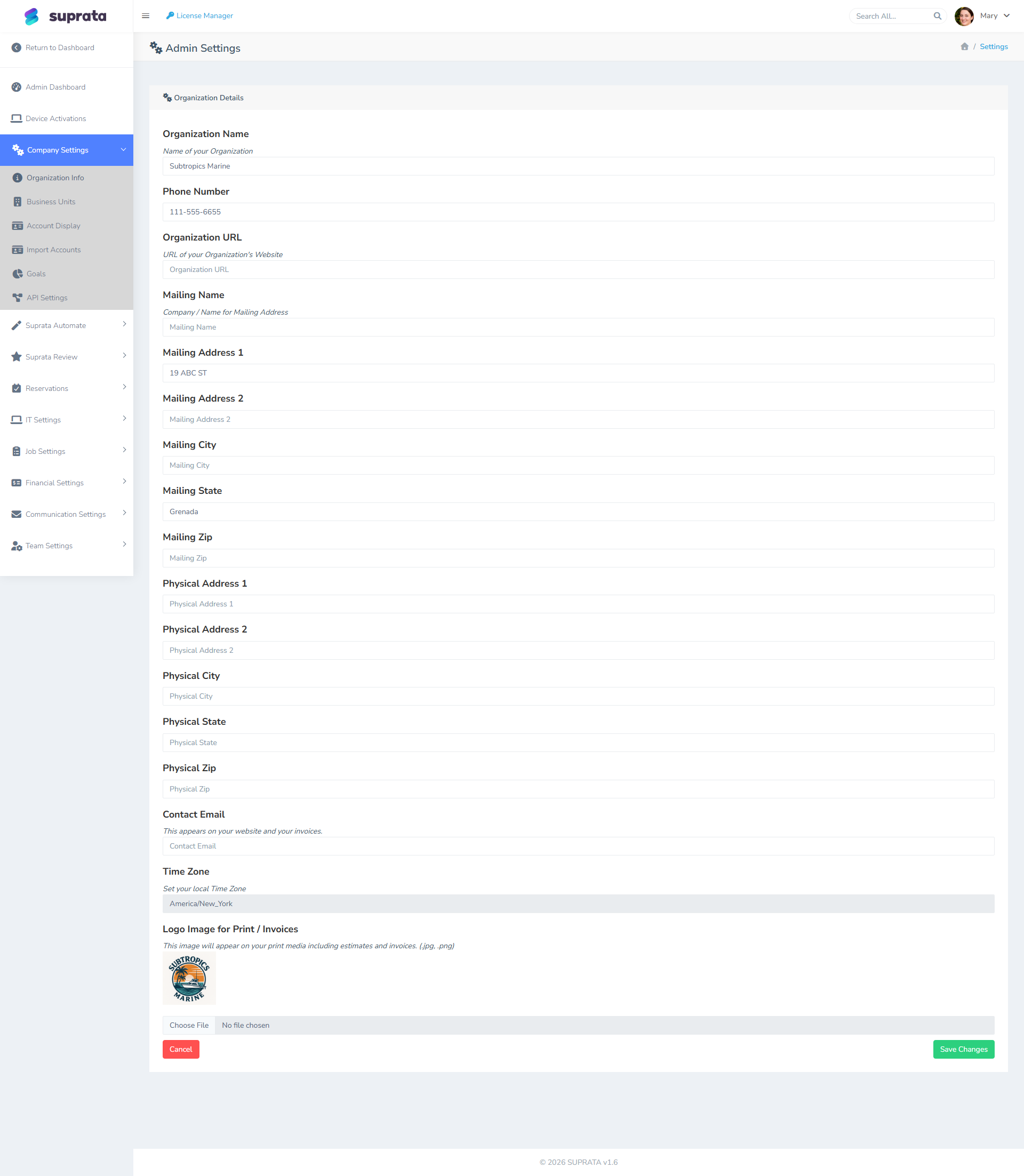
How do I change my business address?
Open Administration → Company → Organization Info and update the address fields there. Save.
What it affects
The address you set in Company Settings flows through to:
- Invoice headers — the "From" address customers see on PDFs.
- Statement headers — same as invoices.
- Customer-facing email signatures — depending on template.
- The customer portal — your contact info.
- Your QuickBooks customer record — if integrated, your QB company address is referenced separately, but Suprata's record gets used in places.
The change is immediate for new records. Existing invoices and statements keep the address that was on them when they were generated — they're snapshots, not live references.
What it doesn't affect automatically
- Your payment processor's address. Stripe and USIO each have their own business profile. Update them separately if you've physically moved.
- Your tax authority registrations. Address changes for tax purposes need to be done with your state and the IRS.
- Already-printed invoices. If you've mailed paper invoices with the old address, the new address only affects future ones.
If you have multiple business units
Each business unit can print its own address. Go to Business Units → Documents, switch the unit to Use this unit's own details, and fill in its address, as well as its phone, logo and email sender name if they differ. Any field you leave blank falls back to the company's. If only one shop has moved, change that unit's address rather than the company's.
A unit's own details print on the invoices and estimates that unit owns, including the customer's online invoice, whoever opens them. If the unit has no sales tax location chosen, its own address can also decide which tax applies to work done at that shop. See Charging tax where the work is done. For the full picture, see Business units.
After changing
- Send yourself a test invoice and verify the new address appears.
- If you sync to QuickBooks, the next sync may surface the address change to QB; verify it lands cleanly.
- Update your business address with your bank, your insurance, and any state licensing — Suprata can't do those for you.