The Calendar — Day, Week, and Month Views
The calendar and the dispatch board cover overlapping but distinct needs. The dispatch board is the live operations cockpit for today. The calendar is the planning surface for next week and next month. Use them in concert — switch to the calendar when you're thinking "is next Thursday going to be a problem?" and back to dispatch when you're thinking "where is Carlos right now?"
This article covers what each calendar view is genuinely useful for, the filtering tricks that make a multi-tech calendar legible, and the failure modes that come from using the wrong view for the question you're asking.
When you'd use this
- You're trying to figure out if you have capacity for a customer asking about next Tuesday.
- You're booking a recurring maintenance route and want to see how the visits land across the month.
- You're spotting patterns — "we're slammed every other Thursday, why?"
- You're planning vacation coverage and need to see who's already booked when.
- You want to publish a "what's coming up" view to the team.
- You're a single-tech operator and the calendar is your only schedule view.
The three views and what each is good for
Day view
Day view shows a single day, hour by hour, with appointments laid out vertically. Each tech is usually represented as a column.
Good for:
- Tomorrow's prep. What does the day look like? Any obvious gaps or pile-ups?
- A single tech's plan. A field tech opening their phone calendar to see what's on their plate today.
- Tight-window scheduling. "I need to fit a 30-minute pop-in between 10 and 11 AM" — Day view is where you can see it cleanly.
Less good for: anything that requires comparing days. If you're saying "is Tuesday or Wednesday better?", you want Week view, not flipping back and forth in Day view.
Week view
Week view shows a five- or seven-day grid, with each day as a column and time as the vertical axis. The whole week is visible at once.
This is the workhorse. Most planning happens here. Good for:
- Capacity at a glance. Empty space = capacity, dense space = booked.
- Spotting the rhythm of the week. Mondays slammed, Fridays light? You see it instantly.
- Multi-day scheduling. A two-day install? Drag across days.
- Booking a week ahead. "Next Wednesday at 2" — find Wednesday's column, scroll to 2, click.
If you only ever learn one calendar view, learn Week view well. It's the one you'll spend the most time in.
Month view
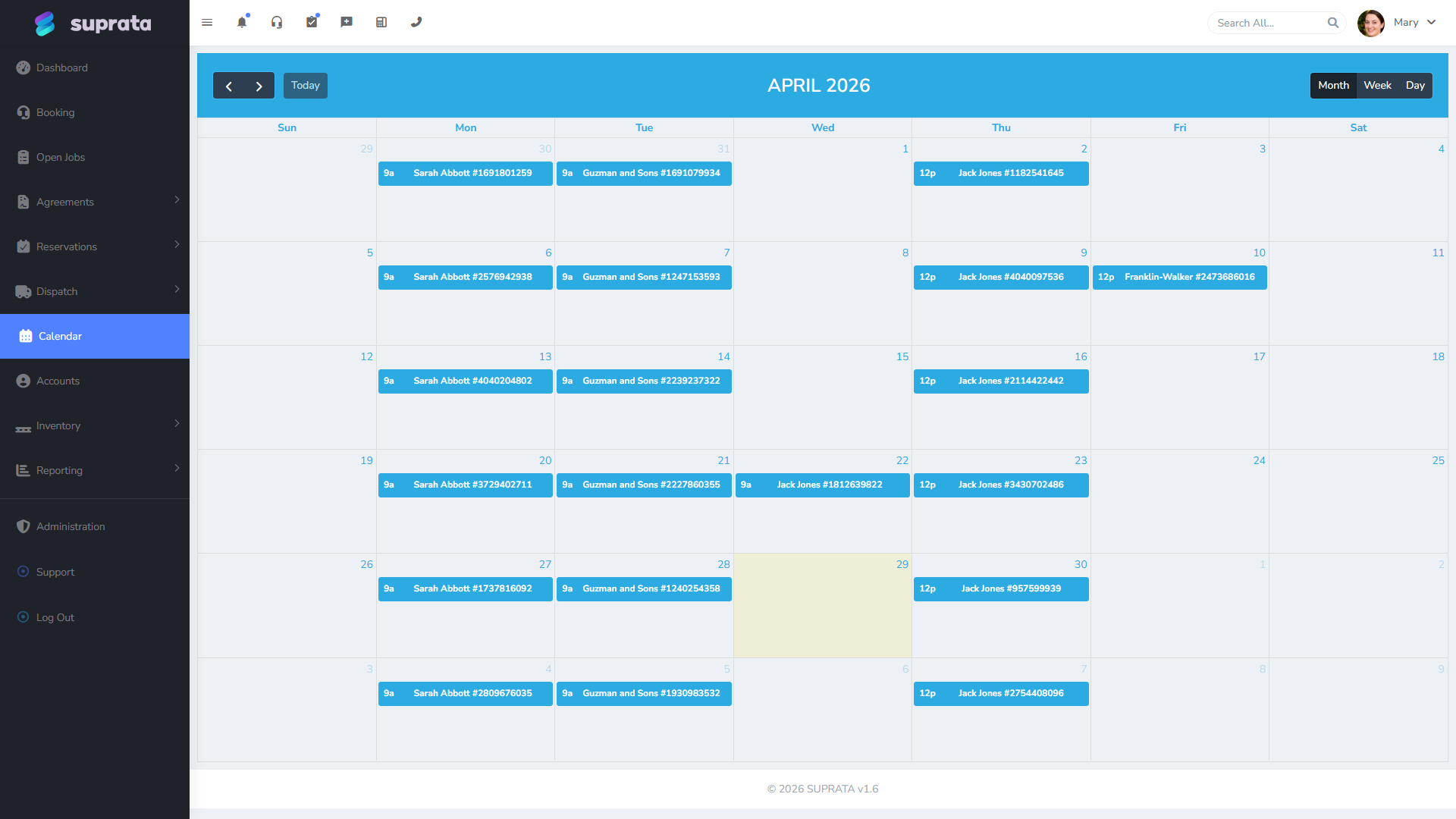
Month view shows the entire month as a grid of days. Each day shows a count or a few small indicators of what's scheduled, but no time-of-day detail.
Good for:
- Long-horizon trends. "How does next month look?" — eyeball it, see density.
- Spotting clustering. If most of the month is empty and one week is jammed, that's a planning signal.
- Recurring-series visualization. A maintenance contract that runs every other Thursday? See the pattern across a month.
- Capacity ratio. When you're answering "can we take more work this month?" — Month view tells you what you've already committed to without drilling into individual appointments.
Less good for: actually clicking into an appointment to see details. The day cells are too small. Use Month to navigate; switch to Week or Day to act.
How the calendar relates to the dispatch board
Both views read from the same underlying appointments. A change made in either updates both. They're different visualizations of the same data, optimized for different questions:
| Question | Best view |
|---|---|
| What's happening right now across all techs? | Dispatch board |
| Who can take this emergency in the next hour? | Dispatch board |
| Is next Thursday afternoon open? | Calendar (Week) |
| Is the month going to be over- or under-booked? | Calendar (Month) |
| What's on Carlos's plate tomorrow? | Calendar (Day, filtered to Carlos) |
| What's the unassigned queue look like? | Dispatch board |
The pivot point is "is the question about now or about the future?" Now is dispatch; future is calendar.
Filtering — the bit that makes multi-tech work
A four-tech calendar in Week view is just barely readable; an eight-tech calendar is a wall of overlapping color. Filtering is the tool that makes a busy calendar legible.
Most accounts let you filter by:
- Team or business unit — "show me only the Day Crew" or "only the HVAC division".
- Specific tech(s) — pin to one or two people you care about.
- Job type or appointment type — "only show installs", "only show estimates".
- Status — "only show appointments that are still pending confirmation."
- Tag — if you tag certain jobs (warranty, VIP, training), filter to them.
A few practical filtering patterns:
- Personal view — most users default to "just me" so they see only their own appointments.
- Owner view — full unfiltered, all techs, all teams. The owner sees the whole picture.
- Per-team view — a department lead sees only their team.
Save filter combinations as presets if your account supports it. "Day Crew, this week" is a click; reconstructing it from scratch every time is a waste.
Multi-tech overlay — when it helps, when it hurts
Some calendars let you overlay multiple techs onto a single combined column rather than showing them as separate columns. Each tech's appointments use a different color or a small initials badge.
This is useful when:
- You have few techs (2-3) and want to see "the team's combined day" at a glance.
- You're looking for gaps across the team rather than per-tech.
It hurts when:
- You have many techs (5+). The overlay becomes unreadable.
- You're trying to schedule one specific person — the overlay buries them in the crowd.
Default to side-by-side columns for 4+ techs; overlay can be a useful "summary" view for small teams.
Switching between views
The view picker is in the top-right of the calendar. Day, Week, and Month are the three main views; some accounts also offer a "Schedule" or "List" view that's just a chronological text list (useful for printing or for screen-readers).
Most calendars also support clicking a day in Month view to drill into Day view of that day. That's the canonical navigation: get oriented in Month, drill to Week to plan, drill to Day to execute.
Reading the calendar without mistakes
A few habits that pay off:
- Always check the date range showing. The calendar remembers where you were last; if you opened it yesterday looking at next week, it'll still be on next week today. Glance at the header before reacting.
- Watch for all-day vs. timed appointments. All-day events sit in a separate band at the top; timed events are placed by hour. Don't mistake one for the other.
- Watch for cross-timezone appointments. If you have customers or techs in another timezone, the calendar shows times in your timezone unless explicitly otherwise. A customer in another timezone seeing their confirmation in your timezone is a recipe for missed appointments — see Appointment confirmations and reminders.
- Use the "today" button to get back to now instead of scrolling. After clicking around in the future, get reoriented before you commit to action.
Common mistakes
- Trying to dispatch from the calendar. You can drag-drop on the calendar, but the live ops information (who's running behind, who's en route) isn't surfaced as cleanly here as on the dispatch board. Plan in calendar; execute in dispatch.
- Leaving filters set after switching contexts. You filter to Carlos to look at his week, then forget you filtered, and tomorrow you're confused that the calendar is "empty". Clear filters when you're done with a specific question.
- Booking on Month view. The cells are too small to know you've avoided a conflict. Always confirm in Week or Day before saving an appointment from Month view.
- Using the calendar as the only place jobs get created. Appointments live on jobs (mostly). If you create an appointment from the calendar without linking it to a job, you've created an orphan event that doesn't roll into reporting. Link it.
- Ignoring the calendar entirely and only using the dispatch board. Then you have no forward planning surface; you're always scrambling at the start of each day. Spend ten minutes a week in the calendar even if dispatch is your daily driver.
- Personal calendar in one app, work calendar in Suprata, no sync. Most calendars support exporting an iCal feed that personal calendars (Google, Apple, Outlook) can subscribe to. Set this up so techs see their work appointments alongside their personal stuff. The friction of "two calendars to check" causes missed appointments.
A note on the public/customer view
If you're using the customer portal or self-scheduling, customers see a different calendar than this one — a stripped-down "available time slots" view that hides your operational detail. Don't worry about how this calendar's complexity translates to customers; that surface is configured separately and intentionally simpler.