Uploading and organizing documents
Most service businesses accumulate documents at a steady, unrelenting pace: signed contracts, equipment certificates, photos of completed work, insurance forms, lease agreements, inspection records, before-and-after shots, customer-signed waivers. Without a system, all of that lives across email attachments, employees' phones, a shared drive somewhere, and the random Dropbox account someone set up two years ago.
The document library puts it in one place, attached to the right account, job, or reservation, with folders and tags to make it findable. The structure decisions you make in the first month determine whether year two is searchable or a swamp.
When you'd use this
- You're setting up the document library for the first time and want to start with a sensible structure.
- You're migrating documents in from an old system — Dropbox, Google Drive, a shared network folder, paper files.
- Your team is asking "where do I put X?" and the answer keeps changing.
- You're getting close to a compliance audit or insurance renewal and you need to quickly find a year's worth of documents.
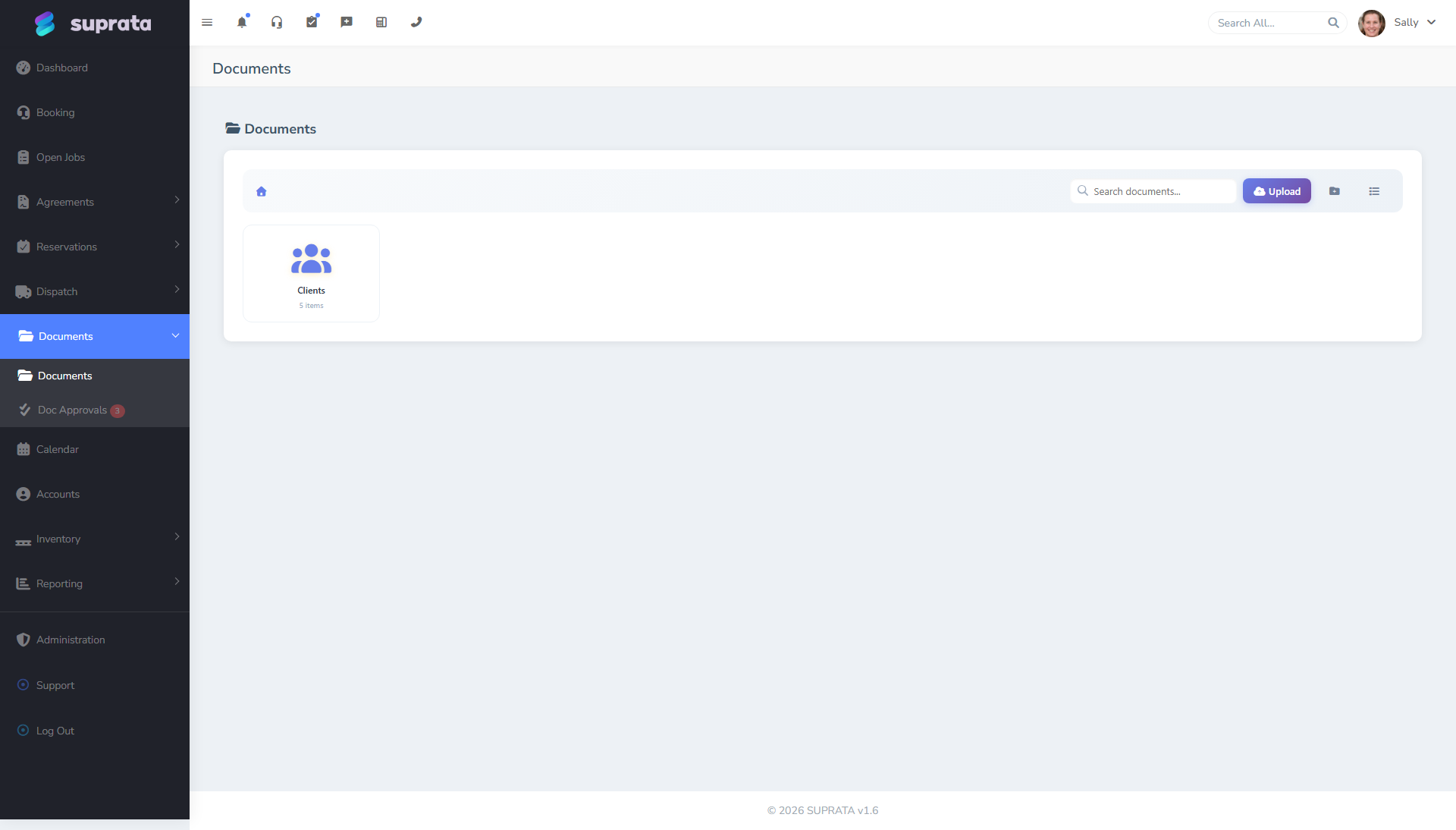
The mental model
Three orthogonal organization signals you can use:
- Where the document is anchored. A document can attach to a specific account, job, reservation, or agreement. That anchor is the most powerful organization tool — it means when you open the customer's record, the relevant documents are right there.
- Folders. Hierarchical paths within the library, e.g.,
Contracts / 2026 / Service Agreements. Good for browsing top-down or for grouping documents that aren't anchored to one account (templates, internal forms, marketing assets). - Tags. Cross-cutting labels like
signed,expires-2026,insurance,marina-only. Useful for filtering across folders.
The mistake most teams make is using only folders. Folders create a single hierarchy that doesn't fit how you actually search. The combination of anchor + folders + tags lets you find any document along any of three paths.
A starter folder structure
If you don't already have a structure, start with something like this:
- Contracts — signed agreements with customers
- Insurance — your business's policies, certificates of insurance
- Compliance — permits, licenses, inspection reports
- Templates — blank versions of forms you reuse
- Marketing — logos, brochures, photos for promotional use
- Internal — handbooks, procedures, training materials
Resist the urge to create too many folders too quickly. Five well-used folders beat twenty barely-used ones. Add a folder when you have at least three documents that belong in it and nowhere else.
Avoid:
- Folders by year at the top level (
2024,2025,2026). Year-based browsing rarely matches how people actually search. Use tags or filtering instead. - Folders by employee (
Sarah's stuff,Mike's stuff). Documents belong to the business, not the staff member who uploaded them. - One mega-folder called "Everything Else." It always grows and never gets cleaned.
Tags — what to use them for
Tags shine when a document has a property that crosses folder boundaries:
- Status:
signed,unsigned,expired,pending-review. - Compliance / expiration:
expires-2026,expires-2027. Suprata can use these to flag soon-to-expire docs. - Visibility:
customer-shareable,internal-only. Useful when you might external-share a doc later. - Type:
contract,photo,certificate,report. If your folder structure already encodes type, this duplicates; if not, useful. - Project / season:
summer-2026,marina-redev, etc. Cross-cutting initiatives.
Avoid tag bloat. A document with 12 tags has effectively no tags — the signal is lost in the noise. Pick a small, well-defined set and enforce them.
Anchoring documents to records
The most important habit: anchor documents to the right entity at upload.
- A signed contract for Bob Jim's account → upload it on Bob Jim's account, not into a generic Contracts folder.
- Photos of a job → upload them on the job record, where the photos contextualize the work.
- A monthly inspection report → on the asset's record (for reservations) or the property's record.
Anchored documents:
- Show up on the customer/job/asset page when staff are working it.
- Inherit the entity's permissions (whoever can see the account can see its docs).
- Get included automatically when you generate per-customer document packets.
Folder-only documents are findable but invisible-by-default to the people working a record. Anchor when you can.
Uploading — the typical workflow
- Decide where the document belongs. Account-specific? Job-specific? Or library-only?
- Open the entity it belongs to (or the documents library if it's not entity-specific).
- Drag and drop the file into the upload area, or click upload and pick the file.
- Add metadata while the upload is fresh: descriptive name, folder path (if applicable), tags, document type.
- If there's an expiration date (insurance certificate, license, etc.), set it. Suprata will remind you before it lapses.
- Save.
Five extra seconds at upload time saves five minutes when you're trying to find the document later. Tag and rename now, even when you're rushed — it pays for itself the first time you need to find the file again.
Naming conventions
A few rules of thumb:
- Descriptive over original filename.
IMG_4423.jpgbecomes2026-04-15 Smith Job Roof Damage.jpg. - Date prefix in ISO format if the date matters and isn't already on the entity.
2026-04-15sorts naturally;4-15-26doesn't. - No special characters. Stick to letters, numbers, hyphens, spaces. Avoid
&,#, slashes, quotes — they cause issues with downloads or external shares. - Limit length. A 200-character filename is unusable in download dialogs. Keep names under ~80 characters.
If your team doesn't agree on conventions, write them down somewhere visible and review at the next staff meeting. Document organization is a team sport.
Retention — when to delete and what to keep
Not every document needs to live forever. Some you have to keep (legal, tax, contractual); some you should delete (unsigned drafts, superseded versions, old marketing photos that no longer reflect the business).
A simple retention model:
- Forever: signed contracts, tax records, insurance certificates (even after they expire — historical proof of coverage matters during audits).
- 7 years: invoices, payment records, time-and-billing logs (US default for tax purposes; check your jurisdiction).
- Until superseded: templates, marketing materials, procedures.
- Project lifetime + 1 year: project photos, working files.
- Delete promptly: drafts you replaced, customer-supplied PII you no longer need.
Suprata can flag documents that have hit a retention window — set the expiration date or retention date at upload, and the system will surface them when the time comes. You make the actual delete decision; the system reminds you.
Searching for a document
A few search habits:
- Start at the customer. If the document was about a specific customer, open their account first; your odds of finding it there beat searching the whole library.
- Then folder browsing. If you remember roughly where you put it, the folder is fastest.
- Then tag filter. "Show me all
contracttagged docs from 2025" surfaces a manageable list. - Then full-text search. As a last resort. Useful but slower; the previous three are usually enough.
Common mistakes
- No structure at all. Everyone uploads everywhere; nothing's tagged; finding a doc means scrolling. The structure decisions are easy when you have 50 documents and brutal when you have 5,000. Start now.
- Too much structure. A 4-level folder hierarchy with 30 folders at each level. Nobody navigates it; people just upload to the root anyway. Less is more.
- Documents only in one place. A signed lease lives only in the customer's account; nobody outside that account knows where to find it. Anchor and tag — use both.
- Forgetting to set expiration dates. Then you don't get the warning when a certificate is two weeks from lapsing.
- Saving every email attachment automatically into the library. Most attachments aren't worth keeping. Be selective.
- No naming convention. Five staff members upload the same kind of document with five different naming styles; search becomes random. Agree on a convention.
- Letting drafts accumulate. "Contract v3 final FINAL revised.docx" next to the actually-signed version. Delete drafts once a final exists.
Cleaning up an existing mess
If you're inheriting a chaotic document library:
- Don't try to fix it all at once. Pick a folder a week.
- First, the high-value documents — contracts, current insurance, active compliance items. Get those anchored, tagged, and expired-dated correctly.
- Then archive the obvious junk — old drafts, duplicates, expired-and-replaced certificates. Don't delete them yet; move them to an "Archive — review for delete" folder.
- After 60 days, scan the archive folder. Anything you didn't pull back out, delete.
- Going forward, enforce the new conventions. Catch sloppy uploads at upload time, not three months later.
Related articles
- Sharing a document with a customer
- Document approvals
- Customer agreements and contract templates